> ## Documentation Index
> Fetch the complete documentation index at: https://stratengineai.com/docs/llms.txt
> Use this file to discover all available pages before exploring further.
# Connect cloud storage
> Connect Google Drive, Dropbox, OneDrive or Box in Settings, choose an export destination and folder, and disconnect a provider.
StratEngine connects to cloud storage for two jobs: an **export destination**, where Export to Docs and memo exports are saved, and a **synced folder**, which feeds your private documents. Both are set up in **Settings**. Your export destination is personal; a synced folder is shared with your workspace and only admins can set one up.
Google Drive, Dropbox and OneDrive work for both jobs. Box works only as an export destination: you can't use it for a synced folder or for [folder watch](/docs/vc/folder-watch).
Anyone can connect their own export destination. Setting up a synced folder needs a workspace admin; see [Sync a cloud folder](/docs/account/folder-sync).
## Where connections live in Settings
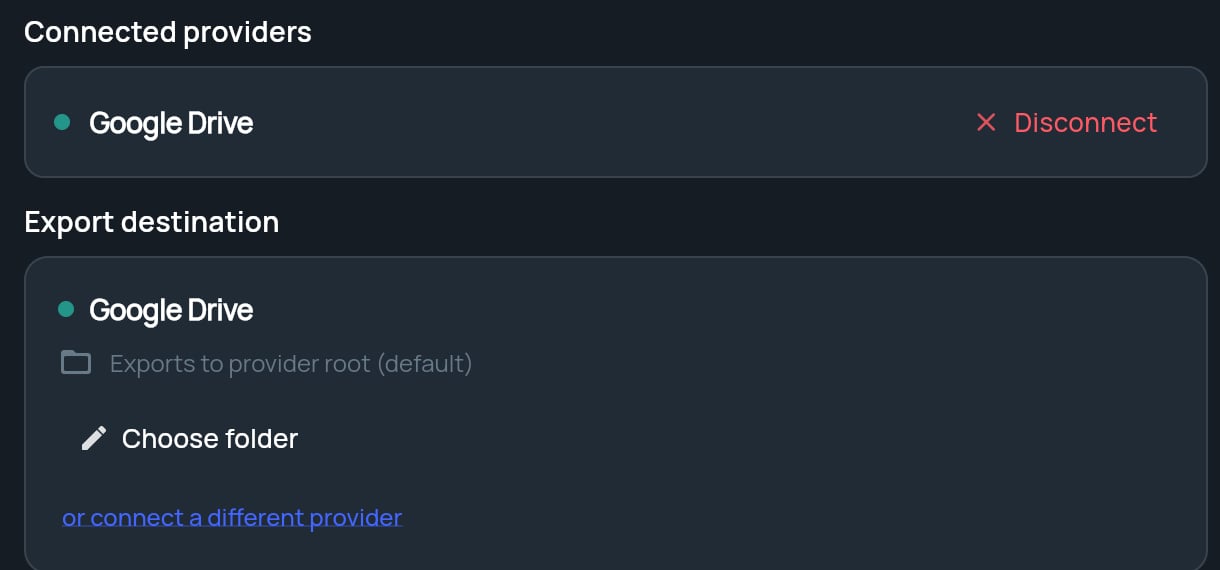
Open **Settings** from the side menu. The connections area has three parts:
| Part | What it shows |
| - | - |
| **Connected providers** | Every connection you can see: your own, plus any synced folders in your workspace. Appears once something is connected. |
| **Sync a cloud folder** | Folders kept in sync with your private documents. See [Sync a cloud folder](/docs/account/folder-sync). |
| **Export destination** | Where your exports are saved. |
 ## Connect an export destination
Under **Export destination**, click **Connect export destination**. A window opens listing the storage providers you can connect.
Choose your provider and sign in to it in that window. Grant StratEngine the access it asks for.
The window closes and you see **Export destination connected successfully**. The **Export destination** tile now shows the provider and **Exports to provider root (default)**.
If nothing opens, your browser blocked the window and you'll see **Connection cancelled or popup blocked**. Allow pop-ups for StratEngine and try again. See [Troubleshooting](/docs/account/troubleshooting#a-new-tab-or-window-doesnt-open).
You don't have to set this up in advance. If you click **Export to Docs** without an export destination, StratEngine opens the same provider window first.
### What gets exported where
| Export | Google Drive | Dropbox, OneDrive or Box |
| - | - | - |
| Strategy brief, research report or proposal (**Export to Docs**) | A Google Doc in `StratEngine/Strategy Briefs/` | A Word file (DOCX) in `StratEngine/Strategy Briefs/` |
| VC memo and research report (**Export to Destination**) | Saved under `StratEngine/Pitch Analyses/` | Saved under `StratEngine/Pitch Analyses/` |
StratEngine creates these folders the first time you export. Both go inside the export folder you choose below, if you set one, or at the top level of your storage otherwise. See [Export a document](/docs/strategy/export-documents) and [Export memos](/docs/vc/export-memos).
## Choose an export folder
By default, exports go to the top level of your storage. To put them in a different folder (StratEngine creates its `StratEngine/` folders inside it):
On the **Export destination** tile, click **Choose folder** (or **Change folder** if one is already set).
Open the folder in your storage provider in another tab and copy the URL from the address bar. Paste it into the field.
| Provider | Where to copy the URL |
| - | - |
| Google Drive | The folder open in Google Drive (`https://drive.google.com/drive/folders/...`) |
| Dropbox | The folder open on dropbox.com |
| OneDrive (Personal) | The folder open in OneDrive |
| OneDrive (Business) | The folder open in OneDrive or SharePoint |
The tile now shows **Exports to:** and the folder path.
To go back to the default, click **Reset to root**.
Choosing an export folder works with Google Drive, Dropbox and OneDrive. With Box, exports go to the top level of your storage.
### Switch to a different provider
While no export folder is set, the tile shows **or connect a different provider**. Click it to connect another provider as your export destination. Once you've chosen an export folder, the link is hidden; click **Reset to root** first if you want to switch.
## Disconnect a provider
Under **Connected providers**, find the row for the provider.
Click **Disconnect**. The row asks **Disconnect?**. Click **Confirm** within a few seconds, or **Cancel** to keep it.
Only workspace admins see **Disconnect**, and they can disconnect any connection in the workspace, including synced folders. If you aren't an admin and need a connection removed, ask an admin.
Disconnecting your export destination means **Export to Docs** and memo exports have nowhere to go until you connect one again. Files already exported stay in your storage.
## Connection status
Each row under **Connected providers** has a dot: green means the connection is working, red means it needs attention. If a connection shows red, an admin can disconnect it so it can be connected again.
## Related
* [Sync a cloud folder](/docs/account/folder-sync)
* [Export a document, print, or save as PDF](/docs/strategy/export-documents)
* [Export memos](/docs/vc/export-memos)
* [Troubleshooting](/docs/account/troubleshooting#exports)
## Related topics
- [Sync a cloud folder](/docs/account/folder-sync.md)
- [Troubleshooting](/docs/account/troubleshooting.md)
- [Export memos](/docs/vc/export-memos.md)
- [FAQ](/docs/account/faq.md)
- [Auto-ingest decks from a folder or email](/docs/vc/folder-watch.md)
This documentation is built and hosted on [Mintlify](https://mintlify.com), a developer documentation platform.
## Connect an export destination
Under **Export destination**, click **Connect export destination**. A window opens listing the storage providers you can connect.
Choose your provider and sign in to it in that window. Grant StratEngine the access it asks for.
The window closes and you see **Export destination connected successfully**. The **Export destination** tile now shows the provider and **Exports to provider root (default)**.
If nothing opens, your browser blocked the window and you'll see **Connection cancelled or popup blocked**. Allow pop-ups for StratEngine and try again. See [Troubleshooting](/docs/account/troubleshooting#a-new-tab-or-window-doesnt-open).
You don't have to set this up in advance. If you click **Export to Docs** without an export destination, StratEngine opens the same provider window first.
### What gets exported where
| Export | Google Drive | Dropbox, OneDrive or Box |
| - | - | - |
| Strategy brief, research report or proposal (**Export to Docs**) | A Google Doc in `StratEngine/Strategy Briefs/` | A Word file (DOCX) in `StratEngine/Strategy Briefs/` |
| VC memo and research report (**Export to Destination**) | Saved under `StratEngine/Pitch Analyses/` | Saved under `StratEngine/Pitch Analyses/` |
StratEngine creates these folders the first time you export. Both go inside the export folder you choose below, if you set one, or at the top level of your storage otherwise. See [Export a document](/docs/strategy/export-documents) and [Export memos](/docs/vc/export-memos).
## Choose an export folder
By default, exports go to the top level of your storage. To put them in a different folder (StratEngine creates its `StratEngine/` folders inside it):
On the **Export destination** tile, click **Choose folder** (or **Change folder** if one is already set).
Open the folder in your storage provider in another tab and copy the URL from the address bar. Paste it into the field.
| Provider | Where to copy the URL |
| - | - |
| Google Drive | The folder open in Google Drive (`https://drive.google.com/drive/folders/...`) |
| Dropbox | The folder open on dropbox.com |
| OneDrive (Personal) | The folder open in OneDrive |
| OneDrive (Business) | The folder open in OneDrive or SharePoint |
The tile now shows **Exports to:** and the folder path.
To go back to the default, click **Reset to root**.
Choosing an export folder works with Google Drive, Dropbox and OneDrive. With Box, exports go to the top level of your storage.
### Switch to a different provider
While no export folder is set, the tile shows **or connect a different provider**. Click it to connect another provider as your export destination. Once you've chosen an export folder, the link is hidden; click **Reset to root** first if you want to switch.
## Disconnect a provider
Under **Connected providers**, find the row for the provider.
Click **Disconnect**. The row asks **Disconnect?**. Click **Confirm** within a few seconds, or **Cancel** to keep it.
Only workspace admins see **Disconnect**, and they can disconnect any connection in the workspace, including synced folders. If you aren't an admin and need a connection removed, ask an admin.
Disconnecting your export destination means **Export to Docs** and memo exports have nowhere to go until you connect one again. Files already exported stay in your storage.
## Connection status
Each row under **Connected providers** has a dot: green means the connection is working, red means it needs attention. If a connection shows red, an admin can disconnect it so it can be connected again.
## Related
* [Sync a cloud folder](/docs/account/folder-sync)
* [Export a document, print, or save as PDF](/docs/strategy/export-documents)
* [Export memos](/docs/vc/export-memos)
* [Troubleshooting](/docs/account/troubleshooting#exports)
## Related topics
- [Sync a cloud folder](/docs/account/folder-sync.md)
- [Troubleshooting](/docs/account/troubleshooting.md)
- [Export memos](/docs/vc/export-memos.md)
- [FAQ](/docs/account/faq.md)
- [Auto-ingest decks from a folder or email](/docs/vc/folder-watch.md)
This documentation is built and hosted on [Mintlify](https://mintlify.com), a developer documentation platform.