> ## Documentation Index
> Fetch the complete documentation index at: https://stratengineai.com/docs/llms.txt
> Use this file to discover all available pages before exploring further.
# Sync a cloud folder
> Admins can keep a Google Drive, Dropbox or OneDrive folder synced into your workspace's private documents, checked about every 2 hours.
A synced folder keeps a Google Drive, Dropbox or OneDrive folder in step with your workspace's private documents. Everything in the folder, including subfolders, is added, and new, changed and deleted files are picked up about every 2 hours, or right away when you click **Sync now**.
Only workspace admins can set up, change or remove a synced folder. Members see **Ask a workspace admin to set up a synced folder.** The synced files are visible to everyone in the workspace, the same as uploaded [private documents](/docs/strategy/private-documents).
If you only have a few files, uploading them as private documents is simpler. A synced folder suits a folder your team keeps adding to.
## Set up a synced folder
Click **Settings** in the side menu and scroll to **Sync a cloud folder**.
A window opens listing storage providers. Choose one and sign in. When it's done you'll see **Import source connected successfully**, and a **Sync a folder from** tile appears for that provider.
Open the folder in your storage provider in another tab, copy the URL from the address bar, and paste it into the tile's field. For OneDrive (Business), the folder can be in OneDrive or SharePoint.
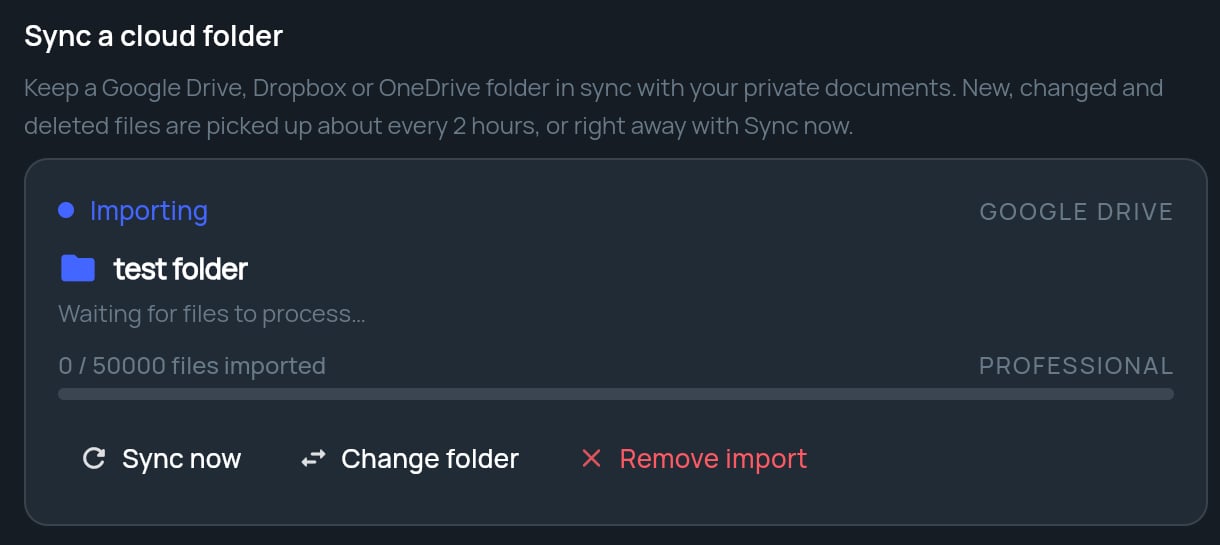
The tile switches to **Importing**, shows the folder name, and starts counting files.
 On Google Drive, make sure you tick the box that lets StratEngine see your Drive files when Google asks. If you skip it, the tile shows **Google Drive read access wasn't granted.** Click **Reconnect Google Drive →** and tick the box this time.
## Read the sync tile
| You see | Meaning |
| - | - |
| **Importing** | The folder is syncing normally. |
| **Paused** | Syncing has stopped, usually because you hit your plan's file limit. |
| **Waiting for files to process…** | StratEngine has the folder but hasn't processed any files yet. |
| **N completed · N pending · N failed** | Progress for the files found so far. |
| **N / N files imported** | How many files your workspace holds out of your plan's limit. |
### Supported files
PDF, PowerPoint (`.pptx`), Word (`.docx`), Excel (`.xlsx`), Markdown and plain text files sync. Google Docs, Slides and Sheets sync too. Other file types are skipped.
## Sync, change or remove
* **Sync now** checks the folder immediately instead of waiting. A message confirms the sync has started.
* **Change folder** stops syncing the current folder so you can paste a different URL.
* **Remove import** stops syncing that folder.
## File limits by plan
The file limit counts every private document in your workspace, both synced and uploaded. The bar on the tile shows your actual count and limit.
| Plan | Files |
| - | - |
| Free (Strategy or VC) | 500 |
| Pay-as-you-go | 5,000 |
| Essential | 10,000 |
| Professional | 50,000 |
| Solo | 5,000 |
| Team | 25,000 |
| Network | 75,000 |
| Scale | 250,000 |
At 80% of your limit the tile warns that you're approaching it. At the limit, syncing pauses and the tile says the file limit has been reached. Delete files or upgrade, then click **Sync now** to resume. Plans are on the [Strategy pricing](https://stratengineai.com/#pricing) and [VC pricing](https://stratengineai.com/investor#pricing) pages.
## If a sync fails
| Message | What to do |
| - | - |
| **Couldn't reach the storage provider. Try again in a moment.** | The provider didn't respond. Wait and click **Sync now** again. |
| **Please sign in again to refresh this connection.** | Sign out of StratEngine and back in, then try again. |
| **Sync failed. Please try again.** | Try again. If it keeps failing, [contact support](/docs/account/contact). |
## Related
* [Connect cloud storage](/docs/account/connections)
* [Private documents (Strategy)](/docs/strategy/private-documents)
* [Private documents (VC)](/docs/vc/private-documents)
* [Auto-ingest decks from a folder or email](/docs/vc/folder-watch)
## Related topics
- [Connect cloud storage](/docs/account/connections.md)
- [Finding your way around](/docs/vc/navigation.md)
- [Private documents](/docs/strategy/private-documents.md)
This documentation is built and hosted on [Mintlify](https://mintlify.com), a developer documentation platform.
On Google Drive, make sure you tick the box that lets StratEngine see your Drive files when Google asks. If you skip it, the tile shows **Google Drive read access wasn't granted.** Click **Reconnect Google Drive →** and tick the box this time.
## Read the sync tile
| You see | Meaning |
| - | - |
| **Importing** | The folder is syncing normally. |
| **Paused** | Syncing has stopped, usually because you hit your plan's file limit. |
| **Waiting for files to process…** | StratEngine has the folder but hasn't processed any files yet. |
| **N completed · N pending · N failed** | Progress for the files found so far. |
| **N / N files imported** | How many files your workspace holds out of your plan's limit. |
### Supported files
PDF, PowerPoint (`.pptx`), Word (`.docx`), Excel (`.xlsx`), Markdown and plain text files sync. Google Docs, Slides and Sheets sync too. Other file types are skipped.
## Sync, change or remove
* **Sync now** checks the folder immediately instead of waiting. A message confirms the sync has started.
* **Change folder** stops syncing the current folder so you can paste a different URL.
* **Remove import** stops syncing that folder.
## File limits by plan
The file limit counts every private document in your workspace, both synced and uploaded. The bar on the tile shows your actual count and limit.
| Plan | Files |
| - | - |
| Free (Strategy or VC) | 500 |
| Pay-as-you-go | 5,000 |
| Essential | 10,000 |
| Professional | 50,000 |
| Solo | 5,000 |
| Team | 25,000 |
| Network | 75,000 |
| Scale | 250,000 |
At 80% of your limit the tile warns that you're approaching it. At the limit, syncing pauses and the tile says the file limit has been reached. Delete files or upgrade, then click **Sync now** to resume. Plans are on the [Strategy pricing](https://stratengineai.com/#pricing) and [VC pricing](https://stratengineai.com/investor#pricing) pages.
## If a sync fails
| Message | What to do |
| - | - |
| **Couldn't reach the storage provider. Try again in a moment.** | The provider didn't respond. Wait and click **Sync now** again. |
| **Please sign in again to refresh this connection.** | Sign out of StratEngine and back in, then try again. |
| **Sync failed. Please try again.** | Try again. If it keeps failing, [contact support](/docs/account/contact). |
## Related
* [Connect cloud storage](/docs/account/connections)
* [Private documents (Strategy)](/docs/strategy/private-documents)
* [Private documents (VC)](/docs/vc/private-documents)
* [Auto-ingest decks from a folder or email](/docs/vc/folder-watch)
## Related topics
- [Connect cloud storage](/docs/account/connections.md)
- [Finding your way around](/docs/vc/navigation.md)
- [Private documents](/docs/strategy/private-documents.md)
This documentation is built and hosted on [Mintlify](https://mintlify.com), a developer documentation platform.