> ## Documentation Index
> Fetch the complete documentation index at: https://stratengineai.com/docs/llms.txt
> Use this file to discover all available pages before exploring further.
# Sign in
> Sign in to StratEngine with an emailed magic link: pass the security check, enter your email, then click the link in your inbox.
You sign in with a magic link; there's no password to set. Enter your email on the sign-in page, click **Log In**, then click the link StratEngine emails you. The same steps create your account the first time you sign in.
StratEngine works on desktop browsers only. On a phone or tablet, the sign-in page offers to email you a link so you can sign in later from a computer. See [Signing in from a phone or tablet](#signing-in-from-a-phone-or-tablet).
## Sign in with a magic link
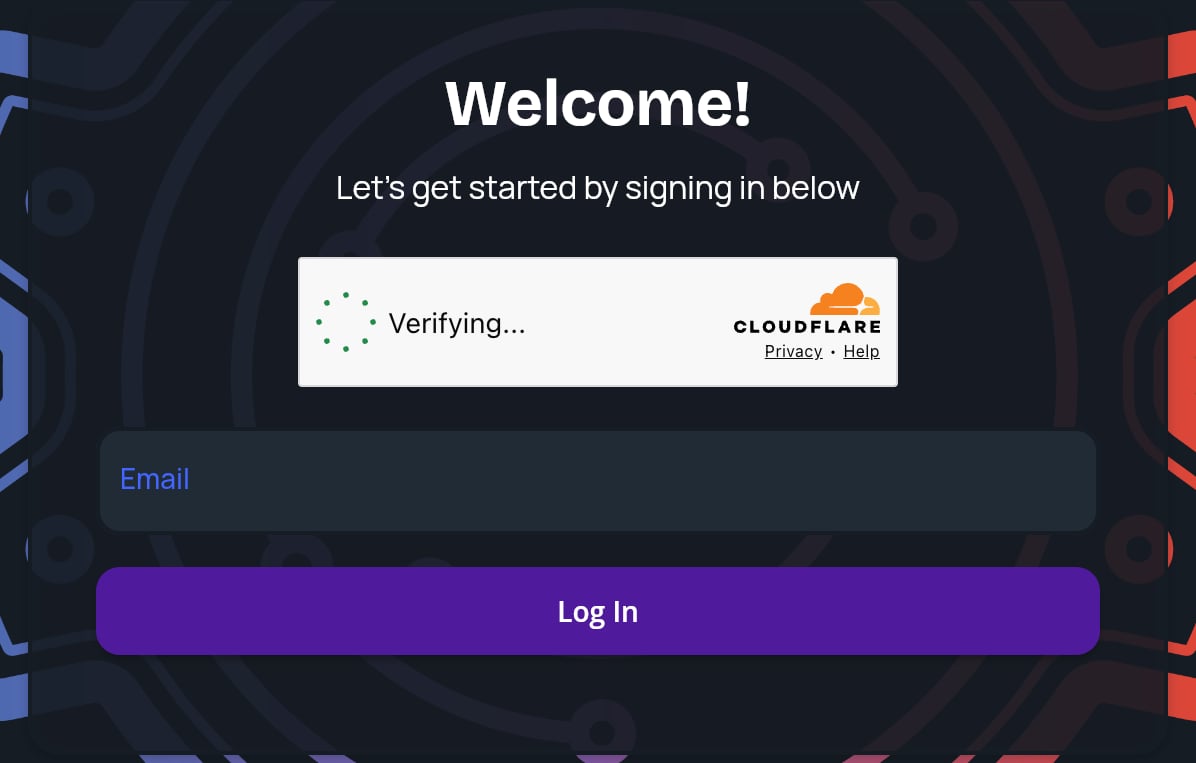 Go to [app.stratengineai.com](https://app.stratengineai.com) on a desktop browser. The sign-in card says **Welcome!** and **Let's get started by signing in below**.
A security check box sits above the email field. It usually completes on its own. If it asks you to tick a box, tick it.
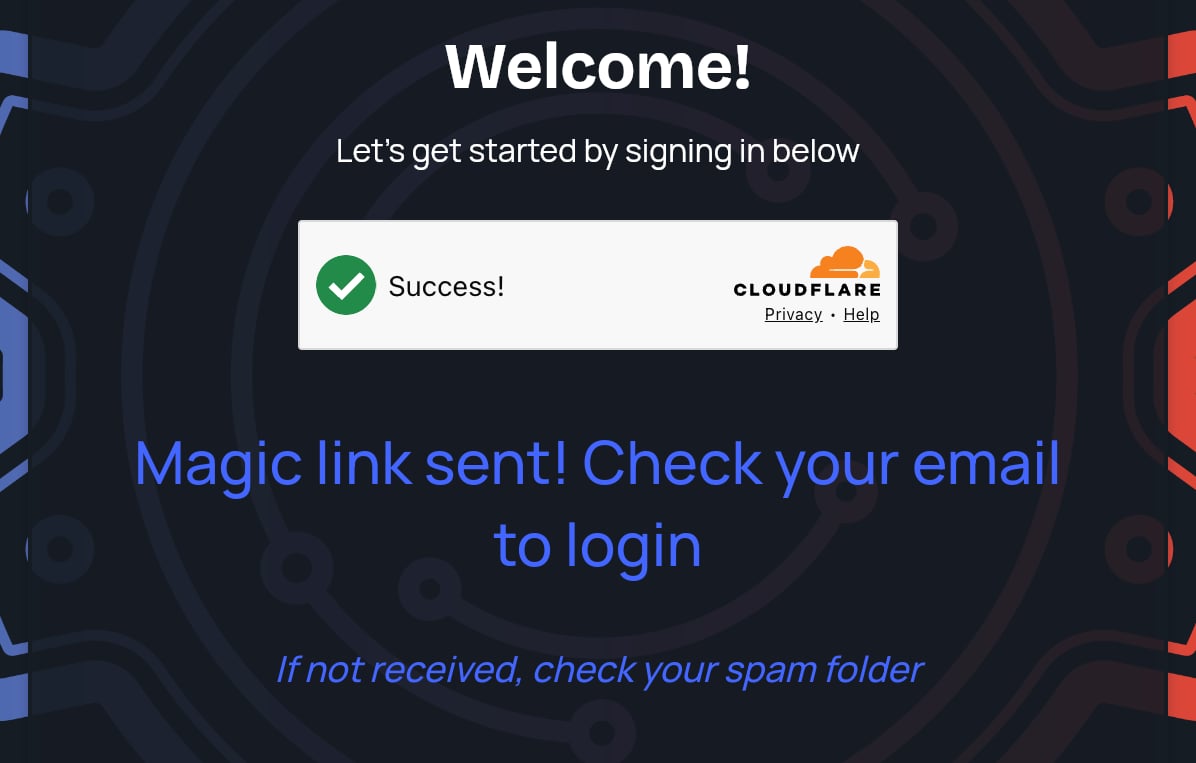
Type your email in **Email** and click **Log In**. The card changes to **Magic link sent! Check your email to login**. If the link couldn't be sent, the card stays as it was and you'll see **We couldn't send your magic link. Please try again. If this continues to happen, please email [help@stratengineai.com](mailto:help@stratengineai.com)**.
Open the email from StratEngine and click the link. StratEngine opens in your browser and takes you to Home, or to onboarding if this is your first time.
Go to [app.stratengineai.com](https://app.stratengineai.com) on a desktop browser. The sign-in card says **Welcome!** and **Let's get started by signing in below**.
A security check box sits above the email field. It usually completes on its own. If it asks you to tick a box, tick it.
Type your email in **Email** and click **Log In**. The card changes to **Magic link sent! Check your email to login**. If the link couldn't be sent, the card stays as it was and you'll see **We couldn't send your magic link. Please try again. If this continues to happen, please email [help@stratengineai.com](mailto:help@stratengineai.com)**.
Open the email from StratEngine and click the link. StratEngine opens in your browser and takes you to Home, or to onboarding if this is your first time.
 ## If the email doesn't arrive
The confirmation screen reminds you: **If not received, check your spam folder**. Look in spam, junk and any promotions tab. If it still isn't there after a few minutes, reload the sign-in page and request a new link, and check the email address for typos.
If you see **Security check failed. Please refresh the page. If this continues to happen, please email [help@stratengineai.com](mailto:help@stratengineai.com)**, the security check didn't finish before you clicked **Log In**. Reload the page, wait for the check to complete, then try again.
More fixes are in [Troubleshooting](/docs/account/troubleshooting#sign-in).
## Which workspace you land in
Your email address decides your workspace the first time you sign in:
* **A work email** (for example `you@yourfirm.com`): if someone from your company already uses StratEngine, you join their workspace as a member. Otherwise StratEngine creates a workspace for your company and makes you its admin.
* **A personal email** (for example Gmail, Outlook.com or iCloud): you get a workspace of your own. Personal workspaces can't add other members.
If a teammate added you before you signed up, the invite email's link puts you in their workspace. See [Team members and roles](/docs/account/team).
## Signing in from a phone or tablet
On a phone or tablet the sign-in page shows **This application is only available on desktop. Enter your email below to get a link sent to your inbox.** Enter your email and click **Send**. When you see **Email sent!**, you're done on that device. Sign in from a computer using the steps above.
## Signing out
To sign out, go to **Settings** and click **Log Out** in the **Danger Zone** section. To sign out everywhere at once, use **Terminate All Sessions**. See [Log out, cancel, or delete your account](/docs/account/delete-account).
## Related
* [Troubleshooting](/docs/account/troubleshooting)
* [Team members and roles](/docs/account/team)
* [Strategy quickstart](/docs/strategy/quickstart)
* [VC quickstart](/docs/vc/quickstart)
## Related topics
- [Log out, cancel, or delete your account](/docs/account/delete-account.md)
- [StratEngine documentation](/docs/index.md)
- [Troubleshooting](/docs/account/troubleshooting.md)
- [Onboarding](/docs/vc/onboarding.md)
- [Sync a cloud folder](/docs/account/folder-sync.md)
This documentation is built and hosted on [Mintlify](https://mintlify.com), a developer documentation platform.
## If the email doesn't arrive
The confirmation screen reminds you: **If not received, check your spam folder**. Look in spam, junk and any promotions tab. If it still isn't there after a few minutes, reload the sign-in page and request a new link, and check the email address for typos.
If you see **Security check failed. Please refresh the page. If this continues to happen, please email [help@stratengineai.com](mailto:help@stratengineai.com)**, the security check didn't finish before you clicked **Log In**. Reload the page, wait for the check to complete, then try again.
More fixes are in [Troubleshooting](/docs/account/troubleshooting#sign-in).
## Which workspace you land in
Your email address decides your workspace the first time you sign in:
* **A work email** (for example `you@yourfirm.com`): if someone from your company already uses StratEngine, you join their workspace as a member. Otherwise StratEngine creates a workspace for your company and makes you its admin.
* **A personal email** (for example Gmail, Outlook.com or iCloud): you get a workspace of your own. Personal workspaces can't add other members.
If a teammate added you before you signed up, the invite email's link puts you in their workspace. See [Team members and roles](/docs/account/team).
## Signing in from a phone or tablet
On a phone or tablet the sign-in page shows **This application is only available on desktop. Enter your email below to get a link sent to your inbox.** Enter your email and click **Send**. When you see **Email sent!**, you're done on that device. Sign in from a computer using the steps above.
## Signing out
To sign out, go to **Settings** and click **Log Out** in the **Danger Zone** section. To sign out everywhere at once, use **Terminate All Sessions**. See [Log out, cancel, or delete your account](/docs/account/delete-account).
## Related
* [Troubleshooting](/docs/account/troubleshooting)
* [Team members and roles](/docs/account/team)
* [Strategy quickstart](/docs/strategy/quickstart)
* [VC quickstart](/docs/vc/quickstart)
## Related topics
- [Log out, cancel, or delete your account](/docs/account/delete-account.md)
- [StratEngine documentation](/docs/index.md)
- [Troubleshooting](/docs/account/troubleshooting.md)
- [Onboarding](/docs/vc/onboarding.md)
- [Sync a cloud folder](/docs/account/folder-sync.md)
This documentation is built and hosted on [Mintlify](https://mintlify.com), a developer documentation platform.