> ## Documentation Index
> Fetch the complete documentation index at: https://stratengineai.com/docs/llms.txt
> Use this file to discover all available pages before exploring further.
# Pay-as-you-go
> Pay per analysis from a prepaid balance: free analyses, adding funds, auto-refill, usage history, low-balance prompts and switching to a subscription.
On pay-as-you-go, you pay for each analysis from a prepaid balance instead of a monthly plan. New accounts start with a free analysis. After that, each run costs a set price that depends on the framework and the depth you pick, taken from the balance you add in **Settings**. You can turn on auto-refill so the balance tops itself up.
Pay-as-you-go applies to the Strategy side only. Per-run prices are on [stratengineai.com/#pricing](https://stratengineai.com/#pricing), and inside the app on each depth option and on the run button. Adding funds and auto-refill are admin-only. Members see the balance and usage history, and **Ask your admin to add funds.** where the add-funds buttons would be.
## What pay-as-you-go includes
* **Every framework**, all 29.
* **Every depth** (**Quick Scan**, **Standard** and **Deep**), each priced separately. See [Analysis depth](/docs/strategy/analysis-depth).
* **Momentum** and **Assumptions** tabs on results, when the run was deep enough: Standard or Deep for momentum, Deep for assumptions.
* **Not included:** the [Proposal Builder](/docs/strategy/proposals), which needs the Professional plan.
Nothing is charged until you start a run. In Strategy Builder that's **Run Analysis**; on [Generate a framework](/docs/strategy/generate-framework) it's **Generate Framework**.
**Generate Strategy Brief** on a framework's results page is charged like any run, at the depth the framework ran at. Before it starts, a **Regenerate strategy brief** window shows the price and your balance. Click **Regenerate for** the price to go ahead, or **Cancel**. If a free analysis covers it, there's no window. If your balance is too low, the add-funds window opens instead. See [Work with framework results](/docs/strategy/framework-results#turn-the-framework-into-a-strategy-brief).
## Free analyses
Your free analysis can be any framework at any depth. While you have one:
* The balance chip in the header shows it, for example **1 free analysis**.
* **Settings** shows **1 free analysis remaining** under your balance.
* The run button in Strategy Builder reads **Run Analysis (Free)**.
Free analyses are used before your balance. In **Usage history**, a free run shows **Free** instead of a price.
## Check your balance
Your balance appears in two places:
* **The header chip.** It shows free analyses while you have any, then your balance in whole dollars. Click it to open **Settings**. See [Finding your way around](/docs/strategy/navigation#pay-as-you-go-balance-chip).
* **Settings.** Under **Billing & Account Management**, the **Balance** section shows your exact balance.
## Add funds
Click **Settings** (or the balance chip) and scroll to **Billing & Account Management**. Under **Balance**, find **Add funds**.
Click one of the preset amounts, each labelled **Add** with its amount, or click **Custom**. For a custom amount, the **Custom amount** window shows the minimum and maximum. Type an amount and click **Continue**.
Checkout opens in a new browser tab. Complete the payment there.
When you return to the StratEngine tab, your balance refreshes on its own.
The same preset amounts and **Custom** appear wherever StratEngine tells you your balance is too low, so you can top up without leaving the page. If checkout can't open, you'll see **Unable to open checkout. Please try again.**
Your first payment saves your card, which auto-refill needs. Until then, Settings shows **Add funds once and we'll securely save your card for auto-refill.**
 ## Auto-refill
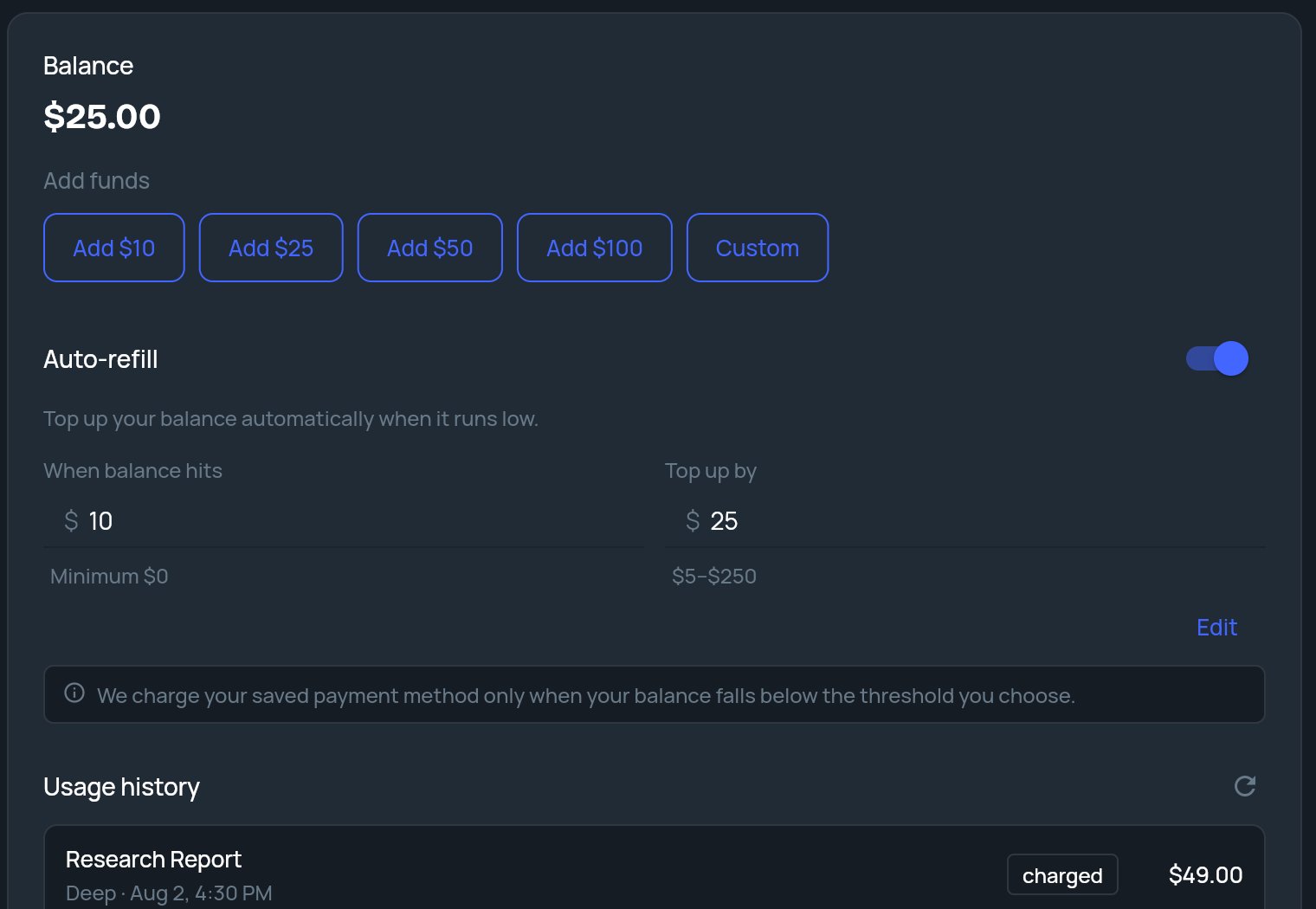
Auto-refill tops up your balance when it falls below an amount you choose. It's off until you turn it on. As Settings puts it: **We charge your saved payment method only when your balance falls below the threshold you choose.**
### Turn on auto-refill
In **Settings**, under **Auto-refill**, turn on the switch.
In **When balance hits**, enter the balance that triggers a refill. In **Top up by**, enter how much to add each time. Each field shows its allowed range underneath.
Tick the box that starts **I authorize StratEngine to automatically charge my saved payment method**. **Save** stays greyed out until you do.
You'll see **Auto-refill configured.** The fields lock and the button changes to **Edit**.
If a field isn't a valid number, you'll see **Enter a valid threshold** or **Enter a valid top-up amount**.
### Change or turn off auto-refill
* **To change the amounts,** click **Edit**, update the fields, tick the authorization box again and click **Save**.
* **To turn it off,** turn off the switch and click **Disable**. You'll see **Auto-refill disabled.**
If you see **Auto-refill is not active yet. Review the amounts and authorize automatic charges to turn it on.**, your amounts are saved but not authorized. Tick the box and save again.
## Usage history
**Usage history**, at the bottom of the billing section, lists your recent analyses. Each row shows:
* the framework name,
* the depth (**Quick Scan**, **Standard** or **Deep**) and the date and time,
* a status: **held** while the analysis runs, **charged** once it's billed, or **released** if the hold is dropped and nothing is charged,
* the price, or **Free** for a free analysis.
Click the refresh icon next to the heading to reload the list. Before your first run, it says **No analyses yet. Your usage history will appear here after you run your first analysis.**
## Auto-refill
Auto-refill tops up your balance when it falls below an amount you choose. It's off until you turn it on. As Settings puts it: **We charge your saved payment method only when your balance falls below the threshold you choose.**
### Turn on auto-refill
In **Settings**, under **Auto-refill**, turn on the switch.
In **When balance hits**, enter the balance that triggers a refill. In **Top up by**, enter how much to add each time. Each field shows its allowed range underneath.
Tick the box that starts **I authorize StratEngine to automatically charge my saved payment method**. **Save** stays greyed out until you do.
You'll see **Auto-refill configured.** The fields lock and the button changes to **Edit**.
If a field isn't a valid number, you'll see **Enter a valid threshold** or **Enter a valid top-up amount**.
### Change or turn off auto-refill
* **To change the amounts,** click **Edit**, update the fields, tick the authorization box again and click **Save**.
* **To turn it off,** turn off the switch and click **Disable**. You'll see **Auto-refill disabled.**
If you see **Auto-refill is not active yet. Review the amounts and authorize automatic charges to turn it on.**, your amounts are saved but not authorized. Tick the box and save again.
## Usage history
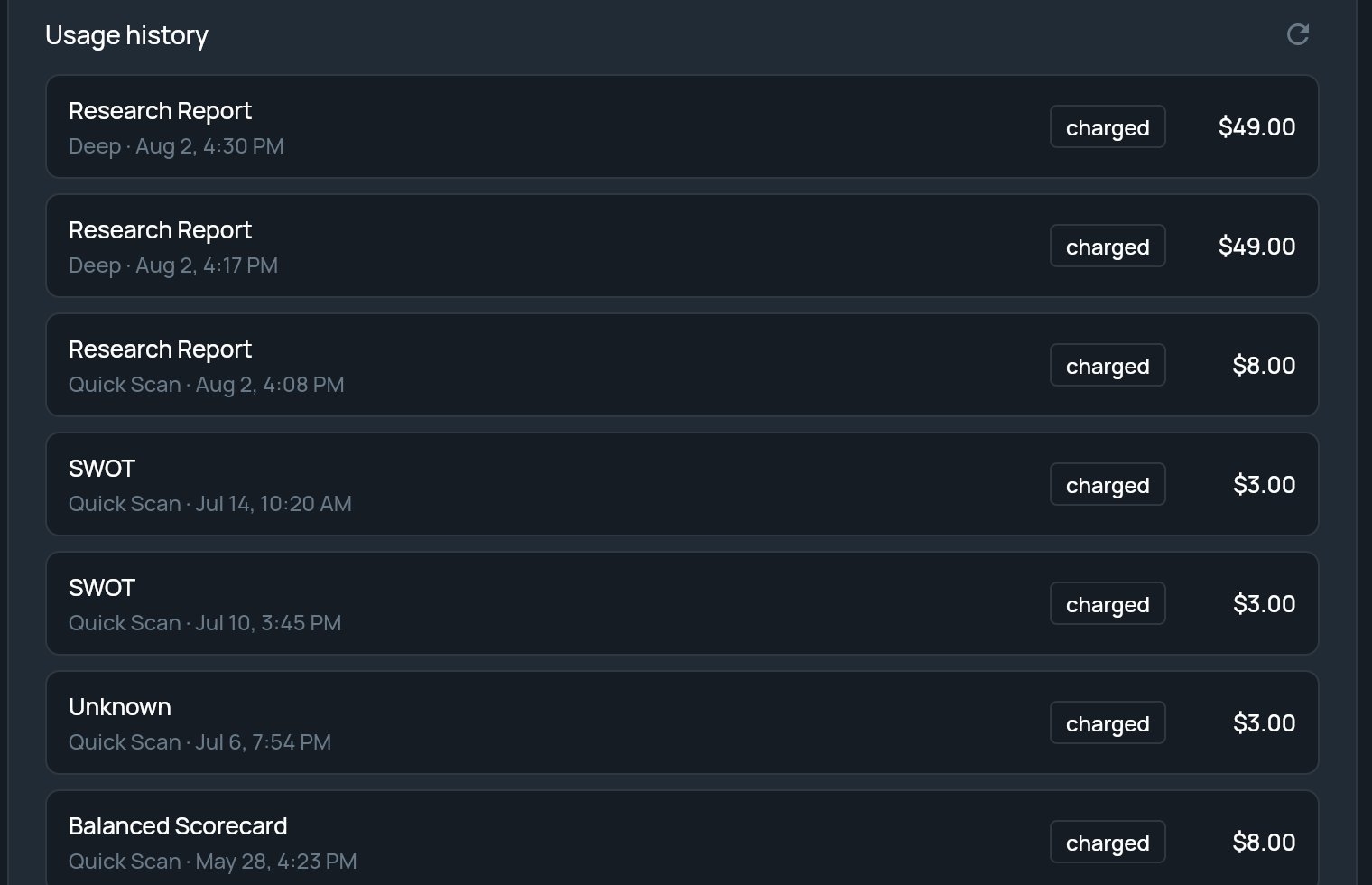
**Usage history**, at the bottom of the billing section, lists your recent analyses. Each row shows:
* the framework name,
* the depth (**Quick Scan**, **Standard** or **Deep**) and the date and time,
* a status: **held** while the analysis runs, **charged** once it's billed, or **released** if the hold is dropped and nothing is charged,
* the price, or **Free** for a free analysis.
Click the refresh icon next to the heading to reload the list. Before your first run, it says **No analyses yet. Your usage history will appear here after you run your first analysis.**
 ## When your balance is too low
StratEngine checks your balance before a run and tells you when it won't cover the depth you picked:
| Where | What you see |
| - | - |
| Strategy Builder, **REVIEW YOUR BRIEF** panel | How much more you need for the selected depth, add-funds amounts, and an **Insufficient balance** button. See [Review your brief and run the analysis](/docs/strategy/review-and-run#pay-as-you-go-balance). |
| Strategy Builder, start screen | Once your free analysis is used and your balance is empty: **Your free analysis has been used. Add funds to run another.** with an **Add funds** button. |
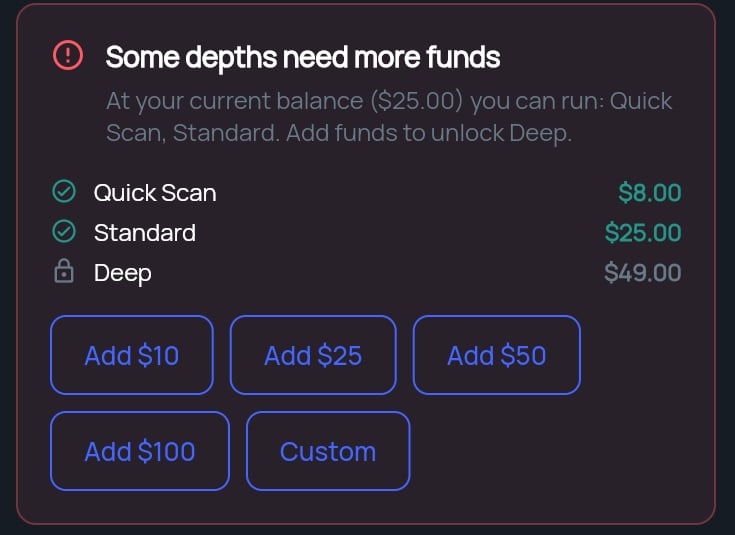
| Generate a framework, top of the page | When your balance can't cover a **Deep** run of the chosen framework: a banner that your balance is too low, or **Some depths need more funds**, with each depth's price and add-funds amounts. |
| Generate a framework, **Analysis depth** panel | **You need** an amount **more for this depth**, with add-funds amounts. |
You can either add funds or pick a cheaper depth. The banners don't appear while you still have a free analysis.
If a run is refused for lack of funds, an **Add funds to run** window opens, named for the framework. The window shows **Your balance**, how much more **You need**, and a button to add the smallest preset amount that covers it. Click **Not now** to close it, or **or upgrade to a subscription** to see subscription options instead. Members who aren't admins see **Not enough funds to run** and **Ask your admin to add funds.** in place of the add button.
## When your balance is too low
StratEngine checks your balance before a run and tells you when it won't cover the depth you picked:
| Where | What you see |
| - | - |
| Strategy Builder, **REVIEW YOUR BRIEF** panel | How much more you need for the selected depth, add-funds amounts, and an **Insufficient balance** button. See [Review your brief and run the analysis](/docs/strategy/review-and-run#pay-as-you-go-balance). |
| Strategy Builder, start screen | Once your free analysis is used and your balance is empty: **Your free analysis has been used. Add funds to run another.** with an **Add funds** button. |
| Generate a framework, top of the page | When your balance can't cover a **Deep** run of the chosen framework: a banner that your balance is too low, or **Some depths need more funds**, with each depth's price and add-funds amounts. |
| Generate a framework, **Analysis depth** panel | **You need** an amount **more for this depth**, with add-funds amounts. |
You can either add funds or pick a cheaper depth. The banners don't appear while you still have a free analysis.
If a run is refused for lack of funds, an **Add funds to run** window opens, named for the framework. The window shows **Your balance**, how much more **You need**, and a button to add the smallest preset amount that covers it. Click **Not now** to close it, or **or upgrade to a subscription** to see subscription options instead. Members who aren't admins see **Not enough funds to run** and **Ask your admin to add funds.** in place of the add button.
 ## Switch to a subscription
If you run analyses often, a subscription replaces per-run charges. In **Settings**, the **Upgrade to a subscription** card lets an admin pick Essential or Professional, monthly or annual, and start a 7-day free trial. See [Strategy plans](/docs/strategy/billing/plans#upgrade-from-pay-as-you-go).
## Related
* [Strategy plans](/docs/strategy/billing/plans)
* [Analysis depth](/docs/strategy/analysis-depth)
* [Review your brief and run the analysis](/docs/strategy/review-and-run)
* [Generate a framework](/docs/strategy/generate-framework)
## Related topics
- [Finding your way around](/docs/strategy/navigation.md)
- [Review your brief and run the analysis](/docs/strategy/review-and-run.md)
- [Strategy plans](/docs/strategy/billing/plans.md)
- [Run Digital Marketing GTM Strategy in StratEngine](/docs/strategy/frameworks/digital-gtm.md)
- [Run Product Lifecycle in StratEngine](/docs/strategy/frameworks/product-lifecycle.md)
This documentation is built and hosted on [Mintlify](https://mintlify.com), a developer documentation platform.
## Switch to a subscription
If you run analyses often, a subscription replaces per-run charges. In **Settings**, the **Upgrade to a subscription** card lets an admin pick Essential or Professional, monthly or annual, and start a 7-day free trial. See [Strategy plans](/docs/strategy/billing/plans#upgrade-from-pay-as-you-go).
## Related
* [Strategy plans](/docs/strategy/billing/plans)
* [Analysis depth](/docs/strategy/analysis-depth)
* [Review your brief and run the analysis](/docs/strategy/review-and-run)
* [Generate a framework](/docs/strategy/generate-framework)
## Related topics
- [Finding your way around](/docs/strategy/navigation.md)
- [Review your brief and run the analysis](/docs/strategy/review-and-run.md)
- [Strategy plans](/docs/strategy/billing/plans.md)
- [Run Digital Marketing GTM Strategy in StratEngine](/docs/strategy/frameworks/digital-gtm.md)
- [Run Product Lifecycle in StratEngine](/docs/strategy/frameworks/product-lifecycle.md)
This documentation is built and hosted on [Mintlify](https://mintlify.com), a developer documentation platform.