> ## Documentation Index
> Fetch the complete documentation index at: https://stratengineai.com/docs/llms.txt
> Use this file to discover all available pages before exploring further.
# Review a decision before it is computed
> Check the question, options, assumptions and thresholds of a decision in Strategy Builder, edit the figures you're allowed to, then confirm or decline.
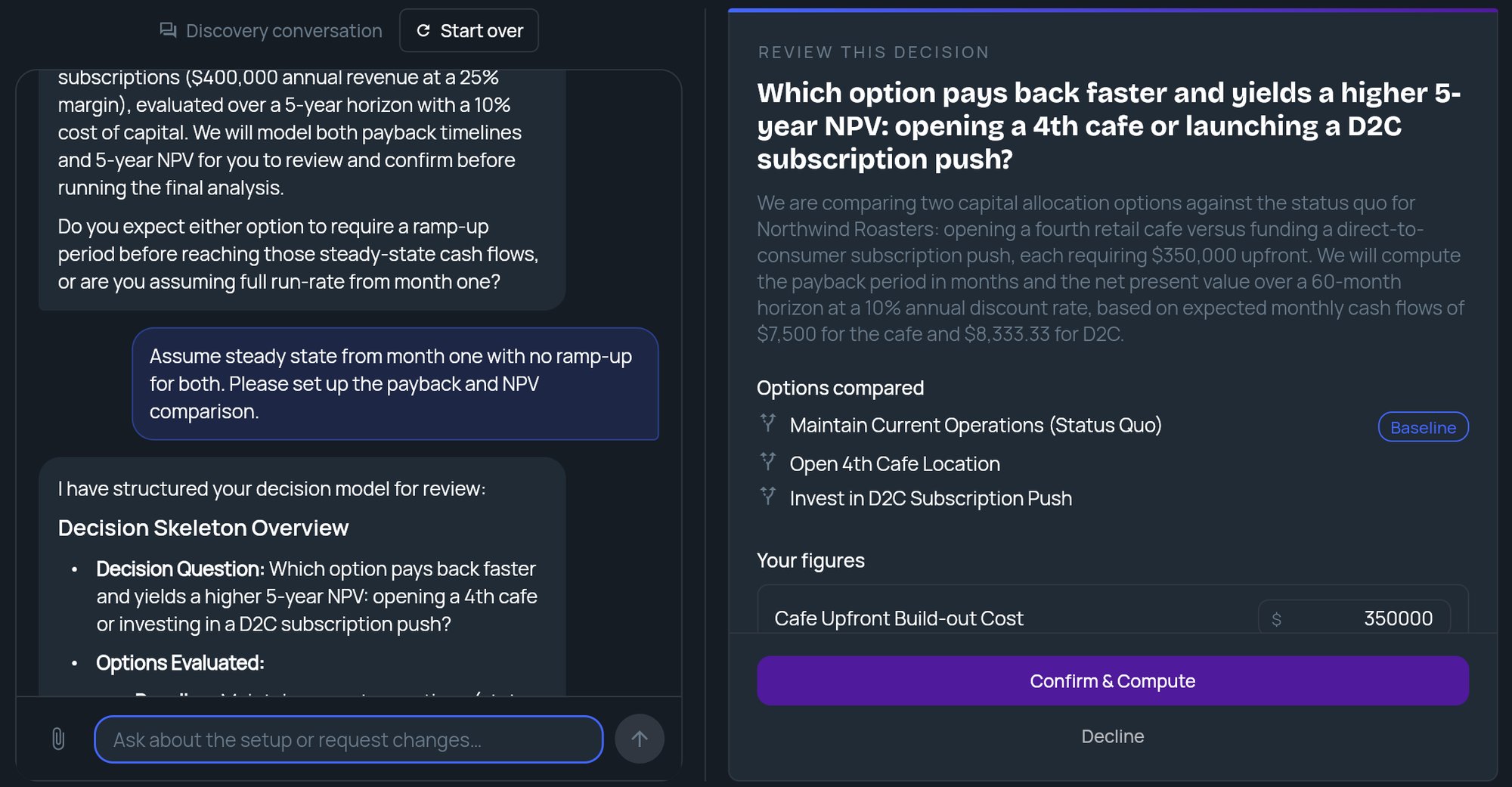
When your Strategy Builder conversation reaches a decision with numbers to work out, the strategist sets up the calculation in a **REVIEW THIS DECISION** panel. Examples include whether a hire pays back or how long your cash lasts. You check the inputs, correct any figure the panel lets you edit, and click **Confirm & Compute**. StratEngine only runs the numbers after you confirm, and records the results exactly as computed.
This is separate from **REVIEW YOUR BRIEF**, which launches a full strategy analysis. Reviewing a decision doesn't end the conversation: you keep talking to the strategist afterwards, and it walks you through the results.
 ## What the panel shows
From top to bottom:
| Section | What it is |
| - | - |
| The question | The decision being worked out, for example whether hiring a senior engineer pays back within three years. |
| Summary | A short paragraph from the strategist describing what will be calculated. |
| **Options compared** | The choices being weighed. The one marked **Baseline** is the "do nothing" or current-state option the others are compared against. |
| **Assumptions** | Figures the strategist assumed. Listed first, so you see the guesses before anything else. |
| **Researched estimates** | Figures the strategist estimated from research. |
| **Your figures** | Numbers you gave in the conversation. |
| **What will be computed** | Each calculation that will run, such as **Payback & NPV**, plus a **Sensitivity** line when one input will be varied across a range to show how the result changes. |
| **Thresholds** | Optional pass or fail criteria, for example "Only proceed if payback is under 24 months". |
Each figure shows its unit, such as a dollar sign, **/mo**, **%** or **months**. Some also show the range the strategist thinks is plausible.
The calculations available include break-even, payback and net present value (NPV), and cash runway or affordability.
## Edit figures and thresholds
Only figures shown in an input box can be edited. The strategist decides which ones those are. Everything else is shown as plain text and can't be changed in the panel.
* **Edit a figure:** type a plain number in its box. Commas are fine. Leave out currency symbols and units, since the box already shows them.
* **Add a threshold:** click **Add threshold** and type the rule in your own words.
* **Remove a threshold:** click the minus icon next to it.
If a box is empty or isn't a number, the panel tells you which figure to fix, for example that it **needs a plain number**, and doesn't compute until you do.
To change something you can't edit here, such as an option, a read-only figure or the calculation itself, tell the strategist in the chat. The message box reads **Ask about the setup or request changes…** while the panel is open. Chatting doesn't close the panel. If the strategist reworks the setup, the panel updates with the new version.
## Confirm or decline
Read the question, options and every figure, starting with **Assumptions**.
Edit any figure in an input box and add or remove thresholds.
Click **Confirm & Compute** to run the numbers with the figures shown.
Or click **Decline** if the setup is wrong. The panel closes and the strategist asks what to change, then can present a reworked version.
## Read the results
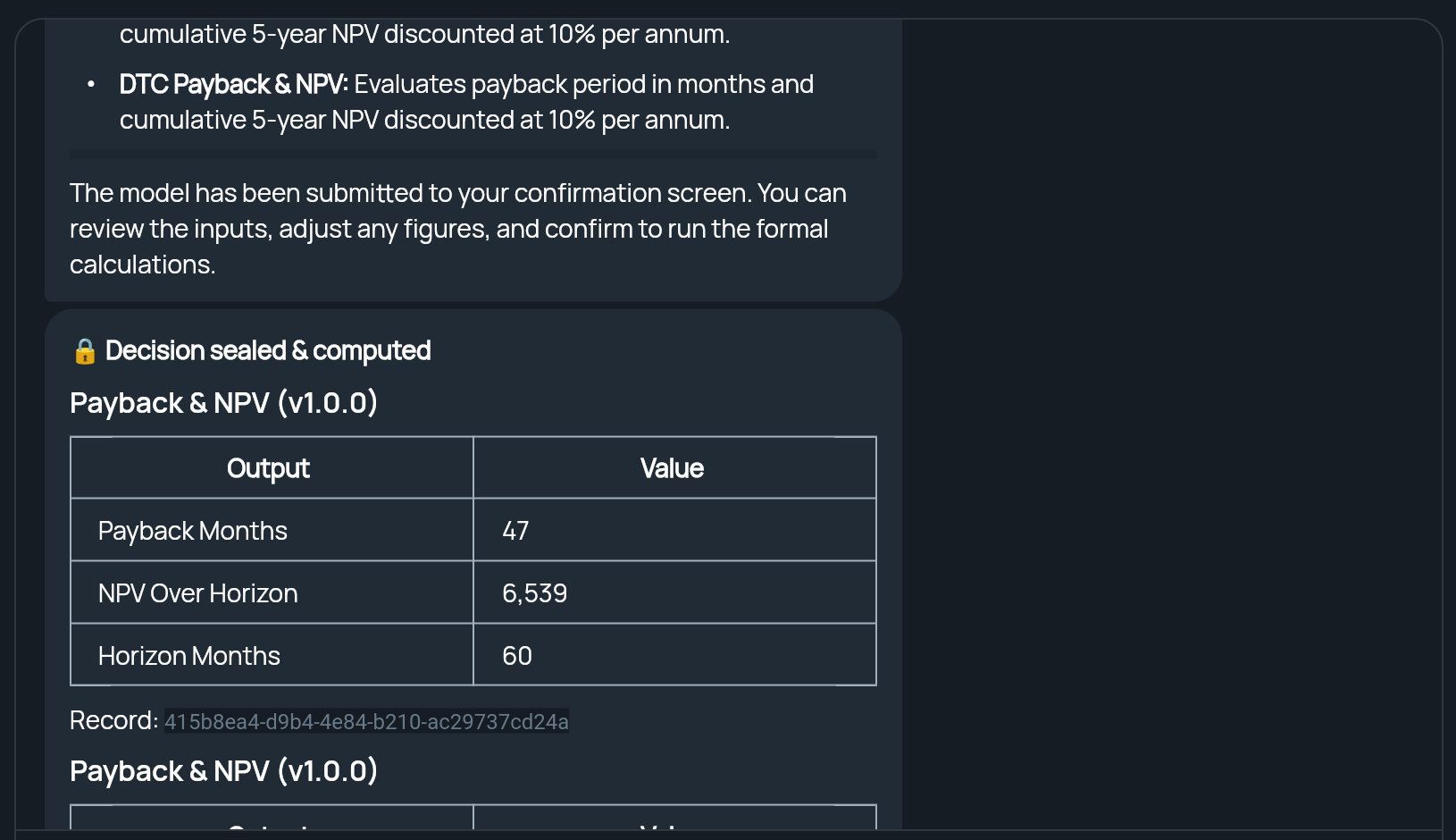
After you confirm, the panel closes and the results appear in the conversation under **Decision sealed & computed**:
* A table of outputs for each calculation, such as payback in months and NPV over the time horizon.
* A sensitivity table, when there is one, showing the outputs at each value of the varied input. A point that couldn't be calculated shows a warning in its row instead of numbers. That's expected and doesn't mean the whole result failed.
* A **Record** reference for each calculation.
Numbers in the tables are rounded for reading: money, counts and months to whole numbers, and percentages and ratios to two decimal places. The exact values are kept in the record.
"Sealed" means the results were calculated by StratEngine with fixed formulas after you confirmed, not written by the AI, and are stored as computed. Ask the strategist to walk you through them, compare the options, or check them against your thresholds.
## What the panel shows
From top to bottom:
| Section | What it is |
| - | - |
| The question | The decision being worked out, for example whether hiring a senior engineer pays back within three years. |
| Summary | A short paragraph from the strategist describing what will be calculated. |
| **Options compared** | The choices being weighed. The one marked **Baseline** is the "do nothing" or current-state option the others are compared against. |
| **Assumptions** | Figures the strategist assumed. Listed first, so you see the guesses before anything else. |
| **Researched estimates** | Figures the strategist estimated from research. |
| **Your figures** | Numbers you gave in the conversation. |
| **What will be computed** | Each calculation that will run, such as **Payback & NPV**, plus a **Sensitivity** line when one input will be varied across a range to show how the result changes. |
| **Thresholds** | Optional pass or fail criteria, for example "Only proceed if payback is under 24 months". |
Each figure shows its unit, such as a dollar sign, **/mo**, **%** or **months**. Some also show the range the strategist thinks is plausible.
The calculations available include break-even, payback and net present value (NPV), and cash runway or affordability.
## Edit figures and thresholds
Only figures shown in an input box can be edited. The strategist decides which ones those are. Everything else is shown as plain text and can't be changed in the panel.
* **Edit a figure:** type a plain number in its box. Commas are fine. Leave out currency symbols and units, since the box already shows them.
* **Add a threshold:** click **Add threshold** and type the rule in your own words.
* **Remove a threshold:** click the minus icon next to it.
If a box is empty or isn't a number, the panel tells you which figure to fix, for example that it **needs a plain number**, and doesn't compute until you do.
To change something you can't edit here, such as an option, a read-only figure or the calculation itself, tell the strategist in the chat. The message box reads **Ask about the setup or request changes…** while the panel is open. Chatting doesn't close the panel. If the strategist reworks the setup, the panel updates with the new version.
## Confirm or decline
Read the question, options and every figure, starting with **Assumptions**.
Edit any figure in an input box and add or remove thresholds.
Click **Confirm & Compute** to run the numbers with the figures shown.
Or click **Decline** if the setup is wrong. The panel closes and the strategist asks what to change, then can present a reworked version.
## Read the results
After you confirm, the panel closes and the results appear in the conversation under **Decision sealed & computed**:
* A table of outputs for each calculation, such as payback in months and NPV over the time horizon.
* A sensitivity table, when there is one, showing the outputs at each value of the varied input. A point that couldn't be calculated shows a warning in its row instead of numbers. That's expected and doesn't mean the whole result failed.
* A **Record** reference for each calculation.
Numbers in the tables are rounded for reading: money, counts and months to whole numbers, and percentages and ratios to two decimal places. The exact values are kept in the record.
"Sealed" means the results were calculated by StratEngine with fixed formulas after you confirmed, not written by the AI, and are stored as computed. Ask the strategist to walk you through them, compare the options, or check them against your thresholds.
 ## If the conversation has expired
Conversations don't last forever. If you confirm or decline after a conversation has expired, the panel closes and a message tells you the conversation expired. Click **Start over** to begin a new one. Your earlier messages aren't kept, so you'll need to describe the decision again.
## If a brief review arrives at the same time
Occasionally the strategist finishes your strategy brief in the same reply as a decision. **REVIEW YOUR BRIEF** shows first. If you send a chat message instead of running the analysis, the brief panel closes and the decision panel comes back.
## Related
* [Use the Strategy Builder](/docs/strategy/strategy-builder)
* [Review your brief and run the analysis](/docs/strategy/review-and-run)
* [Troubleshooting](/docs/account/troubleshooting)
## Related topics
- [Troubleshooting](/docs/account/troubleshooting.md)
- [Use the Strategy Builder](/docs/strategy/strategy-builder.md)
- [Generate a framework](/docs/strategy/generate-framework.md)
- [Pay-as-you-go](/docs/strategy/billing/pay-as-you-go.md)
- [Review your brief and run the analysis](/docs/strategy/review-and-run.md)
This documentation is built and hosted on [Mintlify](https://mintlify.com), a developer documentation platform.
## If the conversation has expired
Conversations don't last forever. If you confirm or decline after a conversation has expired, the panel closes and a message tells you the conversation expired. Click **Start over** to begin a new one. Your earlier messages aren't kept, so you'll need to describe the decision again.
## If a brief review arrives at the same time
Occasionally the strategist finishes your strategy brief in the same reply as a decision. **REVIEW YOUR BRIEF** shows first. If you send a chat message instead of running the analysis, the brief panel closes and the decision panel comes back.
## Related
* [Use the Strategy Builder](/docs/strategy/strategy-builder)
* [Review your brief and run the analysis](/docs/strategy/review-and-run)
* [Troubleshooting](/docs/account/troubleshooting)
## Related topics
- [Troubleshooting](/docs/account/troubleshooting.md)
- [Use the Strategy Builder](/docs/strategy/strategy-builder.md)
- [Generate a framework](/docs/strategy/generate-framework.md)
- [Pay-as-you-go](/docs/strategy/billing/pay-as-you-go.md)
- [Review your brief and run the analysis](/docs/strategy/review-and-run.md)
This documentation is built and hosted on [Mintlify](https://mintlify.com), a developer documentation platform.