> ## Documentation Index
> Fetch the complete documentation index at: https://stratengineai.com/docs/llms.txt
> Use this file to discover all available pages before exploring further.
# Brand kits
> Create a brand kit from your logo or brand guidelines in Settings, then apply its colors when you generate a deck or open a document in the browser.
A brand kit is a color palette StratEngine extracts from your logo, your brand guidelines, or both. Create one in **Settings** under **Brand kits**. When you generate a deck or click **View in Browser** on a document, you choose which kit to apply, or none.
Brand kits are personal. Other people in your workspace don't see your kits and need to create their own.
## Create a brand kit
Click **Settings** in the side menu and scroll to **Brand kits**.
A **New brand kit** form opens.
You need at least one of these:
* **Logo:** click **Choose logo** and pick a PNG, JPEG or WebP image of up to 2 MB.
* **Brand text:** paste your brand guidelines or a description of your brand into **Brand guidelines or description (optional)**. Up to 20,000 characters.
Type a name in the kit name field. If you leave it blank, StratEngine picks a name for you.
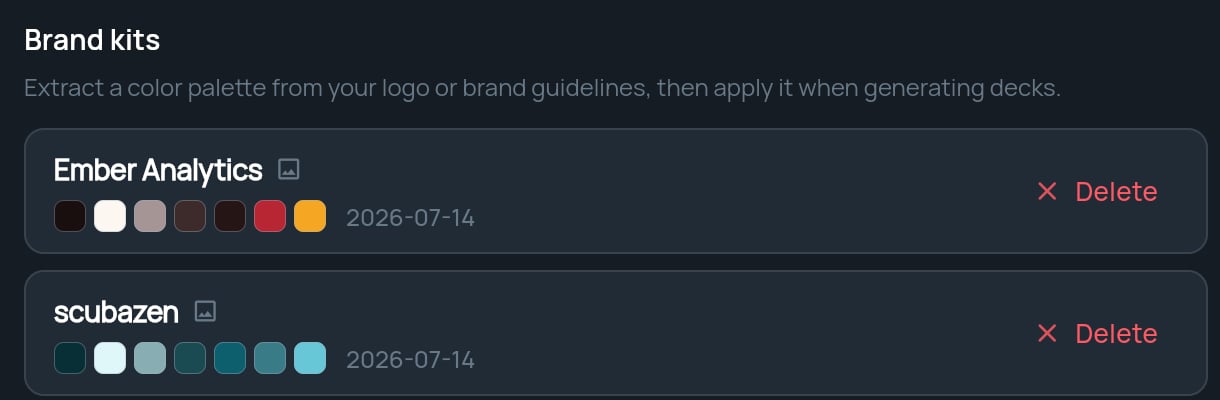
The button shows **Extracting colors…** for a few seconds. When it's done, you see **Brand kit "*name*" created.** and the kit appears in the list with its color swatches.
 ### What's in a kit
Each kit is a palette of seven colors covering backgrounds, surfaces, text, muted text, accents and borders. StratEngine checks the palette for readable contrast when it creates the kit. A logo icon next to a kit's name means the kit includes a logo.
## Apply a brand kit
You choose a kit each time, so one kit doesn't lock in your look:
| Where | What you see | What the kit changes |
| - | - | - |
| **Generate Deck** or **Regenerate Deck** | The **Deck branding** window | The deck's colors. If the kit has a logo, the deck can include it. |
| **View in Browser** on a strategy brief or research report | The **Document branding** window, with an **Open** button | The document's colors. |
In both windows, pick a kit or **No branding (StratEngine theme)**. The windows only appear once you have at least one brand kit.
See [Generate a deck](/docs/strategy/decks/generate) and [Export a document, print, or save as PDF](/docs/strategy/export-documents).
## Fonts are fixed
Brand kits change colors, not fonts. Every deck uses the same fonts: Carlito for body text and Bricolage Grotesque for headings. This is deliberate: the fonts were chosen so text lays out the same way when a deck is exported to Google Slides or PowerPoint. If you see Carlito in the Google Slides font menu after exporting, that's expected. See [Export a deck](/docs/strategy/decks/export#fonts-in-google-slides-and-powerpoint).
## Change or delete a kit
Kits can't be edited. To change one, create a new kit with the updated logo or text, then delete the old one.
To delete a kit, click **Delete** on its row, then click **Confirm** within a few seconds. Click **Cancel** to keep it.
Deleting a kit doesn't change decks you already built with it. Regenerating those decks later means choosing a different kit.
## If creating a kit fails
| Message | What to do |
| - | - |
| **Logo must be 2MB or smaller.** | Resize or compress the image and try again. |
| **Logo must be a PNG, JPEG, or WebP image.** | Convert the logo to one of those formats. |
| **Brand text is too long (20,000 character limit).** | Shorten the text to the parts about colors and visual style. |
## Related
* [Generate a deck](/docs/strategy/decks/generate)
* [Export a deck to Google Slides or PowerPoint](/docs/strategy/decks/export)
* [Export a document, print, or save as PDF](/docs/strategy/export-documents)
## Related topics
- [Export a deck to Google Slides or PowerPoint](/docs/strategy/decks/export.md)
- [Generate a deck](/docs/strategy/decks/generate.md)
- [Export a document, print, or save as PDF](/docs/strategy/export-documents.md)
- [Finding your way around](/docs/strategy/navigation.md)
- [Workspaces](/docs/account/workspaces.md)
This documentation is built and hosted on [Mintlify](https://mintlify.com), a developer documentation platform.
### What's in a kit
Each kit is a palette of seven colors covering backgrounds, surfaces, text, muted text, accents and borders. StratEngine checks the palette for readable contrast when it creates the kit. A logo icon next to a kit's name means the kit includes a logo.
## Apply a brand kit
You choose a kit each time, so one kit doesn't lock in your look:
| Where | What you see | What the kit changes |
| - | - | - |
| **Generate Deck** or **Regenerate Deck** | The **Deck branding** window | The deck's colors. If the kit has a logo, the deck can include it. |
| **View in Browser** on a strategy brief or research report | The **Document branding** window, with an **Open** button | The document's colors. |
In both windows, pick a kit or **No branding (StratEngine theme)**. The windows only appear once you have at least one brand kit.
See [Generate a deck](/docs/strategy/decks/generate) and [Export a document, print, or save as PDF](/docs/strategy/export-documents).
## Fonts are fixed
Brand kits change colors, not fonts. Every deck uses the same fonts: Carlito for body text and Bricolage Grotesque for headings. This is deliberate: the fonts were chosen so text lays out the same way when a deck is exported to Google Slides or PowerPoint. If you see Carlito in the Google Slides font menu after exporting, that's expected. See [Export a deck](/docs/strategy/decks/export#fonts-in-google-slides-and-powerpoint).
## Change or delete a kit
Kits can't be edited. To change one, create a new kit with the updated logo or text, then delete the old one.
To delete a kit, click **Delete** on its row, then click **Confirm** within a few seconds. Click **Cancel** to keep it.
Deleting a kit doesn't change decks you already built with it. Regenerating those decks later means choosing a different kit.
## If creating a kit fails
| Message | What to do |
| - | - |
| **Logo must be 2MB or smaller.** | Resize or compress the image and try again. |
| **Logo must be a PNG, JPEG, or WebP image.** | Convert the logo to one of those formats. |
| **Brand text is too long (20,000 character limit).** | Shorten the text to the parts about colors and visual style. |
## Related
* [Generate a deck](/docs/strategy/decks/generate)
* [Export a deck to Google Slides or PowerPoint](/docs/strategy/decks/export)
* [Export a document, print, or save as PDF](/docs/strategy/export-documents)
## Related topics
- [Export a deck to Google Slides or PowerPoint](/docs/strategy/decks/export.md)
- [Generate a deck](/docs/strategy/decks/generate.md)
- [Export a document, print, or save as PDF](/docs/strategy/export-documents.md)
- [Finding your way around](/docs/strategy/navigation.md)
- [Workspaces](/docs/account/workspaces.md)
This documentation is built and hosted on [Mintlify](https://mintlify.com), a developer documentation platform.