> ## Documentation Index
> Fetch the complete documentation index at: https://stratengineai.com/docs/llms.txt
> Use this file to discover all available pages before exploring further.
# Share a deck with a link
> Create a view-only link to a deck for clients or colleagues outside your workspace, set it to expire after 7 or 30 days, and revoke it any time.
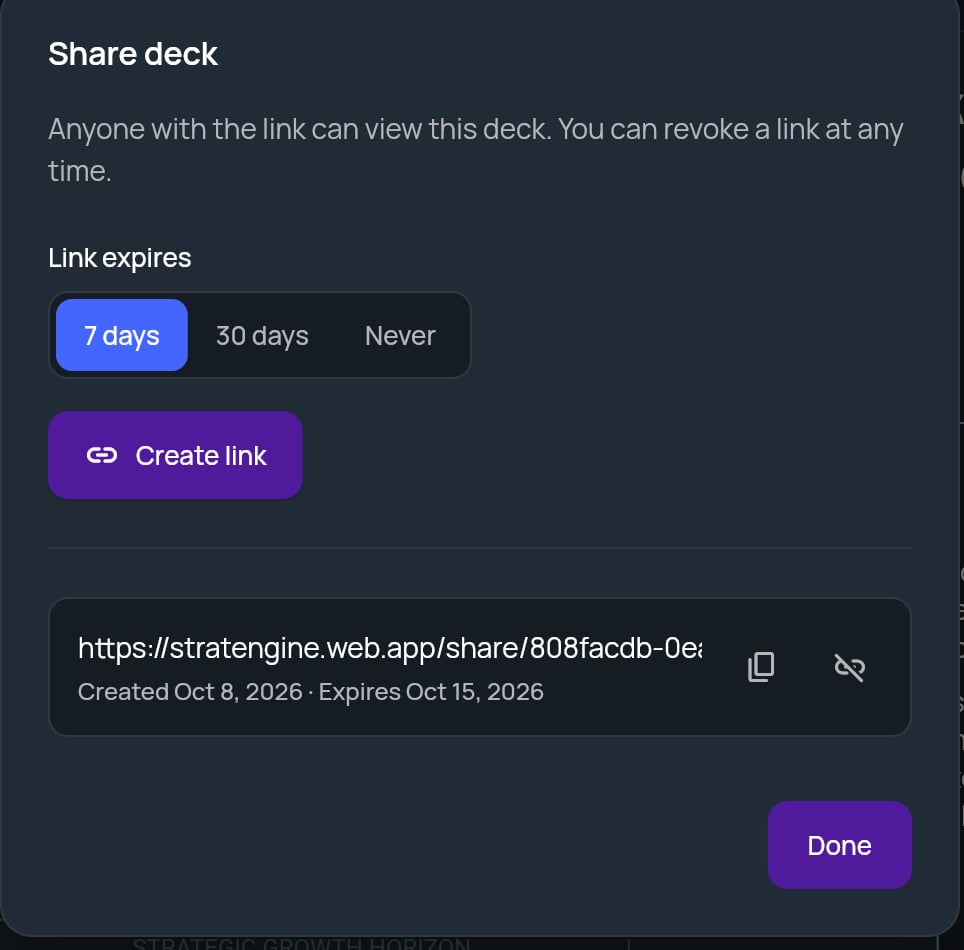
To share a deck, open its strategy brief, click **Share** in the toolbar, choose when the link expires and click **Create link**. StratEngine copies the link to your clipboard. Anyone with the link can view the deck in their browser without a StratEngine account, until the link expires or you revoke it.
The **Share** link appears in the toolbar once the brief has a deck. If you don't see it, [generate a deck](/docs/strategy/decks/generate) first.
Anyone who has the link can view the deck, including people it's forwarded to. Choose an expiry, and revoke links you no longer need.
## Create a link
Open the strategy brief and click **Share** in the toolbar. The **Share deck** window opens.
Under **Link expires**, pick **7 days**, **30 days** or **Never**. **Never** is selected when the window opens.
The new link appears in the list and is copied to your clipboard. Paste it into an email or message.
Click **Done** to close the window.
 You can create several links for the same deck, for example one per client, so you can revoke one without affecting the others.
## What viewers see
The link opens the deck in a browser tab, ready to read. Viewers can't edit it and can't see anything else in your StratEngine account.
A link always shows the current deck for that brief. If you [regenerate the deck](/docs/strategy/decks/outdated), people with the link see the new version without needing a new link.
If a link no longer works, the viewer sees a message instead of the deck:
| Message | Why |
| - | - |
| **This link has expired.** | The link reached its expiry date. |
| **This link has been revoked.** | You revoked it. |
| **This link is not valid.** | The link is mistyped, or the brief was deleted. |
## Manage existing links
Open **Share** again to see every active link for the deck. Each row shows the link, when it was created, and when it expires (or **Never expires**). Expired and revoked links aren't listed.
| To | Do this |
| - | - |
| Copy a link again | Click the copy icon (**Copy link**). It changes to a check mark when copied. |
| Stop a link working | Click the revoke icon (**Revoke link**). |
Revoking takes effect immediately and has no confirmation step. A revoked link can't be restored; create a new link if you need to share again.
Deleting the strategy brief also deletes its deck and stops all of its links.
## Related
* [Generate a deck](/docs/strategy/decks/generate)
* [Outdated decks](/docs/strategy/decks/outdated)
* [Export a deck to Google Slides or PowerPoint](/docs/strategy/decks/export)
* [FAQ: who can see what](/docs/account/faq#who-in-my-workspace-can-see-what)
## Related topics
- [Outdated decks](/docs/strategy/decks/outdated.md)
- [Generate a deck](/docs/strategy/decks/generate.md)
- [Quickstart: your first strategy](/docs/strategy/quickstart.md)
- [Export a deck to Google Slides or PowerPoint](/docs/strategy/decks/export.md)
- [FAQ](/docs/account/faq.md)
This documentation is built and hosted on [Mintlify](https://mintlify.com), a developer documentation platform.
You can create several links for the same deck, for example one per client, so you can revoke one without affecting the others.
## What viewers see
The link opens the deck in a browser tab, ready to read. Viewers can't edit it and can't see anything else in your StratEngine account.
A link always shows the current deck for that brief. If you [regenerate the deck](/docs/strategy/decks/outdated), people with the link see the new version without needing a new link.
If a link no longer works, the viewer sees a message instead of the deck:
| Message | Why |
| - | - |
| **This link has expired.** | The link reached its expiry date. |
| **This link has been revoked.** | You revoked it. |
| **This link is not valid.** | The link is mistyped, or the brief was deleted. |
## Manage existing links
Open **Share** again to see every active link for the deck. Each row shows the link, when it was created, and when it expires (or **Never expires**). Expired and revoked links aren't listed.
| To | Do this |
| - | - |
| Copy a link again | Click the copy icon (**Copy link**). It changes to a check mark when copied. |
| Stop a link working | Click the revoke icon (**Revoke link**). |
Revoking takes effect immediately and has no confirmation step. A revoked link can't be restored; create a new link if you need to share again.
Deleting the strategy brief also deletes its deck and stops all of its links.
## Related
* [Generate a deck](/docs/strategy/decks/generate)
* [Outdated decks](/docs/strategy/decks/outdated)
* [Export a deck to Google Slides or PowerPoint](/docs/strategy/decks/export)
* [FAQ: who can see what](/docs/account/faq#who-in-my-workspace-can-see-what)
## Related topics
- [Outdated decks](/docs/strategy/decks/outdated.md)
- [Generate a deck](/docs/strategy/decks/generate.md)
- [Quickstart: your first strategy](/docs/strategy/quickstart.md)
- [Export a deck to Google Slides or PowerPoint](/docs/strategy/decks/export.md)
- [FAQ](/docs/account/faq.md)
This documentation is built and hosted on [Mintlify](https://mintlify.com), a developer documentation platform.