> ## Documentation Index
> Fetch the complete documentation index at: https://stratengineai.com/docs/llms.txt
> Use this file to discover all available pages before exploring further.
# Generate a framework
> Run a single strategy framework, such as SWOT or Porter's Five Forces, on a company in three steps: pick a framework, add context, generate.
To run one framework on a company, open **Generate Framework** in the side menu, pick a framework, fill in the business context, then click **Generate Framework**. StratEngine analyzes the company and opens the result, where you can edit it and turn it into a strategy brief.
Use this when you already know which framework you want. If you'd rather describe your situation and let StratEngine choose, use [Strategy Builder](/docs/strategy/strategy-builder) instead.
Generate Framework builds a framework analysis, not a strategy. You get the framework applied to your company, such as a SWOT or a Porter's Five Forces, which is a useful foundation for a strategy. To get a full strategy with a recommended direction, generate a [strategy brief](/docs/strategy/strategy-briefs) from the result, or start in [Strategy Builder](/docs/strategy/strategy-builder).
Which frameworks you can run depends on your plan. Free includes 4 frameworks, Essential includes 13, and Professional includes all 29. Pay-as-you-go accounts can run every framework and pay per run. Frameworks outside your plan show an **Upgrade** button instead of **Select**. See [Strategy plans](/docs/strategy/billing/plans) and [pricing](https://stratengineai.com/#pricing).
## Run a framework
The page is titled **Framework Generation** and walks you through three steps, shown at the top as **Framework**, **Context** and **Generate**. You can click an earlier step to go back. You can only move forward once a framework is selected.
In the side menu, under **Quick Frameworks**, click **Generate Framework**.
If you already had a framework open, the page skips to the **Context** step with that framework's inputs filled in. To start fresh, click **New Project** at the top of the page.
Under **Select Framework**, frameworks are grouped into four categories:
* **Market & Product Strategy**
* **Positioning & Strategic Analysis**
* **Organizational & Change Management**
* **Financial & Performance Analysis**
Each card shows the framework's name, a short description (click **Show more** to read all of it) and a tier badge: **Foundational**, **Growth** or **Advanced**. Click **Select** on the one you want.
Not sure which to pick? Click **Help me choose** to open Strategy Builder, where you can talk through your situation instead. The full list is in the [Framework library](/docs/strategy/frameworks/index).
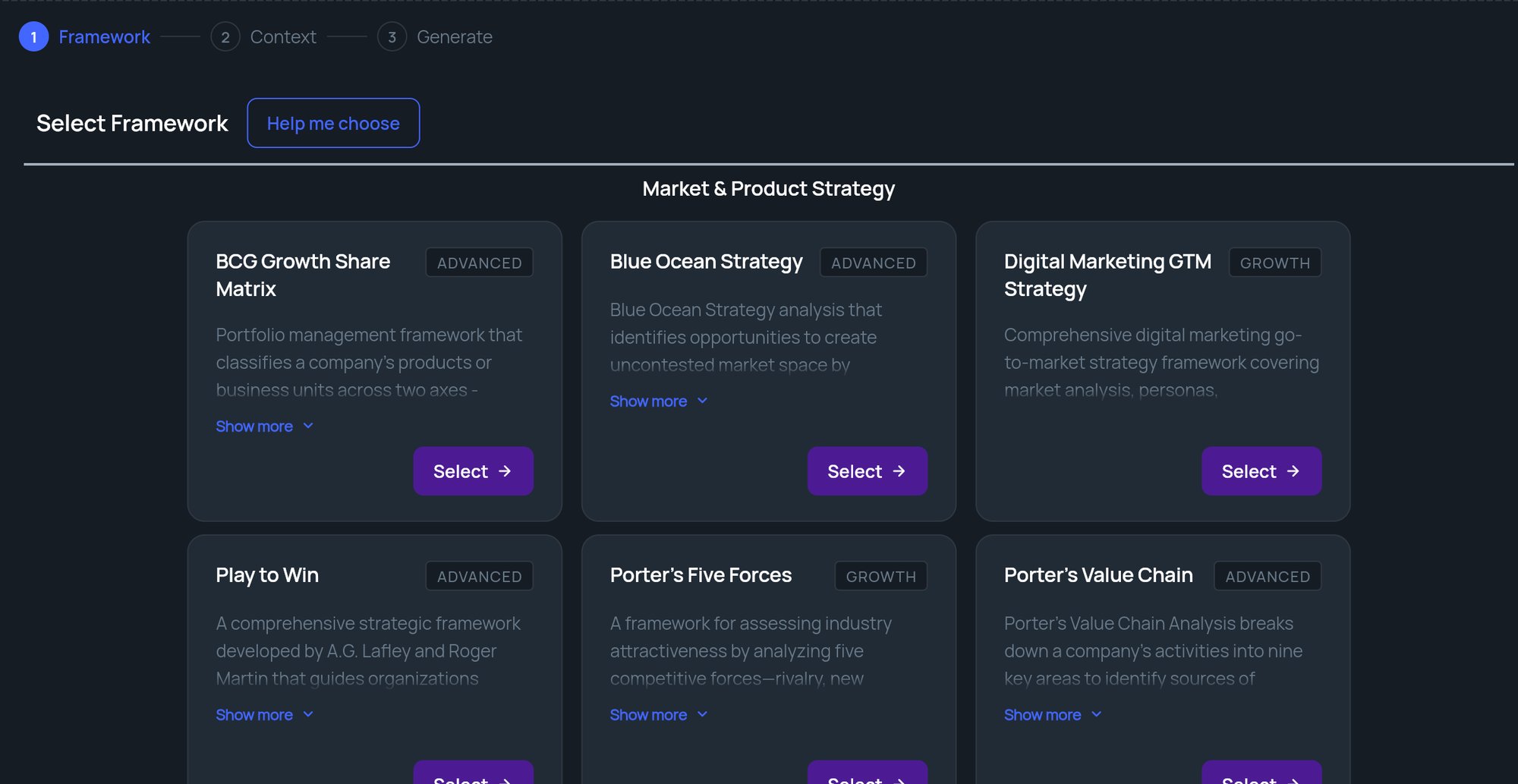 Selecting a framework clears every field on the **Context** step. If you go back to step 1 just to check your choice, click the **Context** step at the top to return instead of clicking **Select** again.
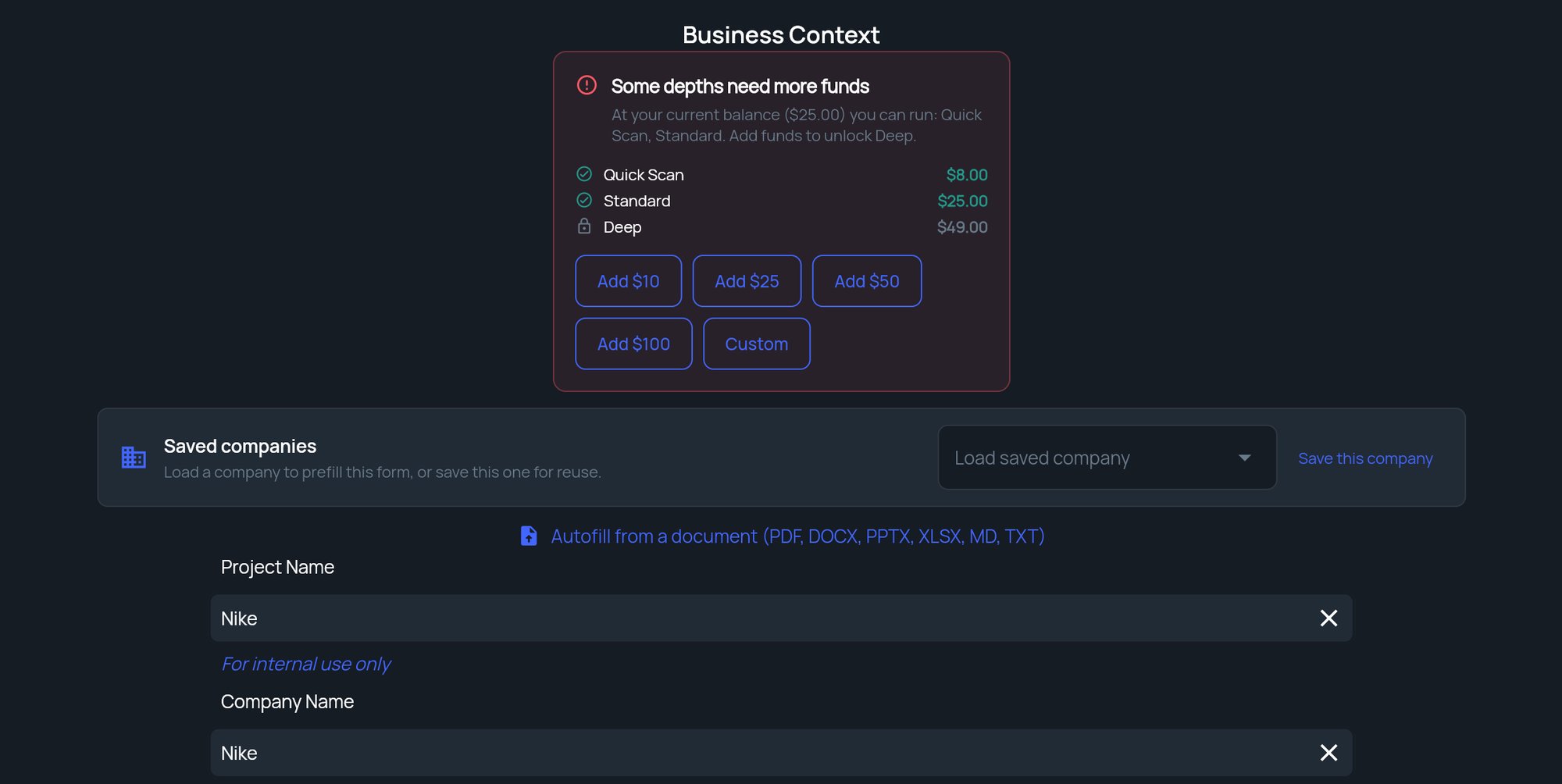
The **Business Context** step asks about the company you're analyzing. None of the fields is required, but the more you fill in, the more specific the analysis.
| Field | What to enter |
| - | - |
| **Project Name** | A name for your own reference. If you leave it blank, StratEngine uses the company name. |
| **Company Name** | The company being analyzed. |
| **Business Summary** | What the business does overall. |
| **Industry** | Pick from the list. Choosing **Other** adds an **Other Industry** field. |
| **Market or Geography** | The market or region the company serves. |
| **Business Model** | Pick from the list. Choosing **Other** adds an **Other Business Model** field. |
| **Target Customer** | The ideal customer: consumer, business or demographic. |
| **Key Products & Services** | The main offerings. |
Below these, **Framework Inputs (Optional)** lists extra questions specific to the framework you picked. Click the heading to collapse or expand it.
When you're done, click **Continue**.
Selecting a framework clears every field on the **Context** step. If you go back to step 1 just to check your choice, click the **Context** step at the top to return instead of clicking **Select** again.
The **Business Context** step asks about the company you're analyzing. None of the fields is required, but the more you fill in, the more specific the analysis.
| Field | What to enter |
| - | - |
| **Project Name** | A name for your own reference. If you leave it blank, StratEngine uses the company name. |
| **Company Name** | The company being analyzed. |
| **Business Summary** | What the business does overall. |
| **Industry** | Pick from the list. Choosing **Other** adds an **Other Industry** field. |
| **Market or Geography** | The market or region the company serves. |
| **Business Model** | Pick from the list. Choosing **Other** adds an **Other Business Model** field. |
| **Target Customer** | The ideal customer: consumer, business or demographic. |
| **Key Products & Services** | The main offerings. |
Below these, **Framework Inputs (Optional)** lists extra questions specific to the framework you picked. Click the heading to collapse or expand it.
When you're done, click **Continue**.
 On the **Generate** step, click **Generate Framework**. Below the button, the app shows the processing time for the depth the framework will run at, for example **Processing time is \~8 min**. See [Analysis depth and cost](#analysis-depth-and-cost).
A progress overlay shows while the analysis runs. When it finishes, the framework opens on its results page. See [Work with framework results](/docs/strategy/framework-results).
## Fill the form faster
### Load a saved company
The **Saved companies** card at the top of the **Context** step fills the form from a company you've saved before. Choose it from **Load saved company**. The project name stays as it is, because it's specific to this run.
* **Save this company** saves the details you've entered so you can reuse them. You'll be asked for a name.
* **Update saved company** appears when a saved company is loaded. It writes your changes back to that saved company.
* The **x** next to the dropdown unlinks the saved company but keeps the fields as they are.
Saved companies are shared with everyone in your workspace. See [Saved companies](/docs/strategy/saved-companies).
### Autofill from a document
Click **Autofill from a document (PDF, DOCX, PPTX, XLSX, MD, TXT)**, then drop a file on the upload area or click it to choose one. StratEngine shows **Parsing text...** while it reads the file, then fills in the fields it found, including the framework's optional inputs. Review every field before you continue.
Autofill fills only the fields it finds in the document. Other fields keep what you typed, so you can run it before or after entering your own details.
Click **Hide** to collapse the upload area again.
### Save a draft
Once **Project Name** has text, a **Save** button appears at the top of the page. Click it to save your inputs as a draft without running the analysis. You'll see **Inputs saved successfully!**
## Analysis depth and cost
How deep the analysis goes depends on your account:
* **Subscription plans:** there's no depth choice on this page. The framework runs at the deepest depth your plan includes. Free runs the shortest depth, so its results don't include momentum or assumptions.
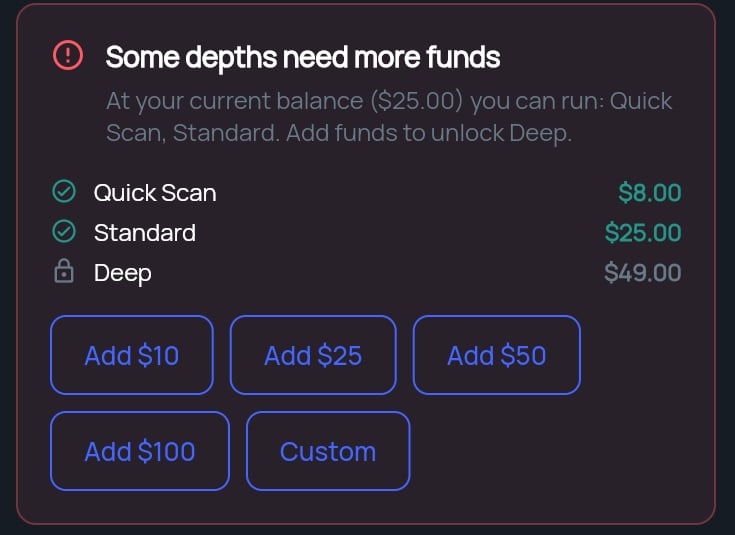
* **Pay-as-you-go:** the **Generate** step shows an **Analysis depth** panel with **Quick Scan**, **Standard** and **Deep**. A card under the options lists what the selected depth adds, followed by the **Cost** of the run and your **Balance** (or how many free analyses you have left). If your balance is too low, the panel says how much more you need and offers amounts to add.
| Depth | Time shown | What it adds |
| - | - | - |
| **Quick Scan** | \~2 min | 3 recommendations |
| **Standard** | \~4 min | 5 recommendations, momentum analysis |
| **Deep** | \~8 min | 7 recommendations, momentum analysis, implementation detail, priority ranking, domain specialist insights, assumption analysis |
See [Analysis depth](/docs/strategy/analysis-depth) and [Pay-as-you-go](/docs/strategy/billing/pay-as-you-go).
On the **Generate** step, click **Generate Framework**. Below the button, the app shows the processing time for the depth the framework will run at, for example **Processing time is \~8 min**. See [Analysis depth and cost](#analysis-depth-and-cost).
A progress overlay shows while the analysis runs. When it finishes, the framework opens on its results page. See [Work with framework results](/docs/strategy/framework-results).
## Fill the form faster
### Load a saved company
The **Saved companies** card at the top of the **Context** step fills the form from a company you've saved before. Choose it from **Load saved company**. The project name stays as it is, because it's specific to this run.
* **Save this company** saves the details you've entered so you can reuse them. You'll be asked for a name.
* **Update saved company** appears when a saved company is loaded. It writes your changes back to that saved company.
* The **x** next to the dropdown unlinks the saved company but keeps the fields as they are.
Saved companies are shared with everyone in your workspace. See [Saved companies](/docs/strategy/saved-companies).
### Autofill from a document
Click **Autofill from a document (PDF, DOCX, PPTX, XLSX, MD, TXT)**, then drop a file on the upload area or click it to choose one. StratEngine shows **Parsing text...** while it reads the file, then fills in the fields it found, including the framework's optional inputs. Review every field before you continue.
Autofill fills only the fields it finds in the document. Other fields keep what you typed, so you can run it before or after entering your own details.
Click **Hide** to collapse the upload area again.
### Save a draft
Once **Project Name** has text, a **Save** button appears at the top of the page. Click it to save your inputs as a draft without running the analysis. You'll see **Inputs saved successfully!**
## Analysis depth and cost
How deep the analysis goes depends on your account:
* **Subscription plans:** there's no depth choice on this page. The framework runs at the deepest depth your plan includes. Free runs the shortest depth, so its results don't include momentum or assumptions.
* **Pay-as-you-go:** the **Generate** step shows an **Analysis depth** panel with **Quick Scan**, **Standard** and **Deep**. A card under the options lists what the selected depth adds, followed by the **Cost** of the run and your **Balance** (or how many free analyses you have left). If your balance is too low, the panel says how much more you need and offers amounts to add.
| Depth | Time shown | What it adds |
| - | - | - |
| **Quick Scan** | \~2 min | 3 recommendations |
| **Standard** | \~4 min | 5 recommendations, momentum analysis |
| **Deep** | \~8 min | 7 recommendations, momentum analysis, implementation detail, priority ranking, domain specialist insights, assumption analysis |
See [Analysis depth](/docs/strategy/analysis-depth) and [Pay-as-you-go](/docs/strategy/billing/pay-as-you-go).
 ## If the analysis fails
If you see **Analysis failed. Please try again in a few minutes. If this persists, please contact support.**, nothing was saved as a result. Your inputs are kept as a draft, so you can wait a few minutes and click **Generate Framework** again. If it keeps failing, email [help@stratengineai.com](mailto:help@stratengineai.com).
## Related
* [Work with framework results](/docs/strategy/framework-results)
* [Framework library](/docs/strategy/frameworks/index)
* [Saved companies](/docs/strategy/saved-companies)
* [Analysis depth](/docs/strategy/analysis-depth)
## Related topics
- [Framework library](/docs/strategy/frameworks/index.md)
- [Run Capital Allocation Framework in StratEngine](/docs/strategy/frameworks/capital-allocation-framework.md)
- [Work with framework results](/docs/strategy/framework-results.md)
- [Run Return on Strategic Assets in StratEngine](/docs/strategy/frameworks/return-on-strategic-assets.md)
- [Run 3C's in StratEngine](/docs/strategy/frameworks/3cs.md)
This documentation is built and hosted on [Mintlify](https://mintlify.com), a developer documentation platform.
## If the analysis fails
If you see **Analysis failed. Please try again in a few minutes. If this persists, please contact support.**, nothing was saved as a result. Your inputs are kept as a draft, so you can wait a few minutes and click **Generate Framework** again. If it keeps failing, email [help@stratengineai.com](mailto:help@stratengineai.com).
## Related
* [Work with framework results](/docs/strategy/framework-results)
* [Framework library](/docs/strategy/frameworks/index)
* [Saved companies](/docs/strategy/saved-companies)
* [Analysis depth](/docs/strategy/analysis-depth)
## Related topics
- [Framework library](/docs/strategy/frameworks/index.md)
- [Run Capital Allocation Framework in StratEngine](/docs/strategy/frameworks/capital-allocation-framework.md)
- [Work with framework results](/docs/strategy/framework-results.md)
- [Run Return on Strategic Assets in StratEngine](/docs/strategy/frameworks/return-on-strategic-assets.md)
- [Run 3C's in StratEngine](/docs/strategy/frameworks/3cs.md)
This documentation is built and hosted on [Mintlify](https://mintlify.com), a developer documentation platform.