> ## Documentation Index
> Fetch the complete documentation index at: https://stratengineai.com/docs/llms.txt
> Use this file to discover all available pages before exploring further.
# Quickstart: your first strategy
> Sign in, finish onboarding, talk through your situation in Strategy Builder, run the analysis, read your strategy brief and generate a deck.
To get your first strategy, sign in, finish the short onboarding, then open **Strategy Builder** and choose **Talk it through**. Answer the AI strategist's questions, review the brief it drafts, click **Run Analysis**, and StratEngine opens your finished strategy brief. From there, **Generate Deck** turns it into a presentation.
The app says this takes about five minutes. The analysis itself takes about 2, 4 or 8 minutes depending on the depth you pick.
StratEngine runs in a desktop browser. On a phone or tablet the sign-in screen tells you the app is desktop-only. See [Signing in from a phone or tablet](/docs/account/sign-in#signing-in-from-a-phone-or-tablet).
Go to [app.stratengineai.com](https://app.stratengineai.com), enter your email and click **Log In**. Open the magic link StratEngine emails you. If it doesn't arrive, check your spam folder. See [Sign in](/docs/account/sign-in) for details.
New accounts go through a short setup first:
1. **Welcome**: a one-minute video. Click **Let's get set up** when you're ready.
2. **Profile**: enter your **Full name** and **Job title** (both required), plus optional company details, then click **Continue**.
3. **Your company**: enter your **Company name** and click **Continue** to save it as your first saved company, or click **Skip for now**.
4. **Private documents**: add documents that aren't public, or click **Skip for now**.
When you see **You're set.**, click **Build your first strategy**. This takes you straight to Strategy Builder. See [Onboarding](/docs/strategy/onboarding) for every field and option.
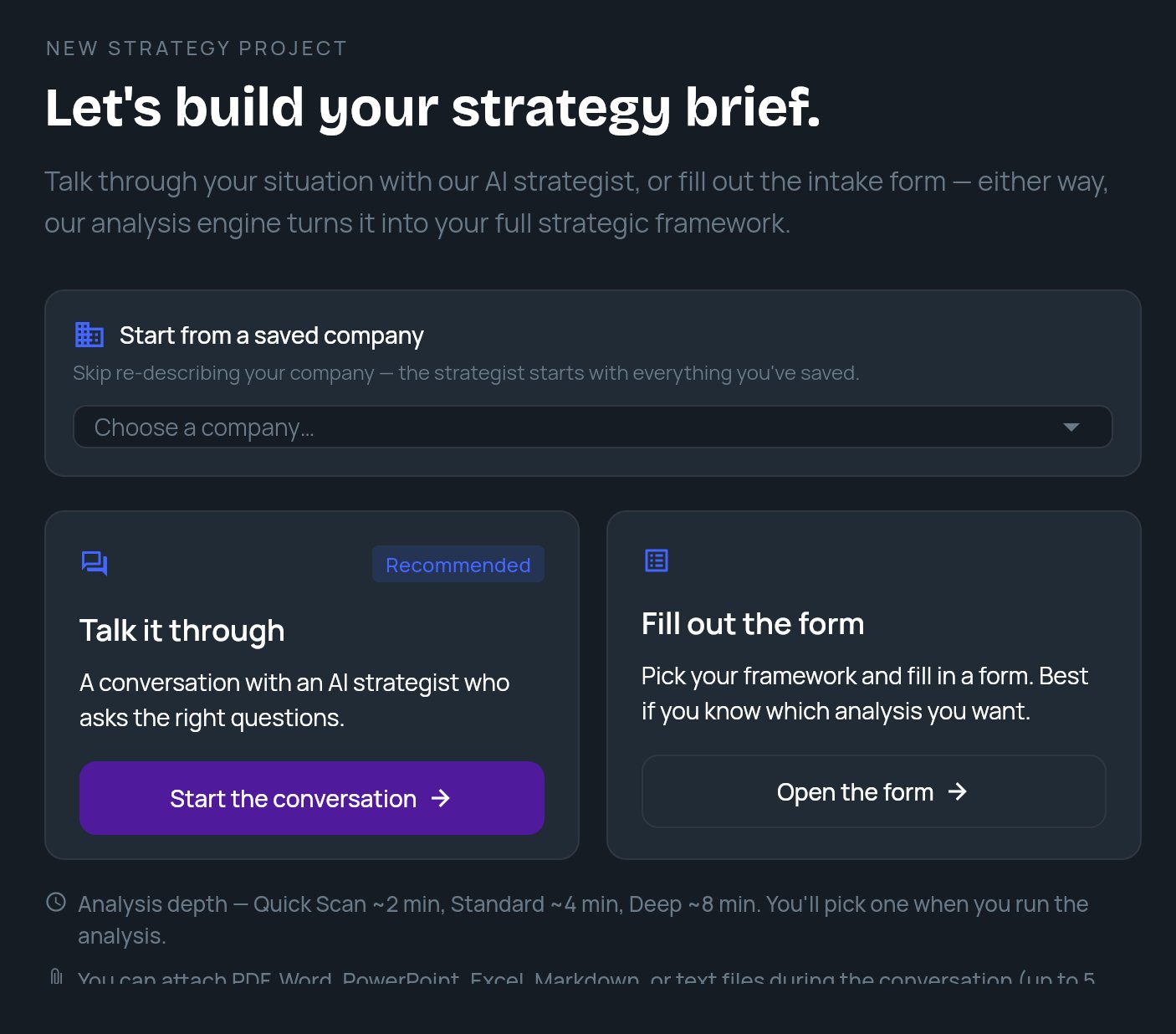
Strategy Builder opens on **Let's build your strategy brief.** Under **Talk it through**, click **Start the conversation**.
If you saved a company, pick it from **Start from a saved company** before you send your first message. The strategist then already knows the basics.
 Type your challenge or question in the box (**Describe your challenge or ask a question…**) and answer the strategist's follow-up questions. You can attach PDF, Word, PowerPoint, Excel, Markdown or text files during the conversation, up to 5 files of up to 50 MB each. See [Attach files](/docs/strategy/strategy-builder#attach-files).
To throw the conversation away and begin again, click **Start over** at the top.
When the strategist has enough, a **REVIEW YOUR BRIEF** panel opens beside the conversation. Check the fields it filled in, such as **Company**, **Industry**, **Business Problem** and **Strategic Goals**.
To change something, tell the strategist in the chat. The panel is not edited directly. See [Review your brief and run the analysis](/docs/strategy/review-and-run).
Under **Analysis depth**, pick **Quick Scan** (\~2 min), **Standard** (\~4 min) or **Deep** (\~8 min). Depths your plan doesn't include show a lock. See [Analysis depth](/docs/strategy/analysis-depth).
Optionally, turn on **Save this company for reuse** so future analyses start from this company.
Type your challenge or question in the box (**Describe your challenge or ask a question…**) and answer the strategist's follow-up questions. You can attach PDF, Word, PowerPoint, Excel, Markdown or text files during the conversation, up to 5 files of up to 50 MB each. See [Attach files](/docs/strategy/strategy-builder#attach-files).
To throw the conversation away and begin again, click **Start over** at the top.
When the strategist has enough, a **REVIEW YOUR BRIEF** panel opens beside the conversation. Check the fields it filled in, such as **Company**, **Industry**, **Business Problem** and **Strategic Goals**.
To change something, tell the strategist in the chat. The panel is not edited directly. See [Review your brief and run the analysis](/docs/strategy/review-and-run).
Under **Analysis depth**, pick **Quick Scan** (\~2 min), **Standard** (\~4 min) or **Deep** (\~8 min). Depths your plan doesn't include show a lock. See [Analysis depth](/docs/strategy/analysis-depth).
Optionally, turn on **Save this company for reuse** so future analyses start from this company.
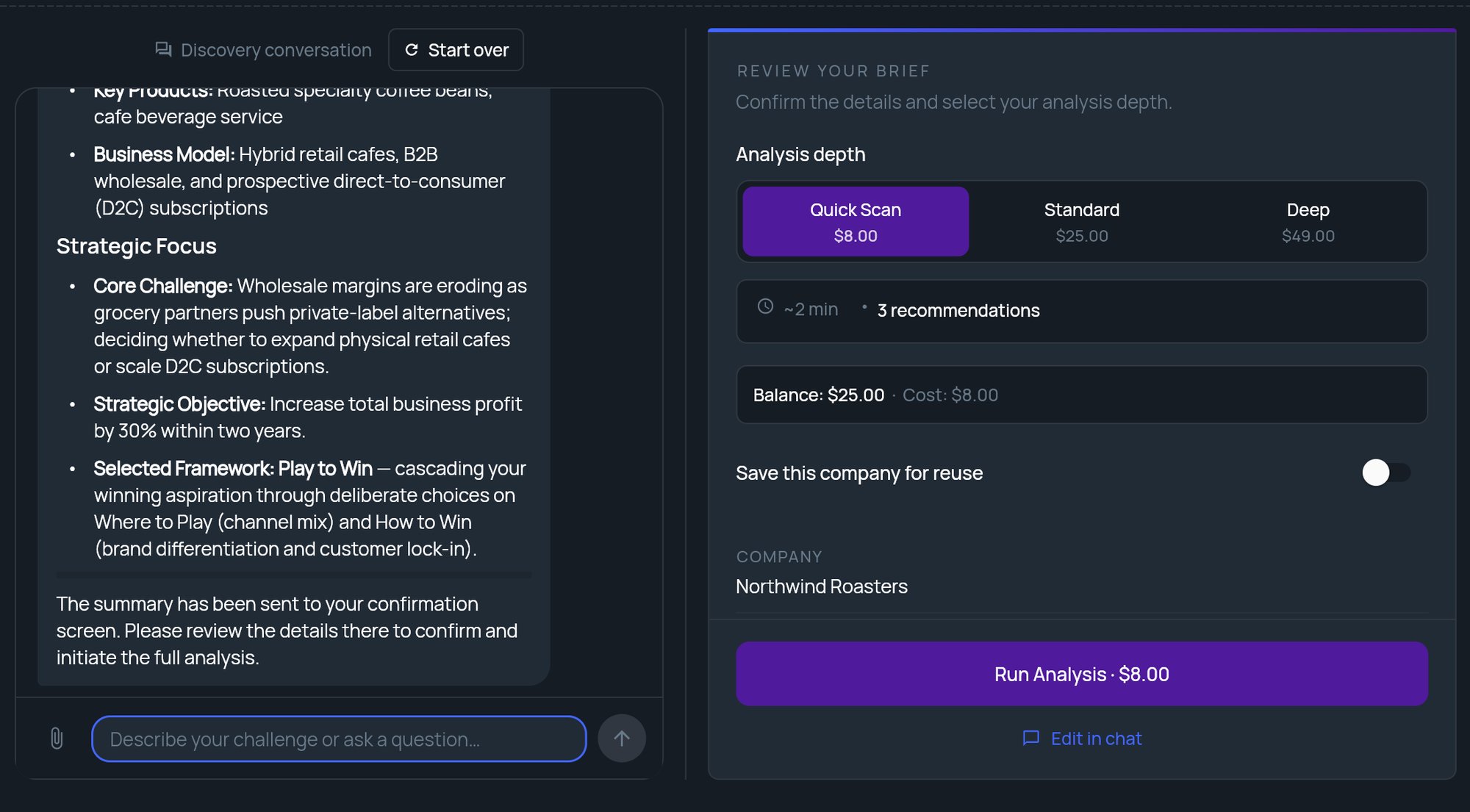 Click **Run Analysis**. The button shows the estimated time, for example **Run Analysis · \~4 min**. On a [pay-as-you-go](/docs/strategy/billing/pay-as-you-go) account it shows **Run Analysis (Free)** while you have a free analysis left, or the price of the run.
A progress ring shows each stage. You can leave it running: **We'll take you to your brief as soon as it's ready.** To stop, click **Cancel analysis**. The run stops and you're back at the review panel with your brief intact.
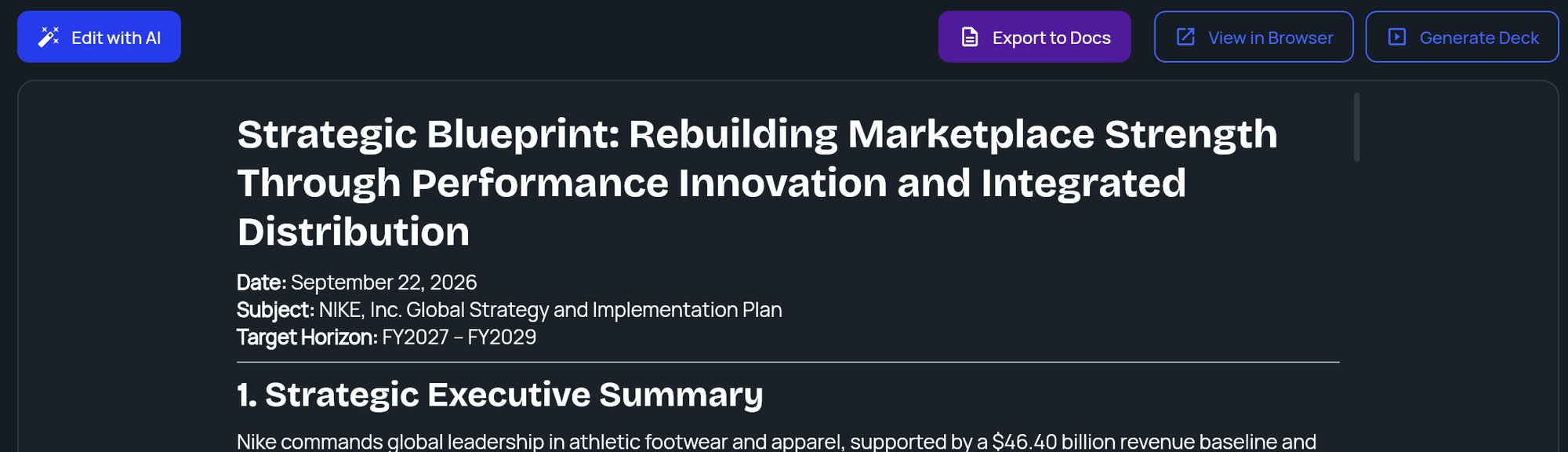
When the analysis finishes, your strategy brief opens. Read it in place, or use the toolbar:
* **Edit with AI** opens a chat that rewrites the brief on request.
* **View in Browser** opens a formatted version you can print or save as a PDF.
* **Export to Docs** saves a copy to your connected export destination.
See [Strategy briefs and Edit with AI](/docs/strategy/strategy-briefs).
Click **Generate Deck** in the toolbar. If you have [brand kits](/docs/strategy/decks/brand-kits), choose one in **Deck branding** (or **No branding (StratEngine theme)**) and click **Generate**.
A progress bar shows **Building your presentation…**. When the deck is ready, it opens in a new browser tab. If nothing opens, allow pop-ups for StratEngine and click **View Deck**.
Click **Run Analysis**. The button shows the estimated time, for example **Run Analysis · \~4 min**. On a [pay-as-you-go](/docs/strategy/billing/pay-as-you-go) account it shows **Run Analysis (Free)** while you have a free analysis left, or the price of the run.
A progress ring shows each stage. You can leave it running: **We'll take you to your brief as soon as it's ready.** To stop, click **Cancel analysis**. The run stops and you're back at the review panel with your brief intact.
When the analysis finishes, your strategy brief opens. Read it in place, or use the toolbar:
* **Edit with AI** opens a chat that rewrites the brief on request.
* **View in Browser** opens a formatted version you can print or save as a PDF.
* **Export to Docs** saves a copy to your connected export destination.
See [Strategy briefs and Edit with AI](/docs/strategy/strategy-briefs).
Click **Generate Deck** in the toolbar. If you have [brand kits](/docs/strategy/decks/brand-kits), choose one in **Deck branding** (or **No branding (StratEngine theme)**) and click **Generate**.
A progress bar shows **Building your presentation…**. When the deck is ready, it opens in a new browser tab. If nothing opens, allow pop-ups for StratEngine and click **View Deck**.
 ## What to do next
* Share the deck with a link: [Share a deck with a link](/docs/strategy/decks/share-links).
* Export it to Google Slides or PowerPoint: [Export a deck](/docs/strategy/decks/export).
* Run a single framework on the same company: [Generate a framework](/docs/strategy/generate-framework).
## Related
* [Use the Strategy Builder](/docs/strategy/strategy-builder)
* [Review your brief and run the analysis](/docs/strategy/review-and-run)
* [Generate a deck](/docs/strategy/decks/generate)
* [Troubleshooting](/docs/account/troubleshooting)
## Related topics
- [Use the Strategy Builder](/docs/strategy/strategy-builder.md)
- [Onboarding](/docs/strategy/onboarding.md)
- [Quickstart: your first memo](/docs/vc/quickstart.md)
- [Introduction](/docs/vc/index.md)
This documentation is built and hosted on [Mintlify](https://mintlify.com), a developer documentation platform.
## What to do next
* Share the deck with a link: [Share a deck with a link](/docs/strategy/decks/share-links).
* Export it to Google Slides or PowerPoint: [Export a deck](/docs/strategy/decks/export).
* Run a single framework on the same company: [Generate a framework](/docs/strategy/generate-framework).
## Related
* [Use the Strategy Builder](/docs/strategy/strategy-builder)
* [Review your brief and run the analysis](/docs/strategy/review-and-run)
* [Generate a deck](/docs/strategy/decks/generate)
* [Troubleshooting](/docs/account/troubleshooting)
## Related topics
- [Use the Strategy Builder](/docs/strategy/strategy-builder.md)
- [Onboarding](/docs/strategy/onboarding.md)
- [Quickstart: your first memo](/docs/vc/quickstart.md)
- [Introduction](/docs/vc/index.md)
This documentation is built and hosted on [Mintlify](https://mintlify.com), a developer documentation platform.