> ## Documentation Index
> Fetch the complete documentation index at: https://stratengineai.com/docs/llms.txt
> Use this file to discover all available pages before exploring further.
# Research reports
> Generate a sourced research report on any company from its name, summary, website and industry, then reopen it or export it to your cloud storage.
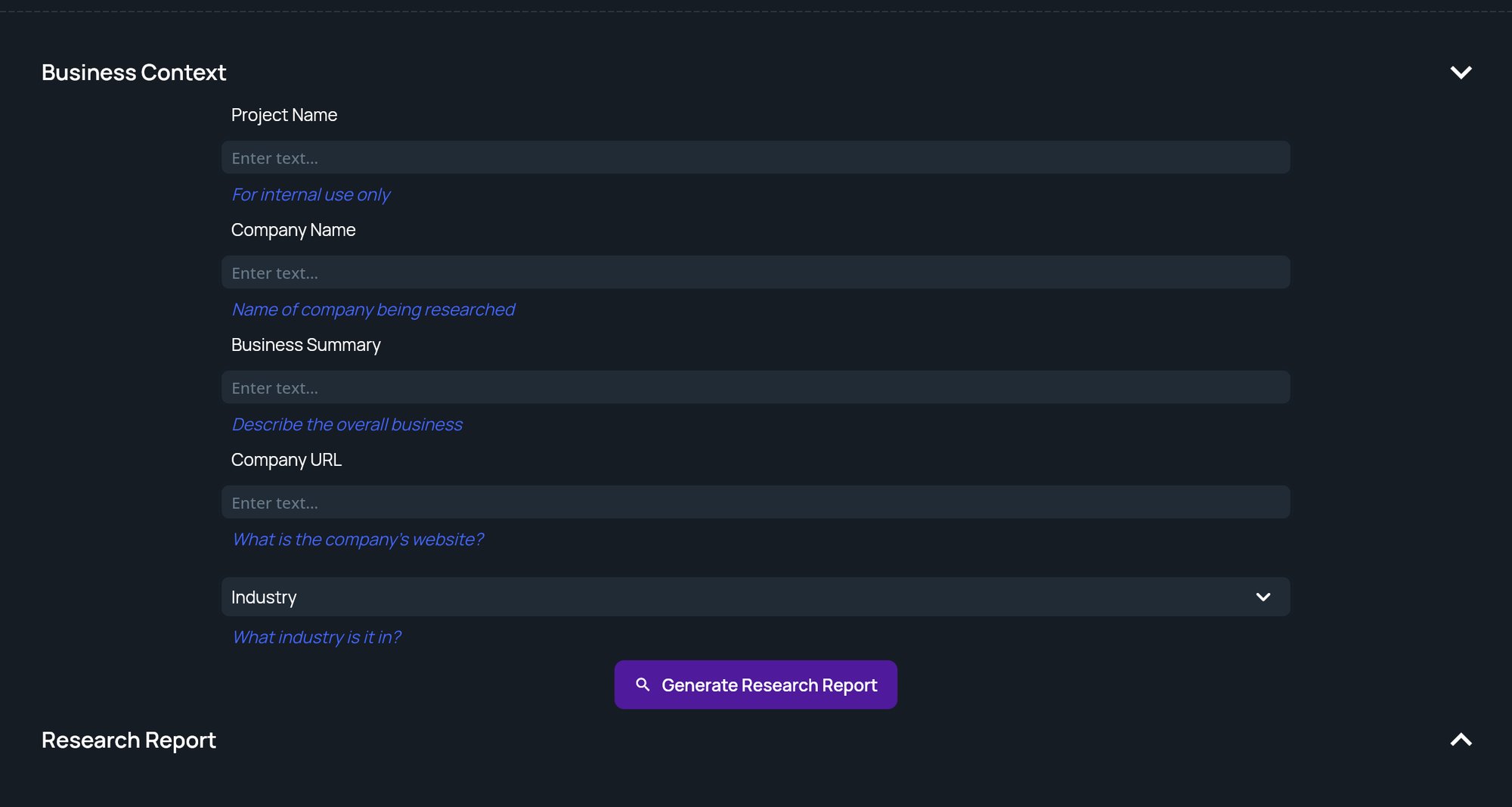
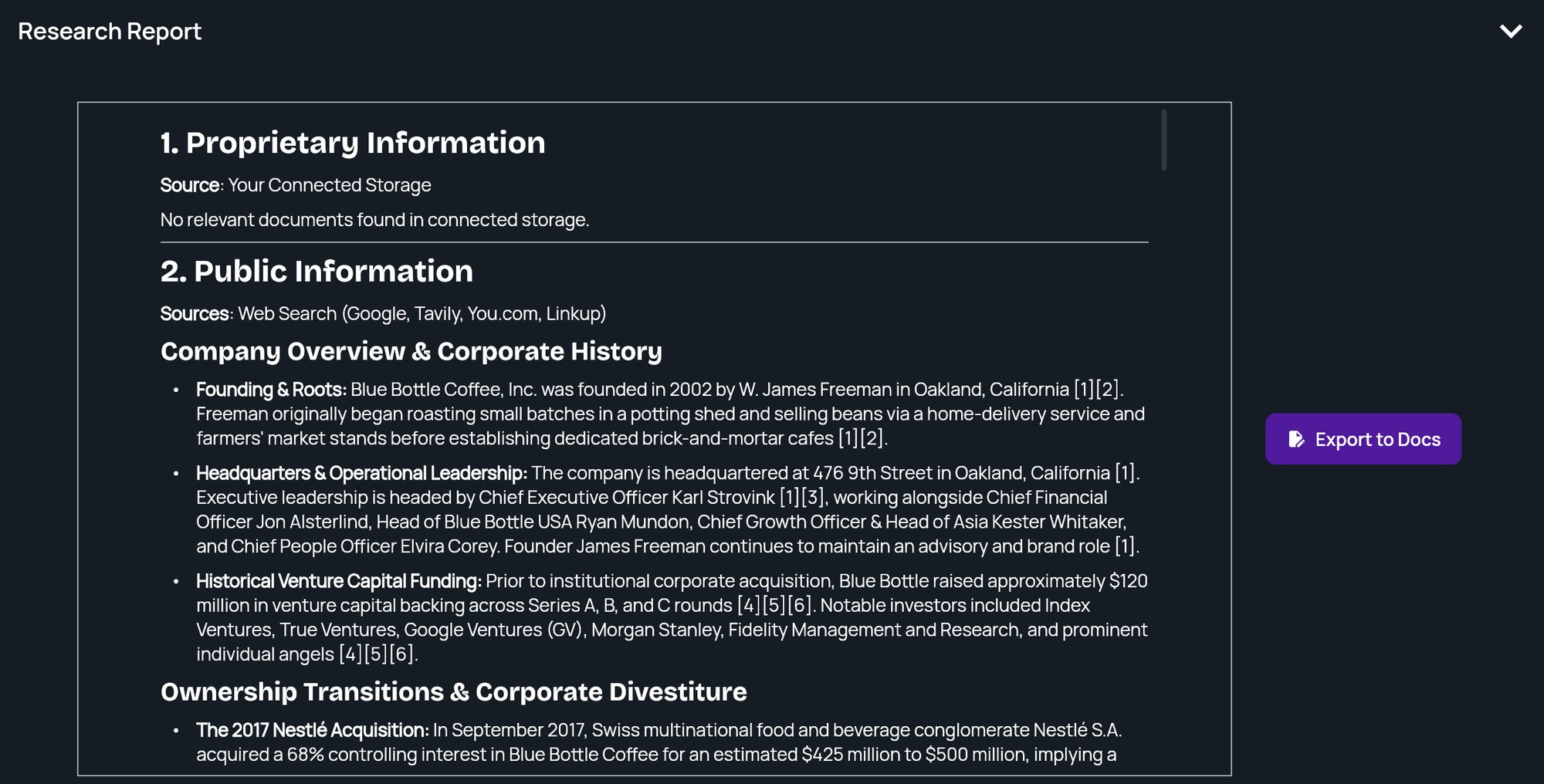
A research report is a sourced write-up on one company, built from the company's name, a short summary, its website and its industry. To create one, click **Conduct Research** in the side menu, fill in **Business Context**, and click **Generate Research Report**. The report appears on the same page, and you can export it with **Export to Docs**.
Use research to get up to speed on a company before you build a strategy for it, or to look into a competitor, partner or client.
## Generate a research report
In the side menu, under **Research**, click **Conduct Research**. To make sure you start with an empty form, click **New Project** at the top of the page.
The **Business Context** section has these fields:
| Field | What to enter |
| - | - |
| **Project Name** | A name for your own reference (**For internal use only**). |
| **Company Name** | The company you're researching. |
| **Business Summary** | A sentence or two describing the business. |
| **Company URL** | The company's website. |
| **Industry** | Pick from the list. If you pick **Other**, an **Other Industry** box appears for you to type it. |
**Project Name** and **Company Name** are required. If either is blank, the form shows **Project Name and Company Name are required to generate a report.** Fill in the other fields too, since the report is only as specific as what you give it. The website helps StratEngine tell apart companies with similar names.
Click **Generate Research Report**. A progress screen shows while StratEngine researches the company. **Cancel** closes the progress screen.
When it's ready, **Business Context** collapses and the report appears under **Research Report**. You can select and copy its text.
 If generation fails, the progress screen closes and StratEngine shows **Analysis failed. Please try again in a few minutes. If this persists, please contact support.** Your inputs stay in the form. Wait a few minutes and click **Generate Research Report** again.
## Save your inputs without generating
Once **Project Name** has text, a **Save** button appears next to **New Project**. Click it to save the form as a draft. You'll see **Inputs saved successfully!** If you come back to **Conduct Research** without opening another project in between, the fields are still filled in.
## Export the report
Click **Export to Docs** beside the report. StratEngine saves a copy to your connected export destination, in `StratEngine/Strategy Briefs/`, inside your export folder if you chose one (see [What gets exported where](/docs/account/connections#what-gets-exported-where)), and opens it in a new tab. Exporting also needs **Project Name** and **Company Name**. After the first export, a **View Doc** button opens that copy again.
If you haven't connected an export destination yet, StratEngine asks you to connect one first. See [Connect cloud storage](/docs/account/connections) and [Export a document, print, or save as PDF](/docs/strategy/export-documents).
If generation fails, the progress screen closes and StratEngine shows **Analysis failed. Please try again in a few minutes. If this persists, please contact support.** Your inputs stay in the form. Wait a few minutes and click **Generate Research Report** again.
## Save your inputs without generating
Once **Project Name** has text, a **Save** button appears next to **New Project**. Click it to save the form as a draft. You'll see **Inputs saved successfully!** If you come back to **Conduct Research** without opening another project in between, the fields are still filled in.
## Export the report
Click **Export to Docs** beside the report. StratEngine saves a copy to your connected export destination, in `StratEngine/Strategy Briefs/`, inside your export folder if you chose one (see [What gets exported where](/docs/account/connections#what-gets-exported-where)), and opens it in a new tab. Exporting also needs **Project Name** and **Company Name**. After the first export, a **View Doc** button opens that copy again.
If you haven't connected an export destination yet, StratEngine asks you to connect one first. See [Connect cloud storage](/docs/account/connections) and [Export a document, print, or save as PDF](/docs/strategy/export-documents).
 ## Find a report later
Research reports are saved with your other work. To reopen one:
1. Open **File Manager**.
2. Set the type filter to **Research**.
3. Click the report.
It opens in the document viewer, labeled **RESEARCH REPORT**. From there you can use **Edit with AI**, **Export to Docs** and **View in Browser**. Research reports don't have a deck option. See [File Manager](/docs/strategy/file-manager) and [Strategy briefs and Edit with AI](/docs/strategy/strategy-briefs).
## Regenerate a report
On the **Conduct Research** page, click **Business Context** to expand it, change the fields and click **Generate Research Report** again. The new report replaces the old one in the same project. To keep both, click **New Project** first and fill in the form again.
## Related
* [Use the Strategy Builder](/docs/strategy/strategy-builder)
* [Export a document, print, or save as PDF](/docs/strategy/export-documents)
* [File Manager](/docs/strategy/file-manager)
* [Saved companies](/docs/strategy/saved-companies)
## Related topics
- [Read an investment memo](/docs/vc/read-memo.md)
- [Finding your way around](/docs/strategy/navigation.md)
- [Workspaces](/docs/account/workspaces.md)
- [File Manager](/docs/strategy/file-manager.md)
- [Introduction](/docs/strategy/index.md)
This documentation is built and hosted on [Mintlify](https://mintlify.com), a developer documentation platform.
## Find a report later
Research reports are saved with your other work. To reopen one:
1. Open **File Manager**.
2. Set the type filter to **Research**.
3. Click the report.
It opens in the document viewer, labeled **RESEARCH REPORT**. From there you can use **Edit with AI**, **Export to Docs** and **View in Browser**. Research reports don't have a deck option. See [File Manager](/docs/strategy/file-manager) and [Strategy briefs and Edit with AI](/docs/strategy/strategy-briefs).
## Regenerate a report
On the **Conduct Research** page, click **Business Context** to expand it, change the fields and click **Generate Research Report** again. The new report replaces the old one in the same project. To keep both, click **New Project** first and fill in the form again.
## Related
* [Use the Strategy Builder](/docs/strategy/strategy-builder)
* [Export a document, print, or save as PDF](/docs/strategy/export-documents)
* [File Manager](/docs/strategy/file-manager)
* [Saved companies](/docs/strategy/saved-companies)
## Related topics
- [Read an investment memo](/docs/vc/read-memo.md)
- [Finding your way around](/docs/strategy/navigation.md)
- [Workspaces](/docs/account/workspaces.md)
- [File Manager](/docs/strategy/file-manager.md)
- [Introduction](/docs/strategy/index.md)
This documentation is built and hosted on [Mintlify](https://mintlify.com), a developer documentation platform.