> ## Documentation Index
> Fetch the complete documentation index at: https://stratengineai.com/docs/llms.txt
> Use this file to discover all available pages before exploring further.
# Saved companies
> Save a company's details and notes once, share them with your workspace, and start every analysis from them instead of retyping the basics.
A saved company holds the durable facts about one company you analyze: its name, summary, industry, business model, customers, products and market, plus notes. Pick it when you start a strategy or framework and StratEngine fills in the basics and uses the notes in the analysis. Manage them from **Saved Companies** in the side menu.
Saved companies are shared with everyone in your workspace. Anyone in the workspace can open, edit or delete them, which is why notes are labelled **User** or **Agent** rather than by person. See [Who in my workspace can see what?](/docs/account/faq#who-in-my-workspace-can-see-what)
## Create a saved company
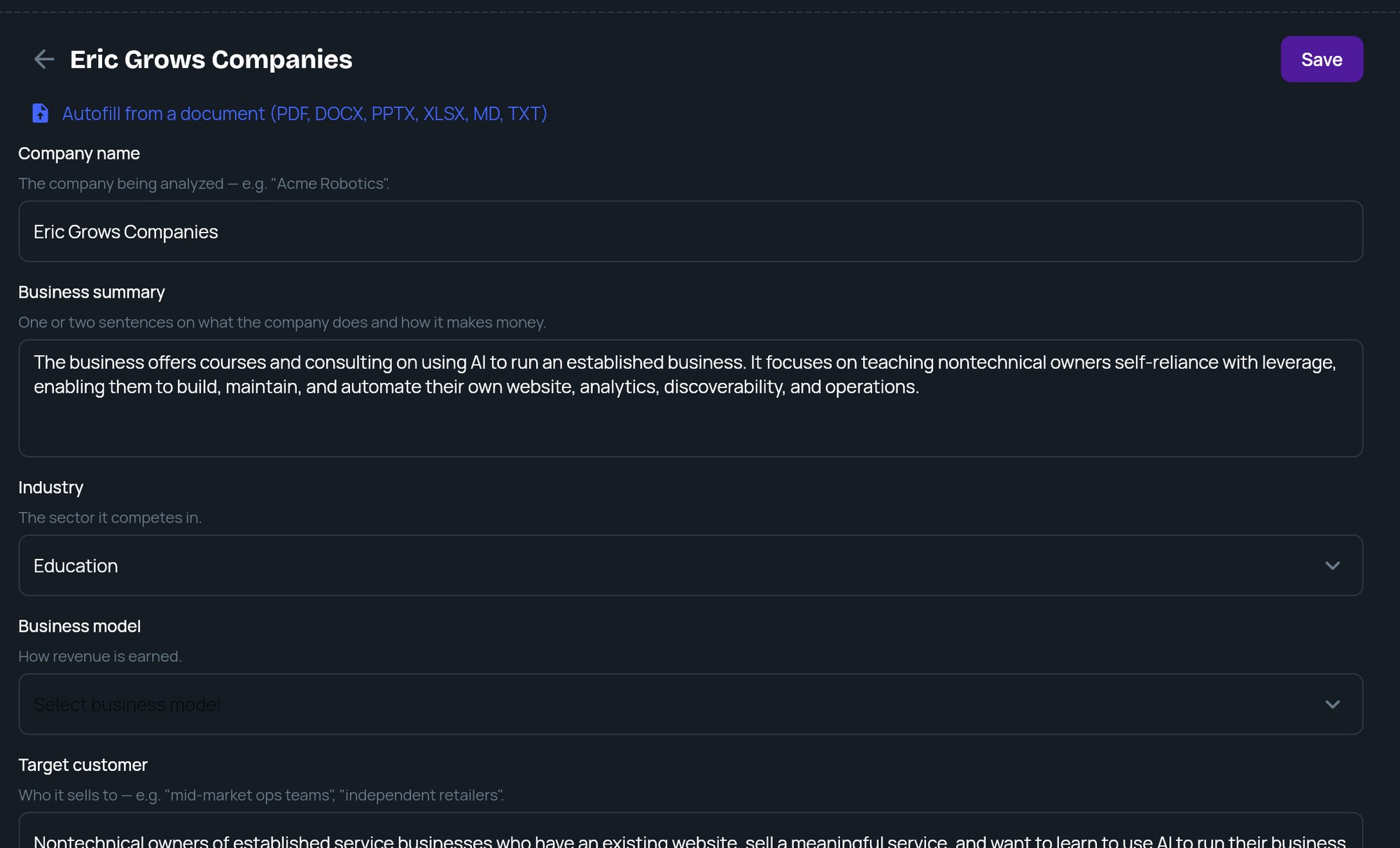
Click **Saved Companies** in the side menu, then click **New Company**. If the list is empty, you can also click **Create a company**.
The cursor starts in **Company name**. Type the name of the company being analyzed. The title at the top of the page follows what you type.
Fill in as much as you know. Every field is optional except the name.
| Field | What to enter |
| - | - |
| **Company name** | The company being analyzed, for example "Acme Robotics". |
| **Business summary** | One or two sentences on what the company does and how it makes money. |
| **Industry** | The sector it competes in. Pick from the list, or choose **Other** and type it in **Other industry**. |
| **Business model** | How revenue is earned. Pick from the list, or choose **Other** and type it in **Other business model**. |
| **Target customer** | Who it sells to, for example "mid-market ops teams". |
| **Key products** | The main products or services offered. |
| **Market** | The geography or segment it operates in, for example "North America SMB". |
Click **Save** at the top or bottom of the form. StratEngine returns you to the list, where the company now appears.
 You can also create a saved company without opening this page:
* During [onboarding](/docs/strategy/onboarding), the **Your company** step saves your first one.
* In Strategy Builder, turn on **Save this company for reuse** when you review your brief. See [Review your brief and run the analysis](/docs/strategy/review-and-run).
* In the framework form, click **Save this company** under **Saved companies**. See [Generate a framework](/docs/strategy/generate-framework).
## Autofill from a document
If you have a plan, pitch deck or company overview, StratEngine can read it and fill the fields for you.
In the company's detail view, click **Autofill from a document (PDF, DOCX, PPTX, XLSX, MD, TXT)**.
Drop a file on the upload area or click it to choose one. It shows **Parsing text...** while StratEngine reads it.
The fields fill in. Autofill only overwrites fields where it found a value, and it never clears a field. Check the values, then click **Save**. Autofill on the framework form works the same way; see [Generate a framework](/docs/strategy/generate-framework#autofill-from-a-document).
Autofill only fills the company fields. The file itself isn't stored as a private document. To give StratEngine the full document for analyses, upload it to [private documents](/docs/strategy/private-documents).
## Add notes
Notes are short, lasting facts about the company, such as "Customers are mostly mid-size manufacturers" or "Expanding into Canada next year". StratEngine uses them in every future analysis of this company.
1. Open the company and scroll to **Notes**.
2. Type in the box (**Add a note**) and click **Add note**.
Each note can be up to 1,000 characters. The newest note is listed first, with a label showing where it came from:
| Label | Meaning |
| - | - |
| **User** | Someone in your workspace added it on this page. |
| **Agent** | The AI editor saved it while you were using **Edit with AI** on a strategy brief for this company. |
When the AI editor adds, changes or removes a note, the chat shows it, for example **Saved to your company context**. Nothing changes in a saved company without showing up in the chat. See [Strategy briefs and Edit with AI](/docs/strategy/strategy-briefs).
To change a note, click its pencil icon, edit the text and click **Save**. To delete one, click its delete icon, then click it again to confirm.
### When the company's context is full
A saved company holds up to 200 notes. When it's full, the add box disappears and a message says the company's context is full. Delete notes you no longer need to make room.
## Use a saved company
| Where | How |
| - | - |
| Strategy Builder | Pick the company from **Start from a saved company** before you send your first message. The strategist already knows the basics and won't ask for them again. See [Use the Strategy Builder](/docs/strategy/strategy-builder). |
| Framework form | Under **Saved companies**, choose **Load saved company** to prefill the form. See [Generate a framework](/docs/strategy/generate-framework). |
Run-specific details, such as the project name, business problem and goals, are never stored in a saved company. You enter those for each analysis.
## Edit or delete a saved company
* **Edit:** click the company in the list, change any field, then click **Save**. Changes apply to future analyses, not ones already run.
* **Delete:** click the delete icon on the company's row, then click it again within a few seconds to confirm.
Deleting a saved company removes it, and all its notes, for everyone in your workspace. Briefs and frameworks you already generated from it are not affected.
## Related
* [Private documents](/docs/strategy/private-documents)
* [Use the Strategy Builder](/docs/strategy/strategy-builder)
* [Generate a framework](/docs/strategy/generate-framework)
* [Strategy briefs and Edit with AI](/docs/strategy/strategy-briefs)
## Related topics
- [Generate a framework](/docs/strategy/generate-framework.md)
- [Strategy briefs and Edit with AI](/docs/strategy/strategy-briefs.md)
- [Use the Strategy Builder](/docs/strategy/strategy-builder.md)
- [Review your brief and run the analysis](/docs/strategy/review-and-run.md)
- [Onboarding](/docs/strategy/onboarding.md)
This documentation is built and hosted on [Mintlify](https://mintlify.com), a developer documentation platform.
You can also create a saved company without opening this page:
* During [onboarding](/docs/strategy/onboarding), the **Your company** step saves your first one.
* In Strategy Builder, turn on **Save this company for reuse** when you review your brief. See [Review your brief and run the analysis](/docs/strategy/review-and-run).
* In the framework form, click **Save this company** under **Saved companies**. See [Generate a framework](/docs/strategy/generate-framework).
## Autofill from a document
If you have a plan, pitch deck or company overview, StratEngine can read it and fill the fields for you.
In the company's detail view, click **Autofill from a document (PDF, DOCX, PPTX, XLSX, MD, TXT)**.
Drop a file on the upload area or click it to choose one. It shows **Parsing text...** while StratEngine reads it.
The fields fill in. Autofill only overwrites fields where it found a value, and it never clears a field. Check the values, then click **Save**. Autofill on the framework form works the same way; see [Generate a framework](/docs/strategy/generate-framework#autofill-from-a-document).
Autofill only fills the company fields. The file itself isn't stored as a private document. To give StratEngine the full document for analyses, upload it to [private documents](/docs/strategy/private-documents).
## Add notes
Notes are short, lasting facts about the company, such as "Customers are mostly mid-size manufacturers" or "Expanding into Canada next year". StratEngine uses them in every future analysis of this company.
1. Open the company and scroll to **Notes**.
2. Type in the box (**Add a note**) and click **Add note**.
Each note can be up to 1,000 characters. The newest note is listed first, with a label showing where it came from:
| Label | Meaning |
| - | - |
| **User** | Someone in your workspace added it on this page. |
| **Agent** | The AI editor saved it while you were using **Edit with AI** on a strategy brief for this company. |
When the AI editor adds, changes or removes a note, the chat shows it, for example **Saved to your company context**. Nothing changes in a saved company without showing up in the chat. See [Strategy briefs and Edit with AI](/docs/strategy/strategy-briefs).
To change a note, click its pencil icon, edit the text and click **Save**. To delete one, click its delete icon, then click it again to confirm.
### When the company's context is full
A saved company holds up to 200 notes. When it's full, the add box disappears and a message says the company's context is full. Delete notes you no longer need to make room.
## Use a saved company
| Where | How |
| - | - |
| Strategy Builder | Pick the company from **Start from a saved company** before you send your first message. The strategist already knows the basics and won't ask for them again. See [Use the Strategy Builder](/docs/strategy/strategy-builder). |
| Framework form | Under **Saved companies**, choose **Load saved company** to prefill the form. See [Generate a framework](/docs/strategy/generate-framework). |
Run-specific details, such as the project name, business problem and goals, are never stored in a saved company. You enter those for each analysis.
## Edit or delete a saved company
* **Edit:** click the company in the list, change any field, then click **Save**. Changes apply to future analyses, not ones already run.
* **Delete:** click the delete icon on the company's row, then click it again within a few seconds to confirm.
Deleting a saved company removes it, and all its notes, for everyone in your workspace. Briefs and frameworks you already generated from it are not affected.
## Related
* [Private documents](/docs/strategy/private-documents)
* [Use the Strategy Builder](/docs/strategy/strategy-builder)
* [Generate a framework](/docs/strategy/generate-framework)
* [Strategy briefs and Edit with AI](/docs/strategy/strategy-briefs)
## Related topics
- [Generate a framework](/docs/strategy/generate-framework.md)
- [Strategy briefs and Edit with AI](/docs/strategy/strategy-briefs.md)
- [Use the Strategy Builder](/docs/strategy/strategy-builder.md)
- [Review your brief and run the analysis](/docs/strategy/review-and-run.md)
- [Onboarding](/docs/strategy/onboarding.md)
This documentation is built and hosted on [Mintlify](https://mintlify.com), a developer documentation platform.