> ## Documentation Index
> Fetch the complete documentation index at: https://stratengineai.com/docs/llms.txt
> Use this file to discover all available pages before exploring further.
# Use the Strategy Builder
> Start a strategy brief by talking it through with the AI strategist or filling out a form, attach files, reuse a saved company, or start over.
Strategy Builder is where every strategy brief starts. Choose **Talk it through** to answer an AI strategist's questions in a conversation, or **Fill out the form** if you know frameworks well and already know which analysis you want. Either way, StratEngine turns your answers into a brief you review before the analysis runs.
Open it from the side menu: **Strategy Builder**, under **Strategy Development**.
 ## Choose how to start
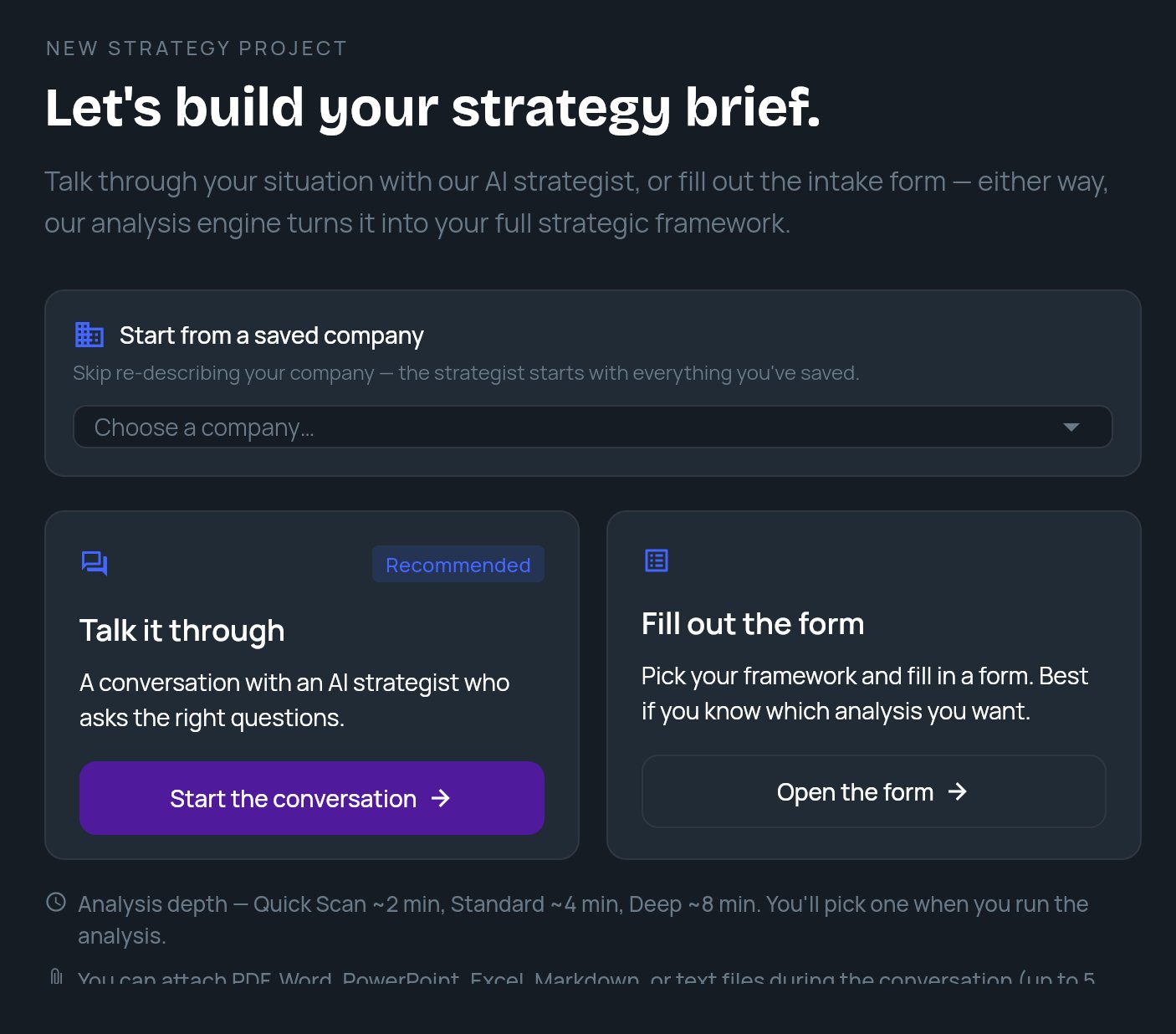
The start screen is headed **NEW STRATEGY PROJECT** and **Let's build your strategy brief.** It offers two cards:
| Card | Button | Best for |
| - | - | - |
| **Talk it through** (marked **Recommended**) | **Start the conversation** | Most people. The strategist asks the questions and picks the framework, so you don't need to know which analysis fits. |
| **Fill out the form** | **Open the form** | You know strategy frameworks and already know which analysis you want. You pick the framework yourself, then fill in the fields. |
Below the cards, the app notes the analysis times (**Quick Scan** \~2 min, **Standard** \~4 min, **Deep** \~8 min). You don't pick a depth here. You pick it when you run the analysis. See [Analysis depth](/docs/strategy/analysis-depth).
## Start from a saved company
If your workspace has [saved companies](/docs/strategy/saved-companies), a **Start from a saved company** card sits above the two options. Open **Choose a company…** and pick one. The strategist then starts with everything you saved about that company, so you don't have to describe it again.
* To unpick it, click the **X** (tooltip **Start without a saved company**).
* Once you're in the conversation, the same picker appears as a smaller row above the chat until you send your first message. After that, the company for this conversation is fixed. To change it, use **Start over**.
* If you pick a company and then choose **Fill out the form**, the form opens with that company loaded.
The picker only appears when your workspace has at least one saved company.
## Talk it through
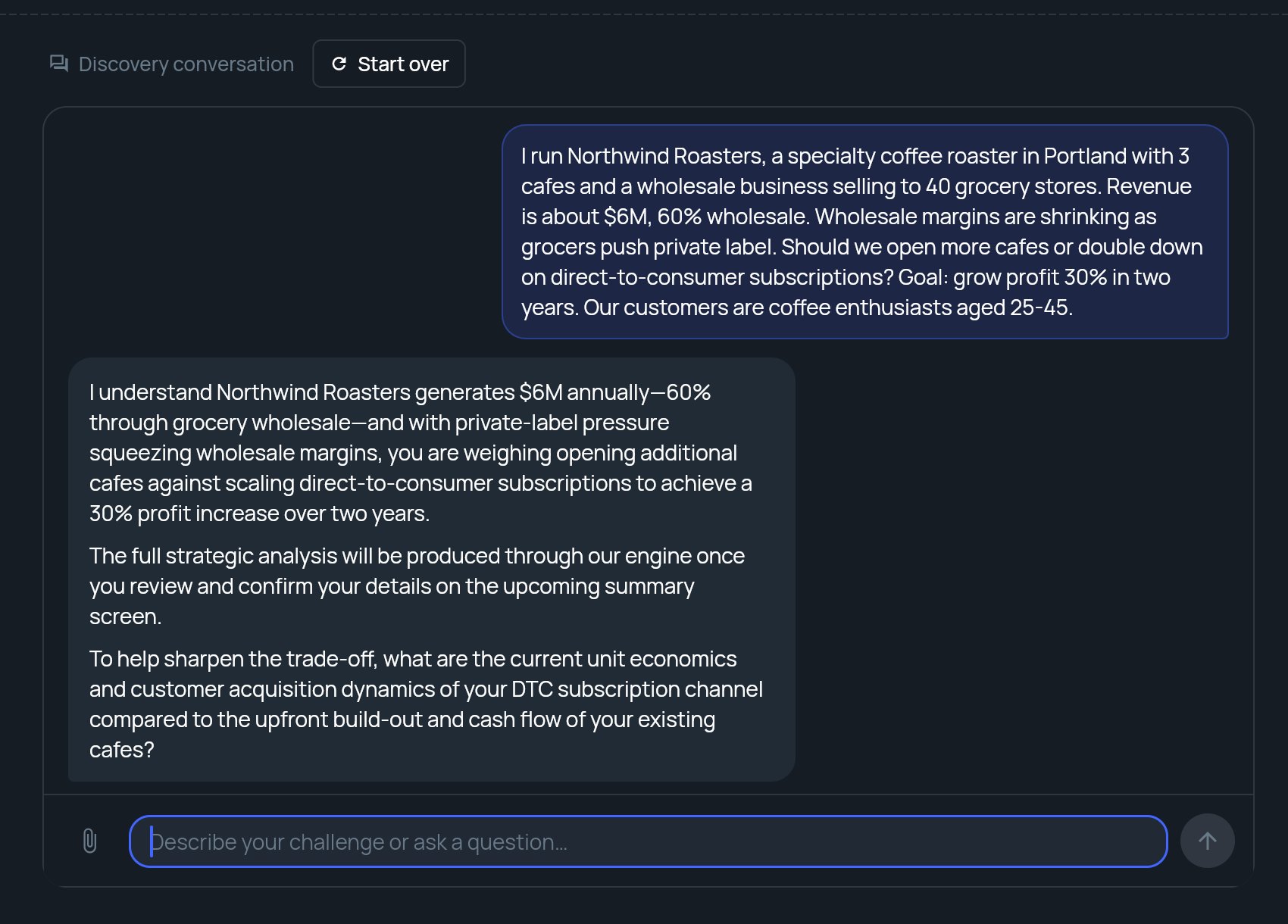
Click **Start the conversation**. The screen changes to **Discovery conversation** and the strategist asks what's on your mind.
Type in the box (**Describe your challenge or ask a question…**) and send. You can start with a specific problem or just explore. The strategist asks follow-up questions about your company, market and goals.
Keep answering until the strategist has what it needs. Each reply can take a little while; the chat shows that it's working.
When the strategist has enough, the **REVIEW YOUR BRIEF** panel opens beside the conversation. Check it, pick a depth and click **Run Analysis**. See [Review your brief and run the analysis](/docs/strategy/review-and-run).
## Choose how to start
The start screen is headed **NEW STRATEGY PROJECT** and **Let's build your strategy brief.** It offers two cards:
| Card | Button | Best for |
| - | - | - |
| **Talk it through** (marked **Recommended**) | **Start the conversation** | Most people. The strategist asks the questions and picks the framework, so you don't need to know which analysis fits. |
| **Fill out the form** | **Open the form** | You know strategy frameworks and already know which analysis you want. You pick the framework yourself, then fill in the fields. |
Below the cards, the app notes the analysis times (**Quick Scan** \~2 min, **Standard** \~4 min, **Deep** \~8 min). You don't pick a depth here. You pick it when you run the analysis. See [Analysis depth](/docs/strategy/analysis-depth).
## Start from a saved company
If your workspace has [saved companies](/docs/strategy/saved-companies), a **Start from a saved company** card sits above the two options. Open **Choose a company…** and pick one. The strategist then starts with everything you saved about that company, so you don't have to describe it again.
* To unpick it, click the **X** (tooltip **Start without a saved company**).
* Once you're in the conversation, the same picker appears as a smaller row above the chat until you send your first message. After that, the company for this conversation is fixed. To change it, use **Start over**.
* If you pick a company and then choose **Fill out the form**, the form opens with that company loaded.
The picker only appears when your workspace has at least one saved company.
## Talk it through
Click **Start the conversation**. The screen changes to **Discovery conversation** and the strategist asks what's on your mind.
Type in the box (**Describe your challenge or ask a question…**) and send. You can start with a specific problem or just explore. The strategist asks follow-up questions about your company, market and goals.
Keep answering until the strategist has what it needs. Each reply can take a little while; the chat shows that it's working.
When the strategist has enough, the **REVIEW YOUR BRIEF** panel opens beside the conversation. Check it, pick a depth and click **Run Analysis**. See [Review your brief and run the analysis](/docs/strategy/review-and-run).
 If your conversation includes a decision with numbers to work out, such as whether a hire pays back, the strategist may show a **REVIEW THIS DECISION** panel instead. See [Review a decision before it is computed](/docs/strategy/decision-review).
## Attach files
Click the paperclip in the message box to attach files to your next message. The strategist reads them along with what you type.
| Limit | Value |
| - | - |
| File types | PDF, Word (`.docx`), PowerPoint (`.pptx`), Excel (`.xlsx`), Markdown (`.md`), text (`.txt`) |
| Files per message | Up to 5 |
| Size per file | Up to 50 MB |
| Text per file | Up to 300,000 characters |
Older Office formats (`.doc`, `.ppt`, `.xls`) aren't accepted. Save them in the newer format first.
If a file is rejected, a message under the box explains why, for example **Maximum 5 attachments allowed**, or that a file is too large or has too much text and **was not attached**. The other files you picked are still attached.
## Start over
To throw away the conversation and go back to the start screen, click **Start over** next to **Discovery conversation**. StratEngine asks **Restart conversation?** and warns **You'll lose the current discussion.** Click **Start over** to confirm, or **Cancel** to keep going.
Starting over also clears the saved company you picked, the brief under review and any decision panel.
## Fill out the form
**Open the form** takes you to **Strategy Brief Generation**, a three-step form:
1. Pick a framework.
2. Enter your business context. **Problem Statement** (**What strategic question do you want to answer?**) is required.
3. Choose an analysis depth and click **Generate Strategy Brief**.
The form uses the same depth options as the conversation. For the fields in each step, see [Generate a framework](/docs/strategy/generate-framework).
## Messages you might see
**Your free analysis has been used. Add funds to run another.** On a pay-as-you-go account with no free analyses and no balance left, this banner appears at the top of the start screen. Click **Add funds** to top up, or dismiss it with the **X**. Members who aren't admins see **Your free analysis has been used. Ask your admin to add funds.** with no button. See [Pay-as-you-go](/docs/strategy/billing/pay-as-you-go).
**MONTHLY LIMIT REACHED.** This applies only to older early-access free accounts, not the current Free plan. On those accounts, Strategy Builder shows **You've generated your 3 free briefs this month.** once you reach it. Click **View plans** to see upgrade options, or **View my existing briefs** to go back to Home. Your existing briefs stay available.
## Related
* [Review your brief and run the analysis](/docs/strategy/review-and-run)
* [Analysis depth](/docs/strategy/analysis-depth)
* [Saved companies](/docs/strategy/saved-companies)
* [Quickstart: your first strategy](/docs/strategy/quickstart)
## Related topics
- [Saved companies](/docs/strategy/saved-companies.md)
- [Quickstart: your first strategy](/docs/strategy/quickstart.md)
- [Review a decision before it is computed](/docs/strategy/decision-review.md)
- [Review your brief and run the analysis](/docs/strategy/review-and-run.md)
- [Research reports](/docs/strategy/research.md)
This documentation is built and hosted on [Mintlify](https://mintlify.com), a developer documentation platform.
If your conversation includes a decision with numbers to work out, such as whether a hire pays back, the strategist may show a **REVIEW THIS DECISION** panel instead. See [Review a decision before it is computed](/docs/strategy/decision-review).
## Attach files
Click the paperclip in the message box to attach files to your next message. The strategist reads them along with what you type.
| Limit | Value |
| - | - |
| File types | PDF, Word (`.docx`), PowerPoint (`.pptx`), Excel (`.xlsx`), Markdown (`.md`), text (`.txt`) |
| Files per message | Up to 5 |
| Size per file | Up to 50 MB |
| Text per file | Up to 300,000 characters |
Older Office formats (`.doc`, `.ppt`, `.xls`) aren't accepted. Save them in the newer format first.
If a file is rejected, a message under the box explains why, for example **Maximum 5 attachments allowed**, or that a file is too large or has too much text and **was not attached**. The other files you picked are still attached.
## Start over
To throw away the conversation and go back to the start screen, click **Start over** next to **Discovery conversation**. StratEngine asks **Restart conversation?** and warns **You'll lose the current discussion.** Click **Start over** to confirm, or **Cancel** to keep going.
Starting over also clears the saved company you picked, the brief under review and any decision panel.
## Fill out the form
**Open the form** takes you to **Strategy Brief Generation**, a three-step form:
1. Pick a framework.
2. Enter your business context. **Problem Statement** (**What strategic question do you want to answer?**) is required.
3. Choose an analysis depth and click **Generate Strategy Brief**.
The form uses the same depth options as the conversation. For the fields in each step, see [Generate a framework](/docs/strategy/generate-framework).
## Messages you might see
**Your free analysis has been used. Add funds to run another.** On a pay-as-you-go account with no free analyses and no balance left, this banner appears at the top of the start screen. Click **Add funds** to top up, or dismiss it with the **X**. Members who aren't admins see **Your free analysis has been used. Ask your admin to add funds.** with no button. See [Pay-as-you-go](/docs/strategy/billing/pay-as-you-go).
**MONTHLY LIMIT REACHED.** This applies only to older early-access free accounts, not the current Free plan. On those accounts, Strategy Builder shows **You've generated your 3 free briefs this month.** once you reach it. Click **View plans** to see upgrade options, or **View my existing briefs** to go back to Home. Your existing briefs stay available.
## Related
* [Review your brief and run the analysis](/docs/strategy/review-and-run)
* [Analysis depth](/docs/strategy/analysis-depth)
* [Saved companies](/docs/strategy/saved-companies)
* [Quickstart: your first strategy](/docs/strategy/quickstart)
## Related topics
- [Saved companies](/docs/strategy/saved-companies.md)
- [Quickstart: your first strategy](/docs/strategy/quickstart.md)
- [Review a decision before it is computed](/docs/strategy/decision-review.md)
- [Review your brief and run the analysis](/docs/strategy/review-and-run.md)
- [Research reports](/docs/strategy/research.md)
This documentation is built and hosted on [Mintlify](https://mintlify.com), a developer documentation platform.