

Anyone can connect their own export destination. Setting up a synced folder needs a workspace admin; see Sync a cloud folder.
Where connections live in Settings
Open Settings from the side menu. The connections area has three parts: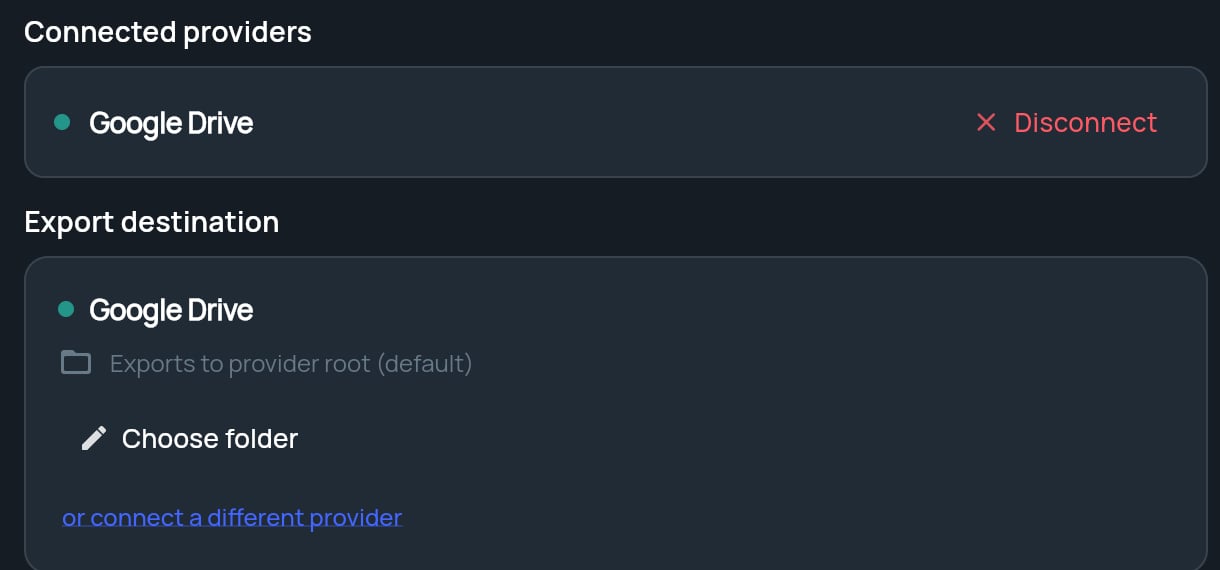
Connect an export destination
1
Click Connect export destination
Under Export destination, click Connect export destination. A window opens listing the storage providers you can connect.
2
Pick a provider and sign in
Choose your provider and sign in to it in that window. Grant StratEngine the access it asks for.
3
Check the result
The window closes and you see Export destination connected successfully. The Export destination tile now shows the provider and Exports to provider root (default).
What gets exported where
StratEngine creates these folders the first time you export. Both go inside the export folder you choose below, if you set one, or at the top level of your storage otherwise. See Export a document and Export memos.
Choose an export folder
By default, exports go to the top level of your storage. To put them in a different folder (StratEngine creates itsStratEngine/ folders inside it):
1
Click Choose folder
On the Export destination tile, click Choose folder (or Change folder if one is already set).
2
Paste the folder's URL
Open the folder in your storage provider in another tab and copy the URL from the address bar. Paste it into the field.
3
Click Save
The tile now shows Exports to: and the folder path.
Switch to a different provider
While no export folder is set, the tile shows or connect a different provider. Click it to connect another provider as your export destination. Once you’ve chosen an export folder, the link is hidden; click Reset to root first if you want to switch.Disconnect a provider
1
Find the provider
Under Connected providers, find the row for the provider.
2
Click Disconnect, then Confirm
Click Disconnect. The row asks Disconnect?. Click Confirm within a few seconds, or Cancel to keep it.