

StratEngine works on desktop browsers only. On a phone or tablet, the sign-in page offers to email you a link so you can sign in later from a computer. See Signing in from a phone or tablet.
Sign in with a magic link
1
Open StratEngine
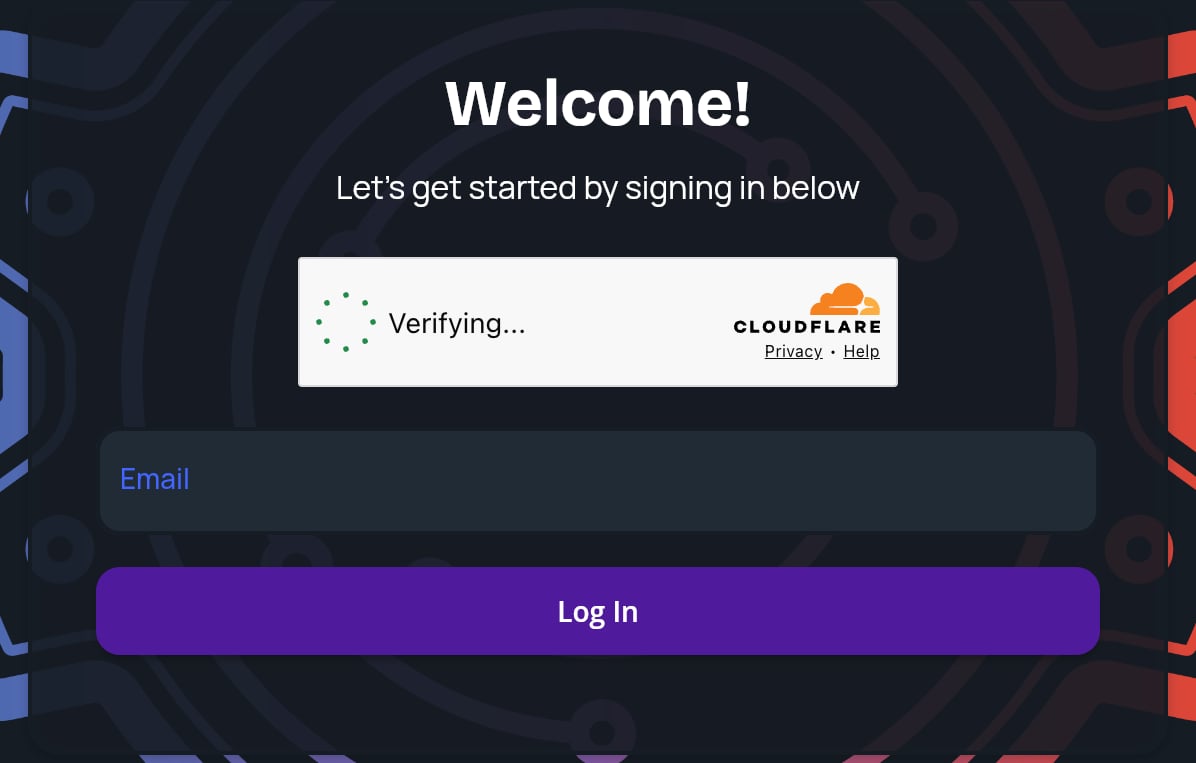
Go to app.stratengineai.com on a desktop browser. The sign-in card says Welcome! and Let’s get started by signing in below.
2
Wait for the security check
A security check box sits above the email field. It usually completes on its own. If it asks you to tick a box, tick it.
3
Enter your email and click Log In
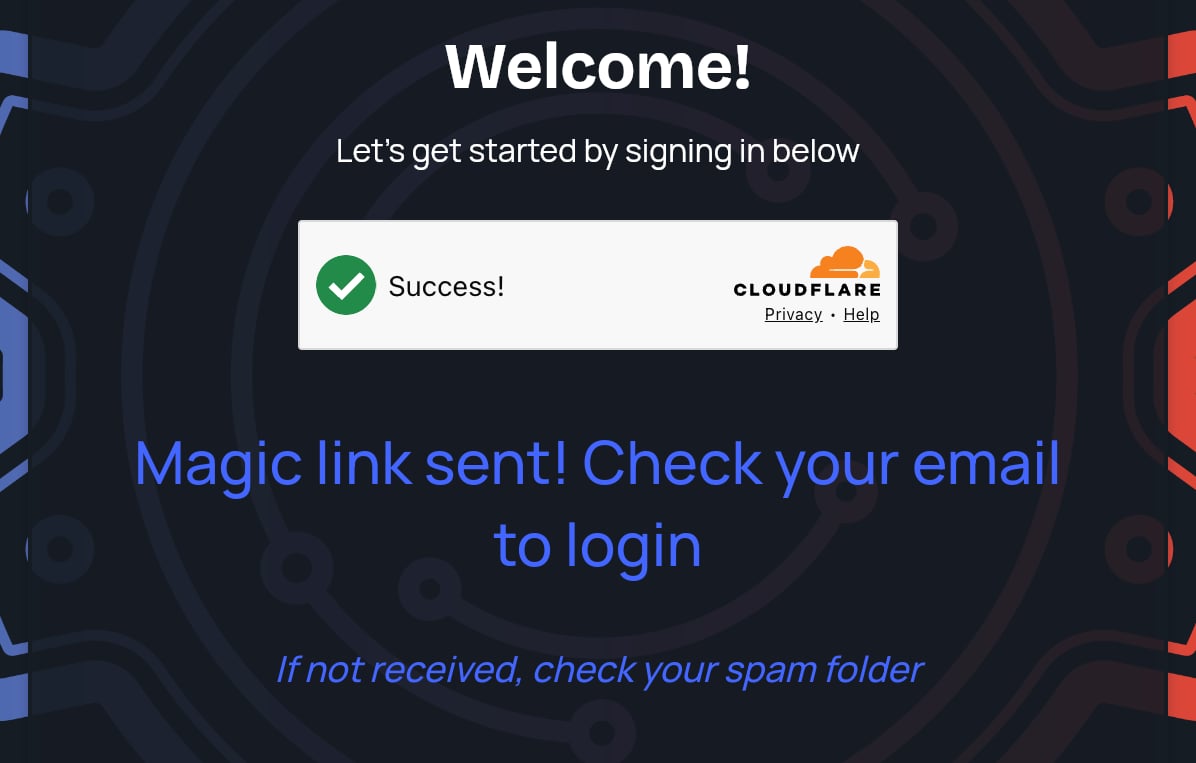
Type your email in Email and click Log In. The card changes to Magic link sent! Check your email to login. If the link couldn’t be sent, the card stays as it was and you’ll see We couldn’t send your magic link. Please try again. If this continues to happen, please email help@stratengineai.com.
4
Click the link in the email
Open the email from StratEngine and click the link. StratEngine opens in your browser and takes you to Home, or to onboarding if this is your first time.
If the email doesn’t arrive
The confirmation screen reminds you: If not received, check your spam folder. Look in spam, junk and any promotions tab. If it still isn’t there after a few minutes, reload the sign-in page and request a new link, and check the email address for typos. If you see Security check failed. Please refresh the page. If this continues to happen, please email help@stratengineai.com, the security check didn’t finish before you clicked Log In. Reload the page, wait for the check to complete, then try again. More fixes are in Troubleshooting.Which workspace you land in
Your email address decides your workspace the first time you sign in:- A work email (for example
you@yourfirm.com): if someone from your company already uses StratEngine, you join their workspace as a member. Otherwise StratEngine creates a workspace for your company and makes you its admin. - A personal email (for example Gmail, Outlook.com or iCloud): you get a workspace of your own. Personal workspaces can’t add other members.