

StratEngine runs in a desktop browser. On a phone or tablet the sign-in screen tells you the app is desktop-only. See Signing in from a phone or tablet.
1
Sign in
Go to app.stratengineai.com, enter your email and click Log In. Open the magic link StratEngine emails you. If it doesn’t arrive, check your spam folder. See Sign in for details.
2
Finish onboarding
New accounts go through a short setup first:
- Welcome: a one-minute video. Click Let’s get set up when you’re ready.
- Profile: enter your Full name and Job title (both required), plus optional company details, then click Continue.
- Your company: enter your Company name and click Continue to save it as your first saved company, or click Skip for now.
- Private documents: add documents that aren’t public, or click Skip for now.
3
Choose Talk it through
Strategy Builder opens on Let’s build your strategy brief. Under Talk it through, click Start the conversation.If you saved a company, pick it from Start from a saved company before you send your first message. The strategist then already knows the basics.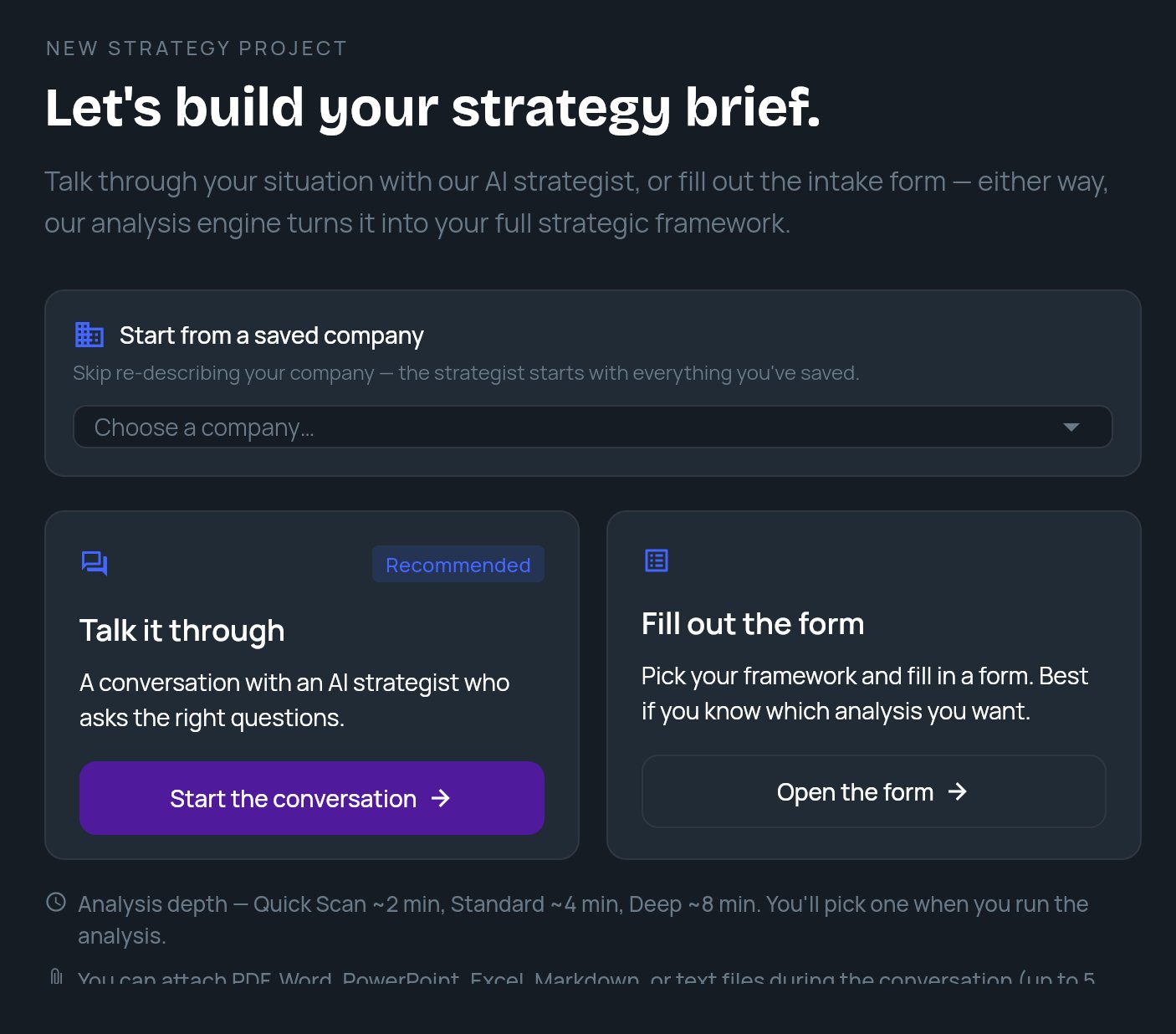
4
Talk through your situation
Type your challenge or question in the box (Describe your challenge or ask a question…) and answer the strategist’s follow-up questions. You can attach PDF, Word, PowerPoint, Excel, Markdown or text files during the conversation, up to 5 files of up to 50 MB each. See Attach files.To throw the conversation away and begin again, click Start over at the top.
5
Review your brief
When the strategist has enough, a REVIEW YOUR BRIEF panel opens beside the conversation. Check the fields it filled in, such as Company, Industry, Business Problem and Strategic Goals.To change something, tell the strategist in the chat. The panel is not edited directly. See Review your brief and run the analysis.Under Analysis depth, pick Quick Scan (~2 min), Standard (~4 min) or Deep (~8 min). Depths your plan doesn’t include show a lock. See Analysis depth.Optionally, turn on Save this company for reuse so future analyses start from this company.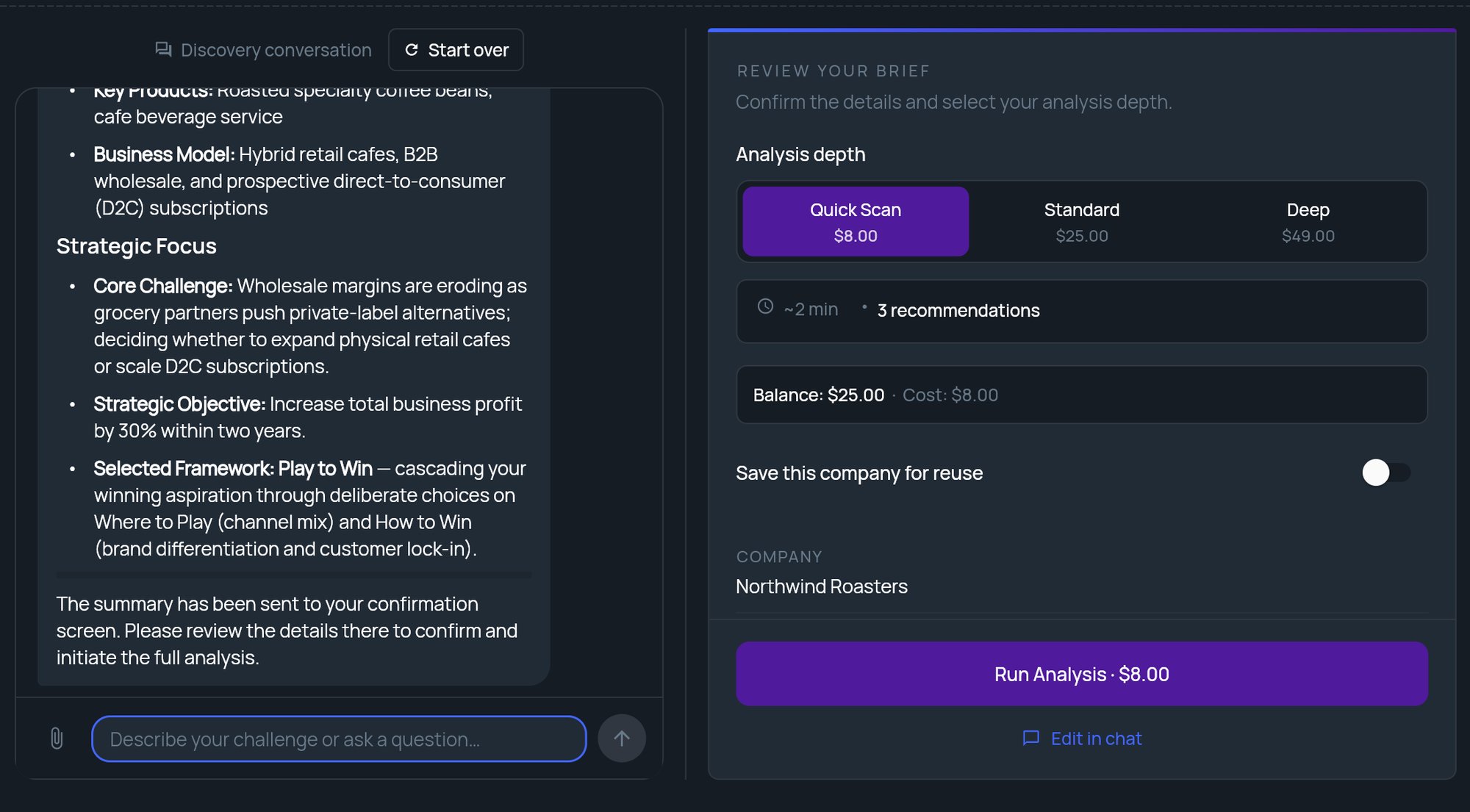
6
Run the analysis
Click Run Analysis. The button shows the estimated time, for example Run Analysis · ~4 min. On a pay-as-you-go account it shows Run Analysis (Free) while you have a free analysis left, or the price of the run.A progress ring shows each stage. You can leave it running: We’ll take you to your brief as soon as it’s ready. To stop, click Cancel analysis. The run stops and you’re back at the review panel with your brief intact.
7
Read your strategy brief
When the analysis finishes, your strategy brief opens. Read it in place, or use the toolbar:
- Edit with AI opens a chat that rewrites the brief on request.
- View in Browser opens a formatted version you can print or save as a PDF.
- Export to Docs saves a copy to your connected export destination.
8
Generate a deck
Click Generate Deck in the toolbar. If you have brand kits, choose one in Deck branding (or No branding (StratEngine theme)) and click Generate.A progress bar shows Building your presentation…. When the deck is ready, it opens in a new browser tab. If nothing opens, allow pop-ups for StratEngine and click View Deck.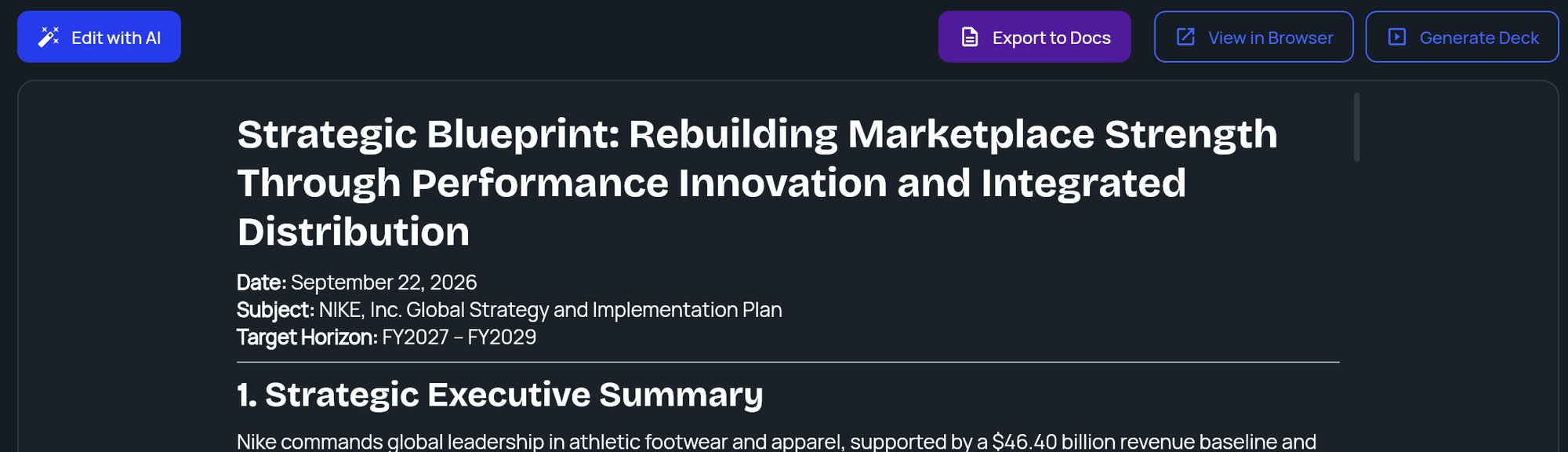
What to do next
- Share the deck with a link: Share a deck with a link.
- Export it to Google Slides or PowerPoint: Export a deck.
- Run a single framework on the same company: Generate a framework.