Free plans include a monthly memo allowance. Once it’s used, uploads stop until an admin upgrades the plan. See VC plans and memo overages.
1
Sign in
Sign in with the magic link sent to your email. See Sign in if the link doesn’t arrive.
2
Fill in your profile
On Tell us about yourself, enter Full name and Job title (both required). Company, Company size, Industry and How did you hear about us? are optional. Click Continue.
3
Choose a scoring framework
On How should StratEngine evaluate deals?, pick Use StratEngine AI framework to start with the default, or Create custom framework to define categories, per-stage weights and scoring anchors now. You can change this later from Settings. See Custom scoring frameworks.
4
Add private documents (optional)
On Add private documents, upload thesis documents, past memos or IC notes so memos reflect what your firm knows. They’re visible to everyone in your workspace. See Private documents. Click Continue, or Skip for now.
5
Set up a pitch deck folder (admins, optional)
Workspace admins see Auto-ingest pitch decks from a folder. Connect Google Drive, Dropbox or OneDrive and choose a folder, or click Skip for now. Details in Auto-ingest decks from a folder or email.
6
Go to Upload
The You’re set. card appears. Click Analyze your first pitch deck to open the Upload page.
7
Upload a deck
Drag a deck onto Drop pitch decks to analyze, or click it to browse. PDF and PPTX files up to 50MB each are accepted, and you can drop several at once.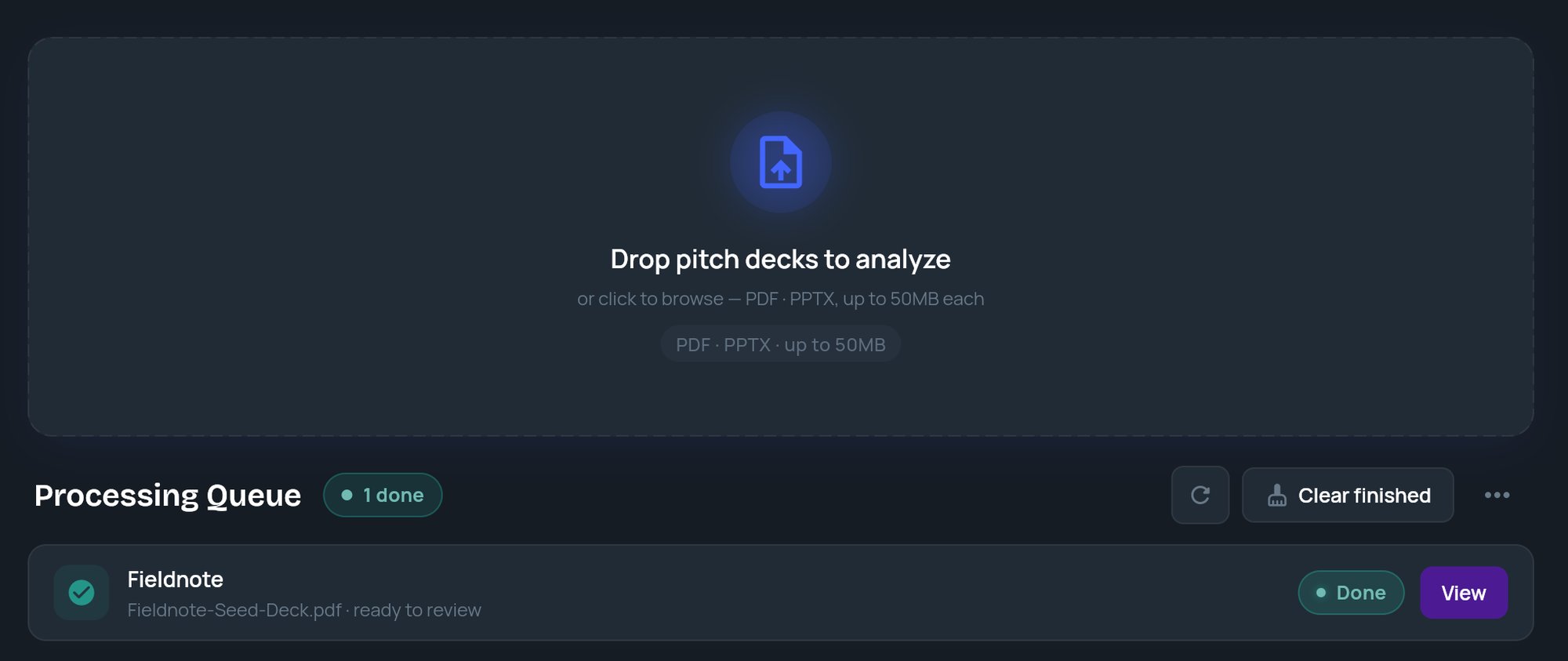
8
Watch the Processing Queue
Each deck appears as a tile in the Processing Queue and moves from Queued to Analyzing (with a percentage) to Done. When it’s done, click View to open the memo.If a tile shows Failed, click Info for the error, then click Retry to run the deck again.
9
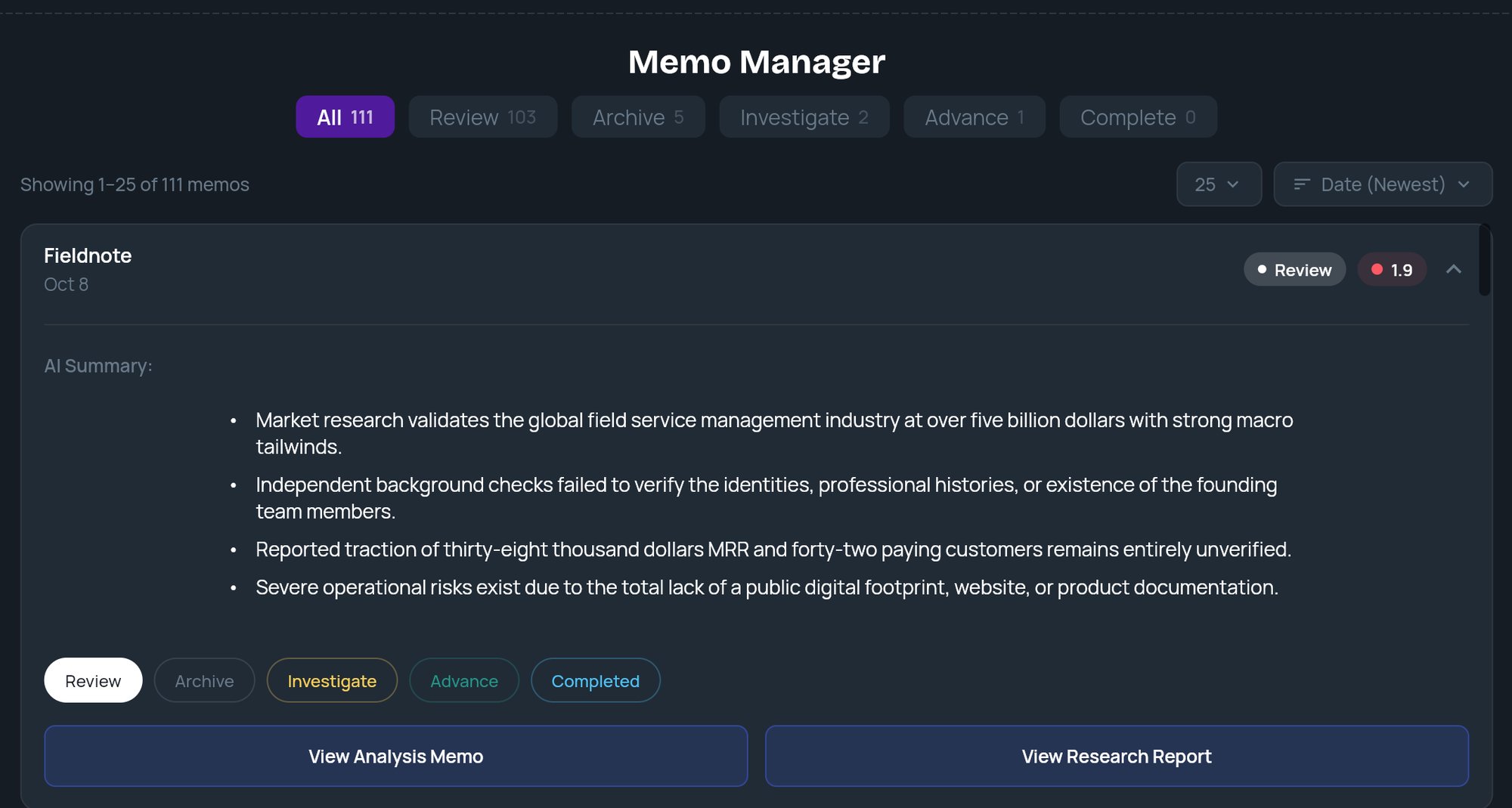
Open the memo from Analysis Memos
Click Analysis Memos in the side menu. Find the company and click View Memo. Or click the tile itself to expand it, then choose View Analysis Memo or View Research Report.