

Everyone in your workspace can open any memo and sees status changes. Only the person who uploaded a deck can export its memo.
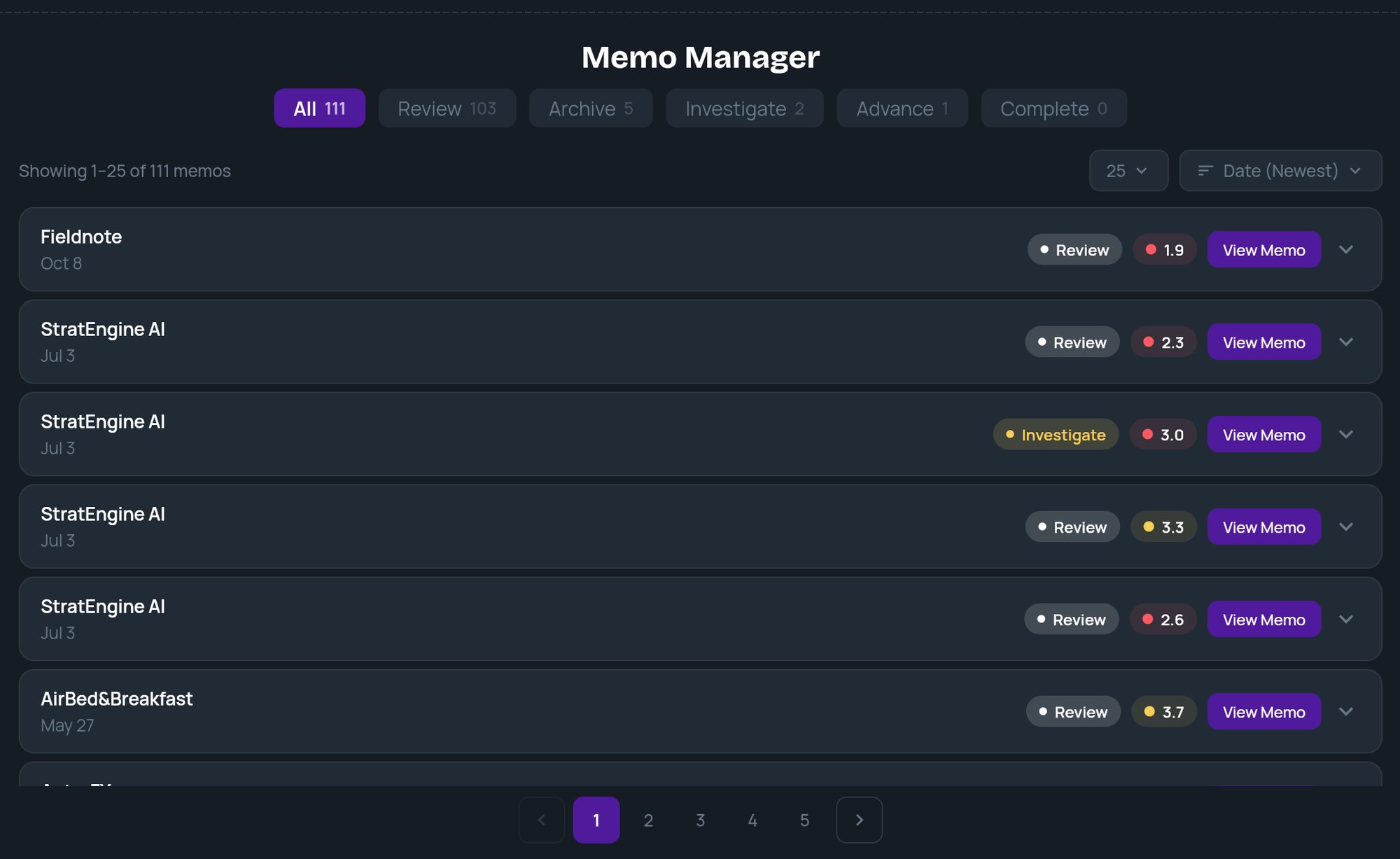
Status tabs
The tabs across the top filter the list. Each shows a count.
The statuses are labels for your own workflow. Changing one doesn’t move, export or delete anything.
Sort and page
A line above the list shows which memos you are viewing out of the current tab’s total.- Sort: Date (Newest) (default), Date (Oldest), Company (A-Z), Company (Z-A), Conviction (High-Low), Conviction (Low-High).
- Page size: 25, 50, 75 or 100 per page. Page numbers appear below the list when there’s more than one page.
Read a tile
A collapsed tile shows the company name, the date, a status pill, the conviction score and View Memo. The conviction score is the deal’s weighted score against your scoring framework, shown to one decimal place. Its dot is green at 4.0 and above, amber from 3.0 to 3.9, and red below 3.0. See Custom scoring frameworks. Click anywhere else on the tile to expand it:- AI Summary: a short summary of the memo.
- Status chips: Review, Archive, Investigate, Advance, Completed. Click one to change the status. If the change doesn’t save, the chip switches back and you’ll see Couldn’t update the memo status. Please try again.
- View Analysis Memo and View Research Report: open either document. See Read an investment memo.