Frameworks are shared across your workspace, and the default applies to every deck anyone uploads, forwards or drops in a watched folder. A deck is scored against the default as it stands when the deck arrives; changing a framework later doesn’t rescore existing memos.
How scoring works
Each category gets a score from 1 to 5, judged against that category’s scoring anchors. StratEngine works out the deck’s funding stage, then combines the category scores using that stage’s weights into the conviction score shown on the memo tile. If the deck’s stage is outside the stages your framework covers, the nearest covered stage’s weights are used.Manage frameworks
Settings > Pitch Deck Scoring Frameworks lists every framework in the workspace, with the default first and marked DEFAULT. Each row shows its category count and when it was last updated.
The built-in StratEngine AI framework can be viewed and set as default, but not edited or deleted. It’s the default whenever no custom framework is. Opening it shows Create new, which starts a new framework.
Create a framework
1
Name it
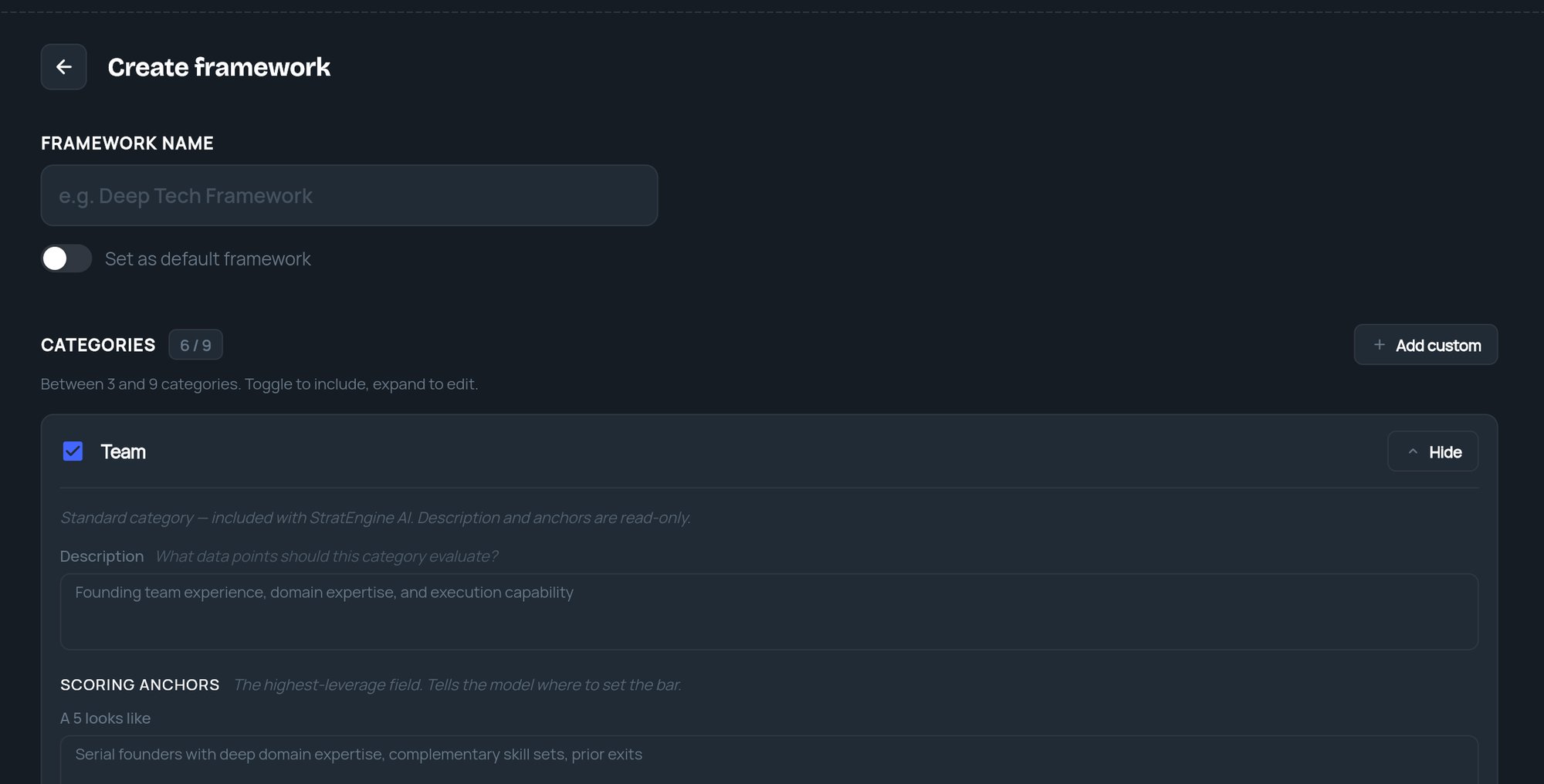
Under Framework name, enter up to 50 characters, for example “Deep Tech Framework”. Turn on Set as default framework if new decks should use it.
2
Choose 3 to 9 categories
Under Categories, a new framework starts with six standard categories switched on: Team, Product, Market, Traction, Business Model and Risk. Further preset categories are listed switched off. Use each category’s toggle to include or exclude it; the counter shows how many are active, such as 6 / 9.Standard categories come with fixed descriptions and anchors. Click Details to read them.
3
Add your own categories (optional)
Click Add custom. Fill in Name, Description (what the category should evaluate, up to 500 characters) and the two SCORING ANCHORS: A 5 looks like and A 1 looks like. To remove a custom category, click Remove category.The anchors matter most: they tell StratEngine where to set the bar.
4
Set the stages
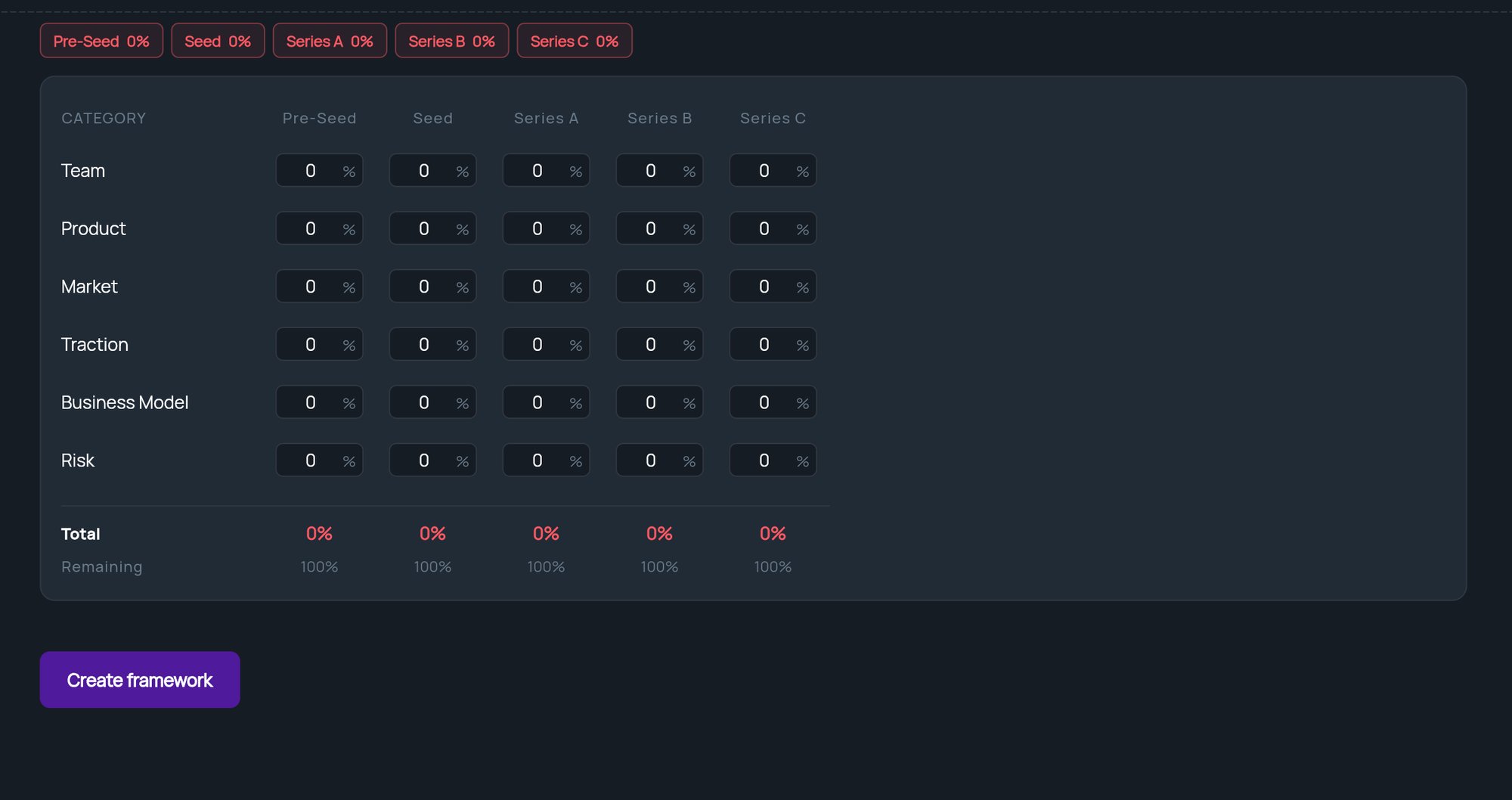
Under Weights, the table has a column per funding stage, starting at Pre-Seed to Series C. Use the Add and Remove buttons at either end to cover earlier or later stages, from Pre-Seed up to Series Z. The stages must be continuous.
5
Set weights per stage
Enter a percentage for each category in each stage. Each stage’s Total must be 100%; Remaining shows what’s left to assign. Distribute evenly splits 100% equally across the active categories in every stage.
6
Save
Click Create framework (or Save changes when editing).