

Private documents are visible to everyone in your workspace, and StratEngine searches them for every deck anyone in the workspace analyzes. Upload a document only if your whole workspace should be able to see it.
Upload documents
1
Open Settings
Click Settings in the side menu and find Private documents.
2
Add files
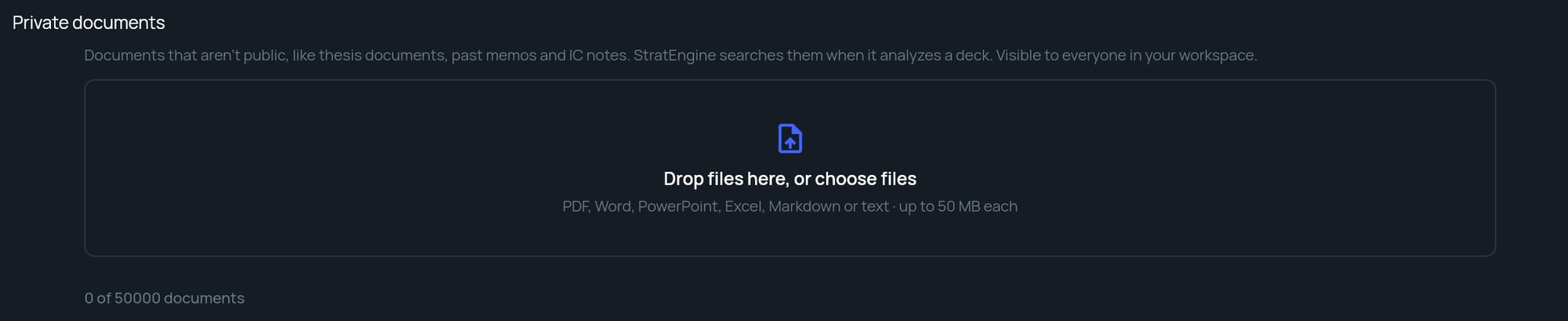
Drag files onto Drop files here, or choose files, or click it to pick files.
3
Wait for Ready
Each file shows Uploading…, then Indexing…, then Ready. You can leave the page while files index. Decks analyzed after a file is Ready can draw on it.
What to upload
Documents that help StratEngine judge a deal the way your firm would:- Your investment thesis and sector notes
- Past investment memos
- IC notes and decision records
- Founder and market diligence
Supported files and limits
Uploaded files and files from a synced cloud folder count toward the same total. If you upload a file that’s already there, StratEngine skips it and tells you, for example 1 file was already uploaded.
Document statuses
Remove a document
Click the × at the end of the document’s row. The document and everything StratEngine indexed from it are removed, and later analyses no longer use it. Memos already generated aren’t changed. You can remove documents you uploaded; workspace admins can remove any uploaded document. A file can’t be removed while it’s indexing.Private documents, folder watch and synced folders
These three are easy to mix up:
Don’t put pitch decks you want analyzed in private documents; upload them on the Upload page instead.