

Open a memo
The page is headed View Memo or View Research Report, and the document is labeled INVESTMENT MEMO or RESEARCH REPORT above its title.
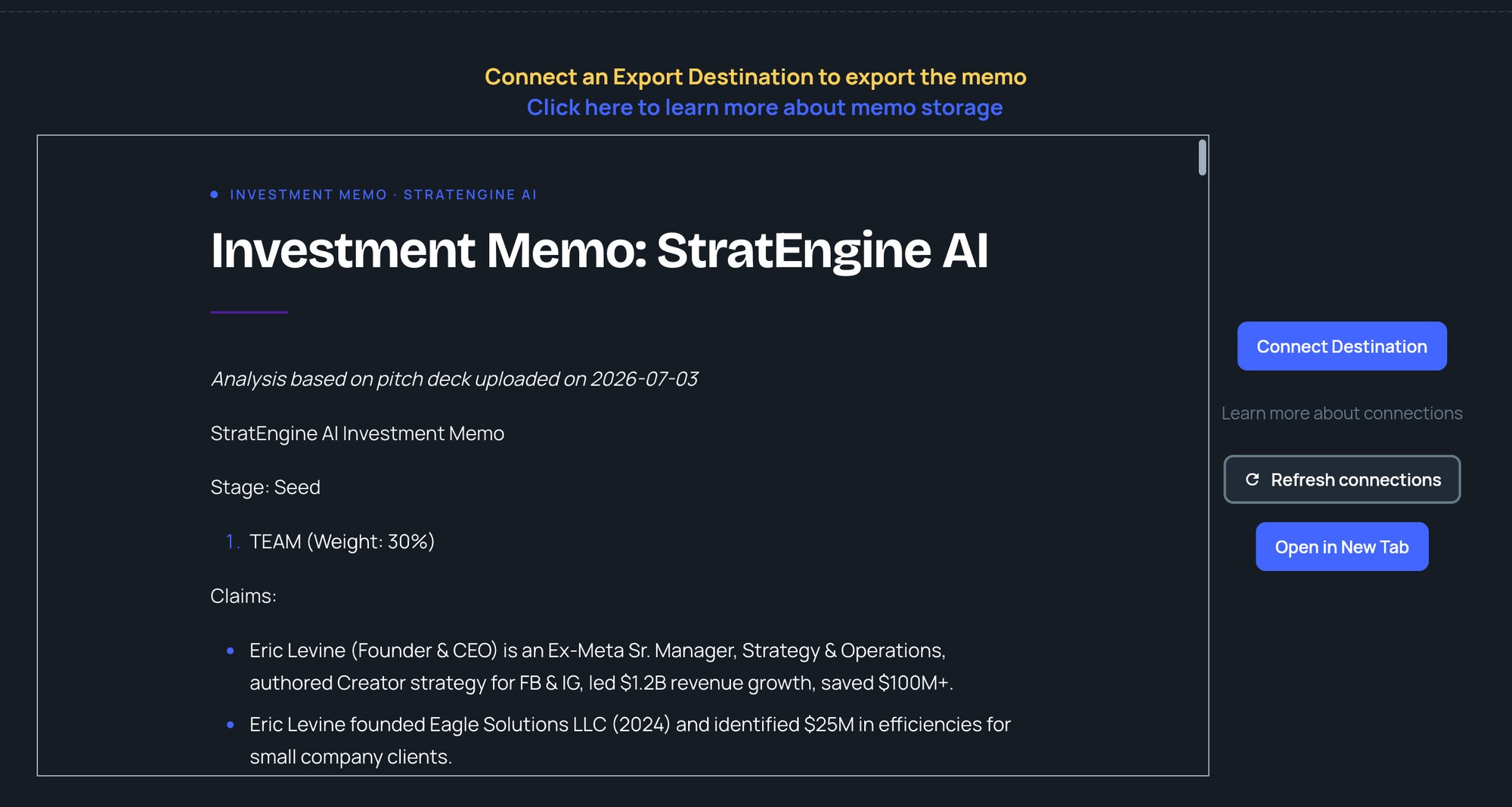
Inside the document
- Contents: a rail of the document’s headings. Click one to jump to it; the rail highlights where you are as you scroll.
- Text: select and copy text as in any web page, and use your browser’s find to search it.
- Links: sources and other links open in a new tab, so you don’t lose your place.
Open in a new tab
Click Open in New Tab for a standalone copy of the document. Its toolbar has:
If nothing opens, your browser blocked the new tab. See Troubleshooting.
Buttons beside the memo
What you see next to the document depends on your plan and whether you have an export destination:
Without an export destination, a Connect an Export Destination to export the memo banner also appears above the document, on any plan.
See Export memos before you click Export to Destination: it removes the memo’s contents from StratEngine.