

Brand kits are personal. Other people in your workspace don’t see your kits and need to create their own.
Create a brand kit
1
Open Settings
Click Settings in the side menu and scroll to Brand kits.
2
Click Add brand kit
A New brand kit form opens.
3
Add a logo, brand text, or both
You need at least one of these:
- Logo: click Choose logo and pick a PNG, JPEG or WebP image of up to 2 MB.
- Brand text: paste your brand guidelines or a description of your brand into Brand guidelines or description (optional). Up to 20,000 characters.
4
Name the kit (optional)
Type a name in the kit name field. If you leave it blank, StratEngine picks a name for you.
5
Click Create kit
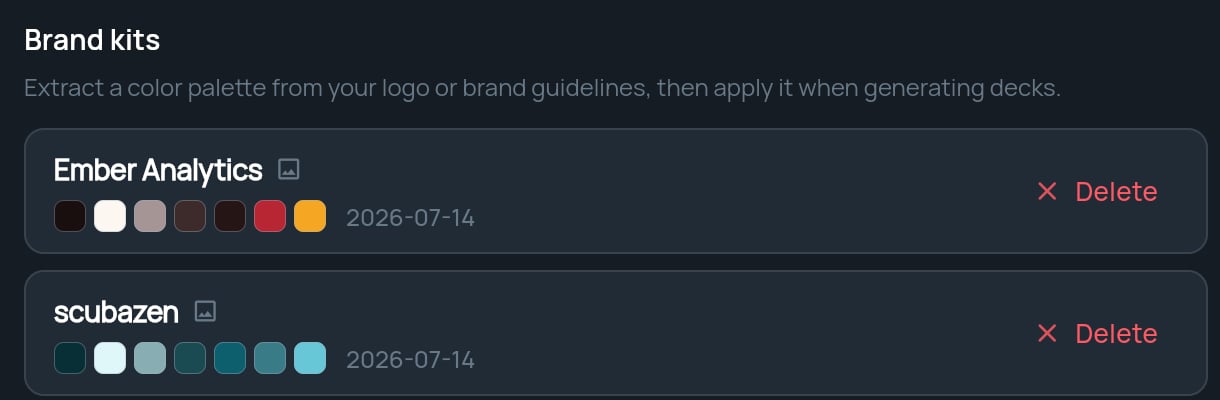
The button shows Extracting colors… for a few seconds. When it’s done, you see Brand kit “name” created. and the kit appears in the list with its color swatches.
What’s in a kit
Each kit is a palette of seven colors covering backgrounds, surfaces, text, muted text, accents and borders. StratEngine checks the palette for readable contrast when it creates the kit. A logo icon next to a kit’s name means the kit includes a logo.Apply a brand kit
You choose a kit each time, so one kit doesn’t lock in your look:
In both windows, pick a kit or No branding (StratEngine theme). The windows only appear once you have at least one brand kit.
See Generate a deck and Export a document, print, or save as PDF.