

The Momentum and Assumptions tabs only have content when the analysis was run deep enough to produce it. Momentum comes with Standard and Deep runs, which means Essential and higher plans, or pay-as-you-go at Standard or Deep. Assumptions come with Deep runs, which means Professional, or pay-as-you-go at Deep. Tabs without content show a lock. See Analysis depth.
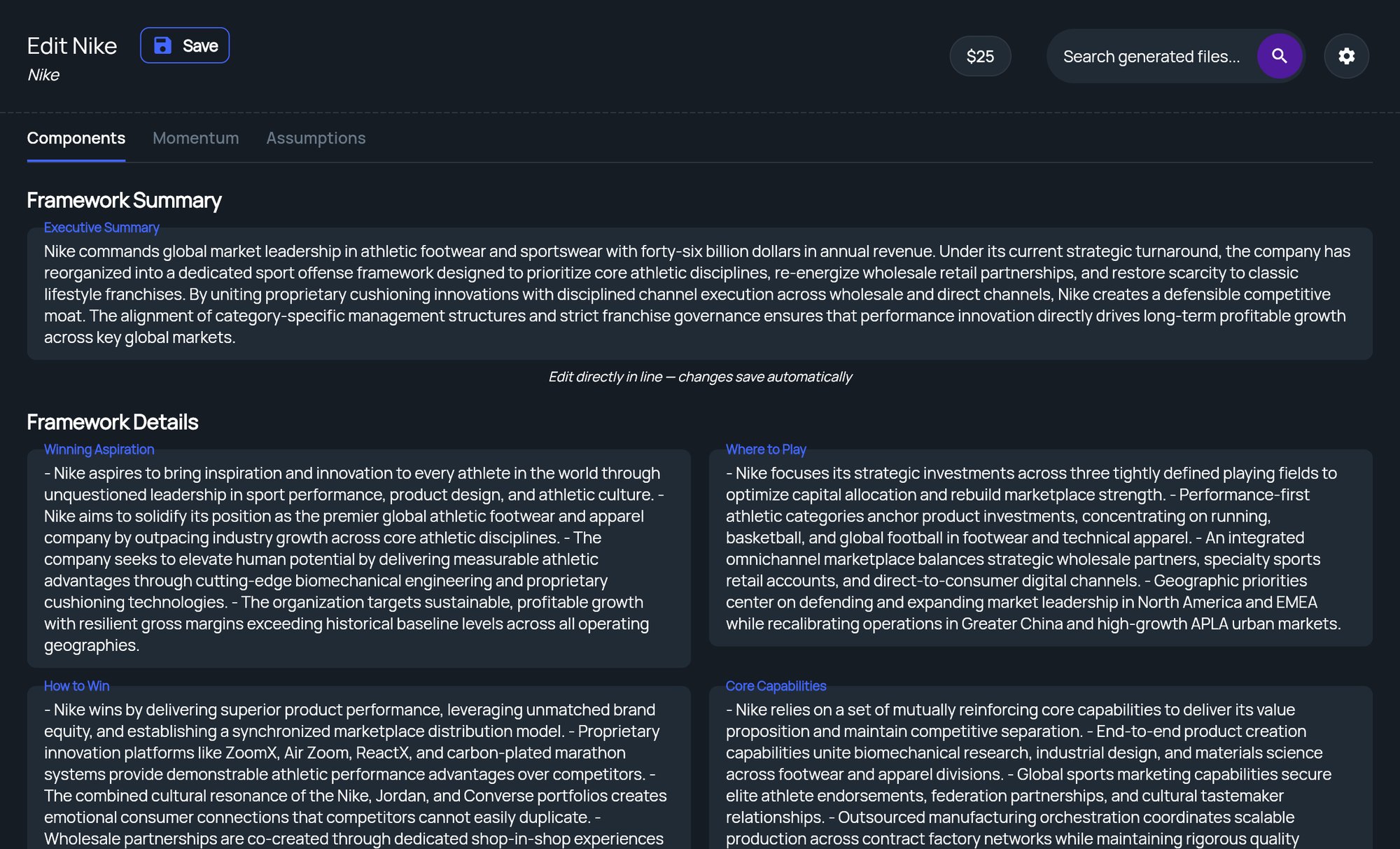
Components
The Components tab holds the framework itself:- Framework Summary: an Executive Summary of the analysis.
- Framework Details: one field per part of the framework. The labels depend on the framework, for example the four quadrants of a SWOT.
- Sources: the sources the analysis cited. The app reminds you: LLM Models occasionally make mistakes, always confirm sources. If none were cited, it shows No sources found.
Edit the results
Click into any field and type. Changes save automatically a couple of seconds after you stop typing. To save right away, click Save next to the page title; you’ll see Framework saved. Your edits stay on this page until you regenerate the strategy brief (see Turn the framework into a strategy brief).Momentum
The Momentum tab sorts the trends affecting the company into four groups: Accelerating, Stable, Declining and Volatile. Each trend is a card with a Header and a Subheader that describes its velocity or impact.- Edit a card: type in its fields. Changes save automatically.
- Change the velocity: on Accelerating, Declining and Volatile cards, click the arrows icon next to the velocity label to cycle it, for example from Accelerating to Slowly Accelerating to Rapidly Accelerating.
- Add a card: click the add icon (Add item) on the right of a group’s heading.
- Delete a card: click the trash icon on the card.
Assumptions
The Assumptions tab lists the assumptions the analysis depends on, grouped into High Risk, Medium Risk and Low Risk. Each card has an Assumption and a Risk Explanation. You can edit, add and delete cards the same way as on the Momentum tab.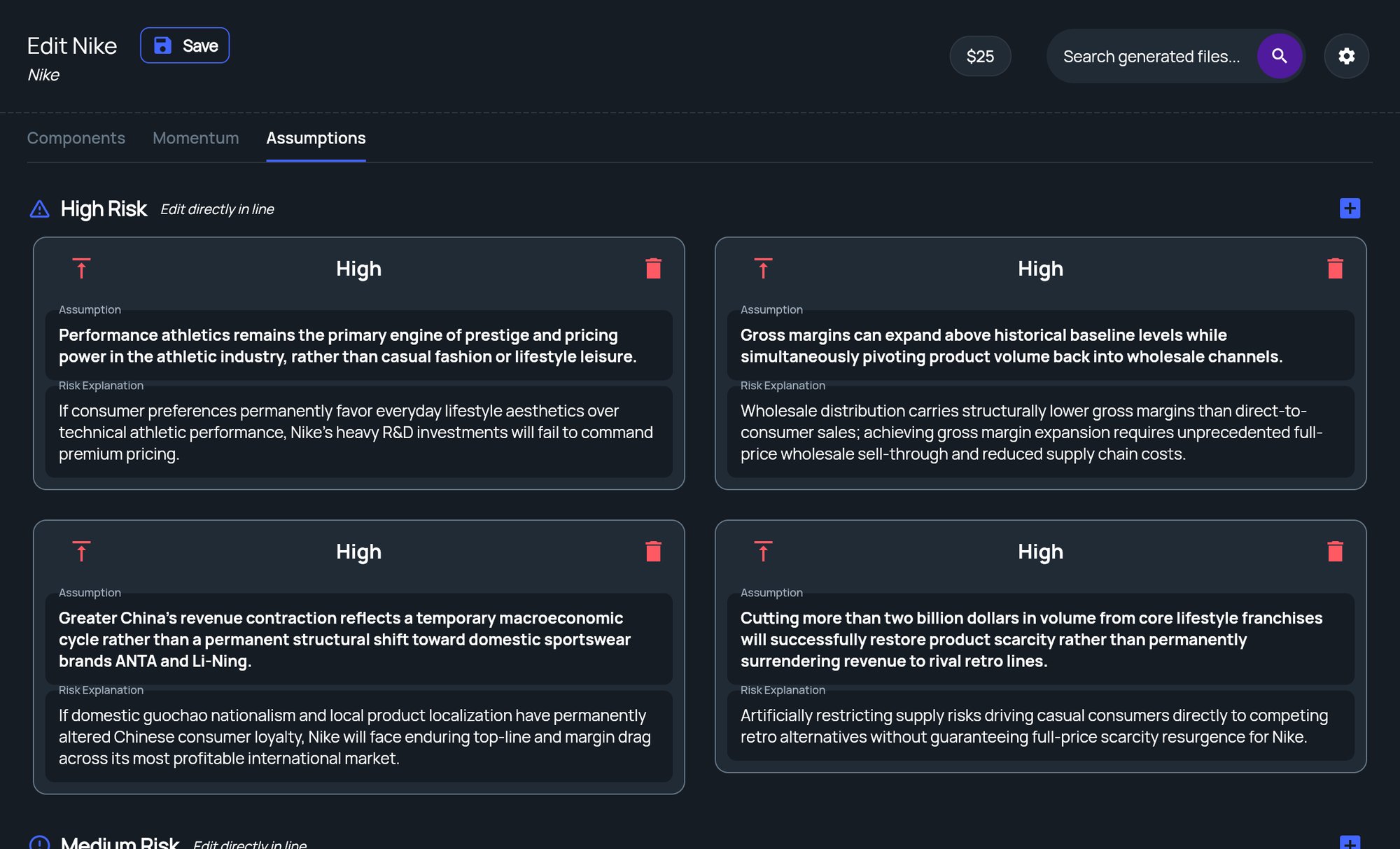
When a tab is locked
What happens when you click a locked tab depends on your account:- Subscription plans: if you’re a workspace admin, clicking the tab starts an upgrade with a free trial. If you aren’t, you’ll see Admin Access Required and need to ask your admin. On the Components tab, a line such as Momentum Analysis requires Essential tier with a Start free trial link also appears.
- Pay-as-you-go: the lock is informational. To get momentum or assumptions, run the framework again at a deeper depth.
Rate the analysis
Below the results, How was the analysis quality? asks for one to five stars, from Poor to Great. You can rate each framework once. After you rate, you’ll see Thank you! We use this rating to improve results.Turn the framework into a strategy brief
The panel at the bottom of the page has a Generate Strategy Brief button. It writes a full strategy brief from the framework, including your edits, and opens it in the document viewer when it’s ready. From there you can edit it with AI, export it and generate a deck. See Strategy briefs and Edit with AI. If you’ve already exported this framework’s brief, a View Doc button opens the exported document.On pay-as-you-go, Generate Strategy Brief runs the analysis again and is charged like any run, at the depth the framework ran at. A Regenerate strategy brief window shows the price and your balance first. Click Regenerate for the price to go ahead. If a free analysis covers it, the brief starts without asking, and if your balance is too low, the add-funds window opens instead. See Pay-as-you-go.