

Generate a research report
1
Open Conduct Research
In the side menu, under Research, click Conduct Research. To make sure you start with an empty form, click New Project at the top of the page.
2
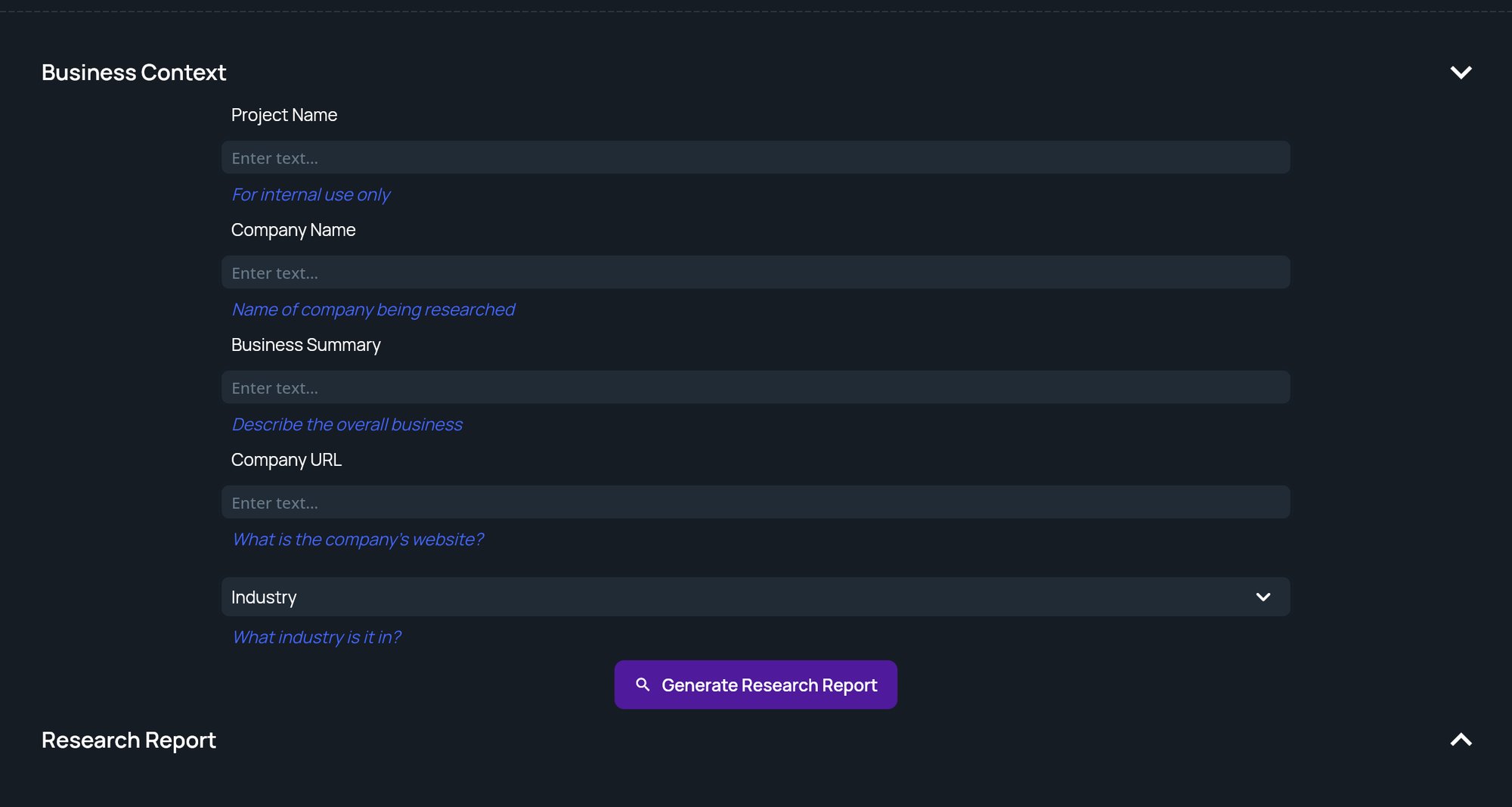
Fill in the business context
The Business Context section has these fields:
Project Name and Company Name are required. If either is blank, the form shows Project Name and Company Name are required to generate a report. Fill in the other fields too, since the report is only as specific as what you give it. The website helps StratEngine tell apart companies with similar names.
3
Generate the report
Click Generate Research Report. A progress screen shows while StratEngine researches the company. Cancel closes the progress screen.
4
Read the report
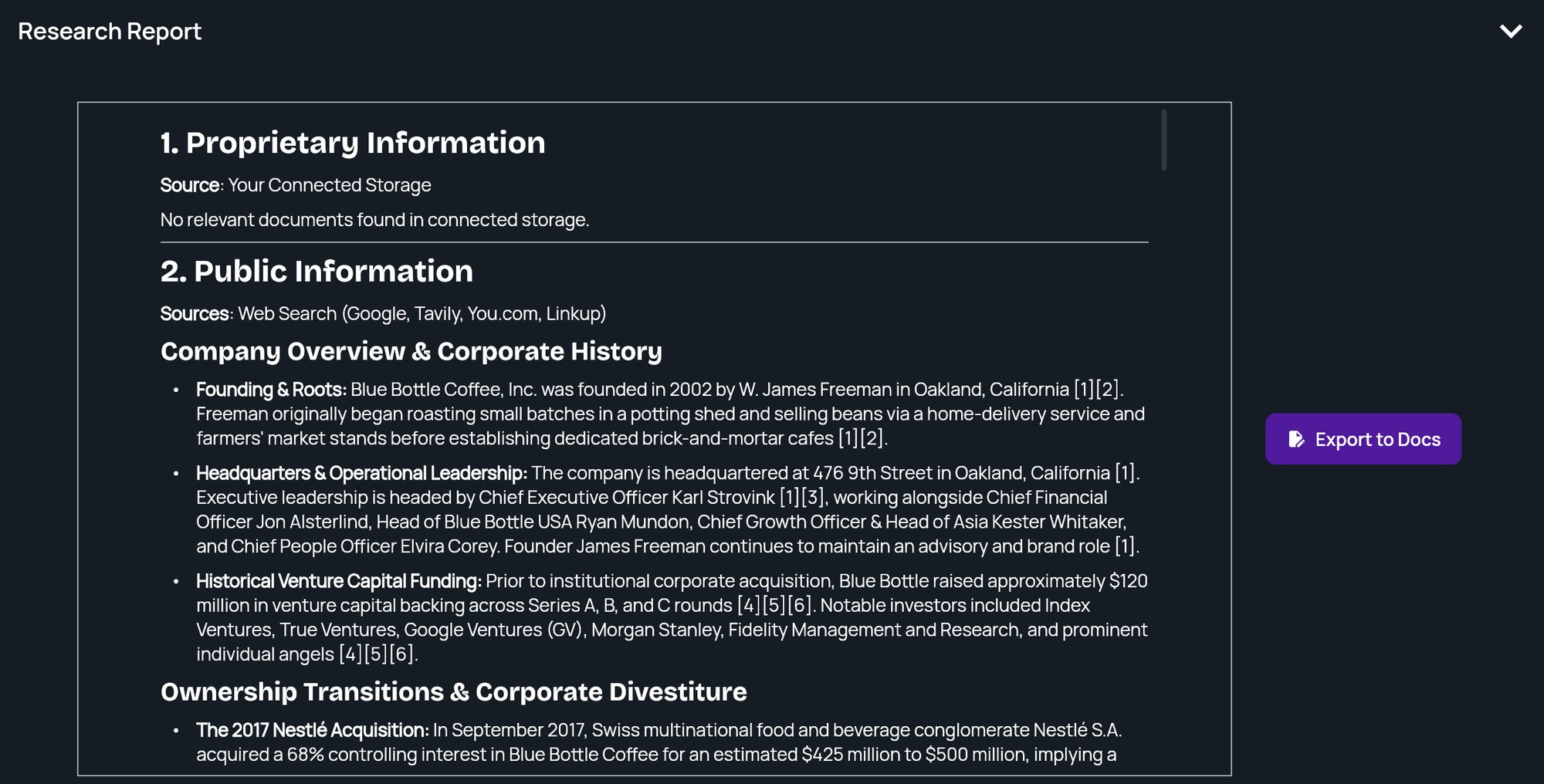
When it’s ready, Business Context collapses and the report appears under Research Report. You can select and copy its text.
Save your inputs without generating
Once Project Name has text, a Save button appears next to New Project. Click it to save the form as a draft. You’ll see Inputs saved successfully! If you come back to Conduct Research without opening another project in between, the fields are still filled in.Export the report
Click Export to Docs beside the report. StratEngine saves a copy to your connected export destination, inStratEngine/Strategy Briefs/, inside your export folder if you chose one (see What gets exported where), and opens it in a new tab. Exporting also needs Project Name and Company Name. After the first export, a View Doc button opens that copy again.
If you haven’t connected an export destination yet, StratEngine asks you to connect one first. See Connect cloud storage and Export a document, print, or save as PDF.
Find a report later
Research reports are saved with your other work. To reopen one:- Open File Manager.
- Set the type filter to Research.
- Click the report.