

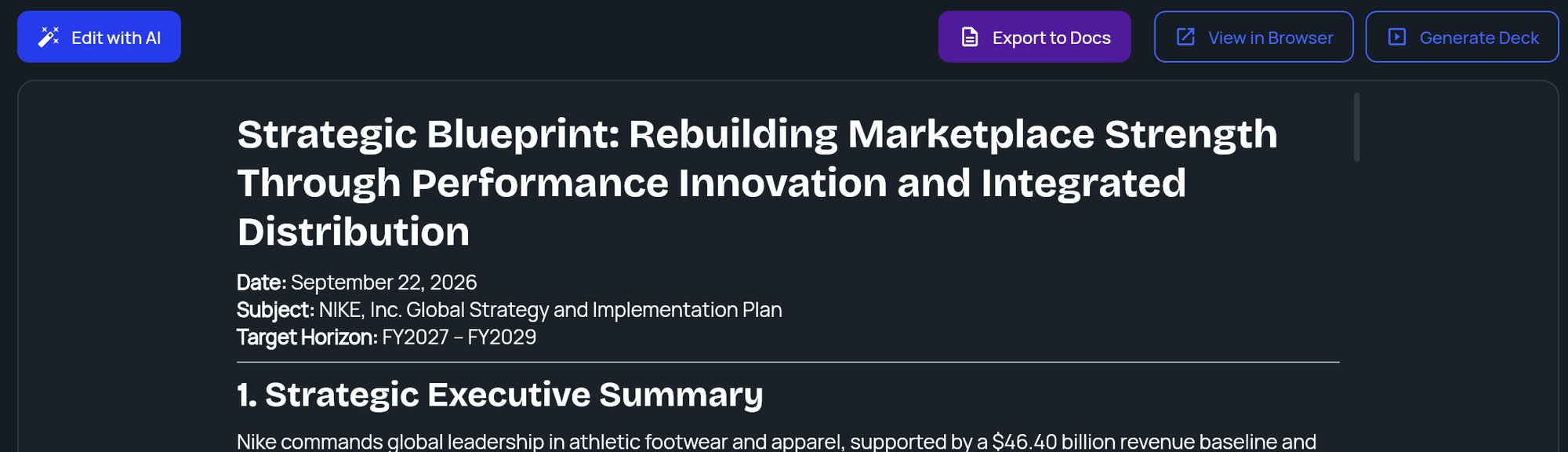
The toolbar
If the deck no longer matches the brief, for example after an AI edit, an Outdated badge appears next to the deck links. StratEngine never regenerates a deck by itself. See Outdated decks and Generate a deck.
Edit with AI
1
Open the AI Editor
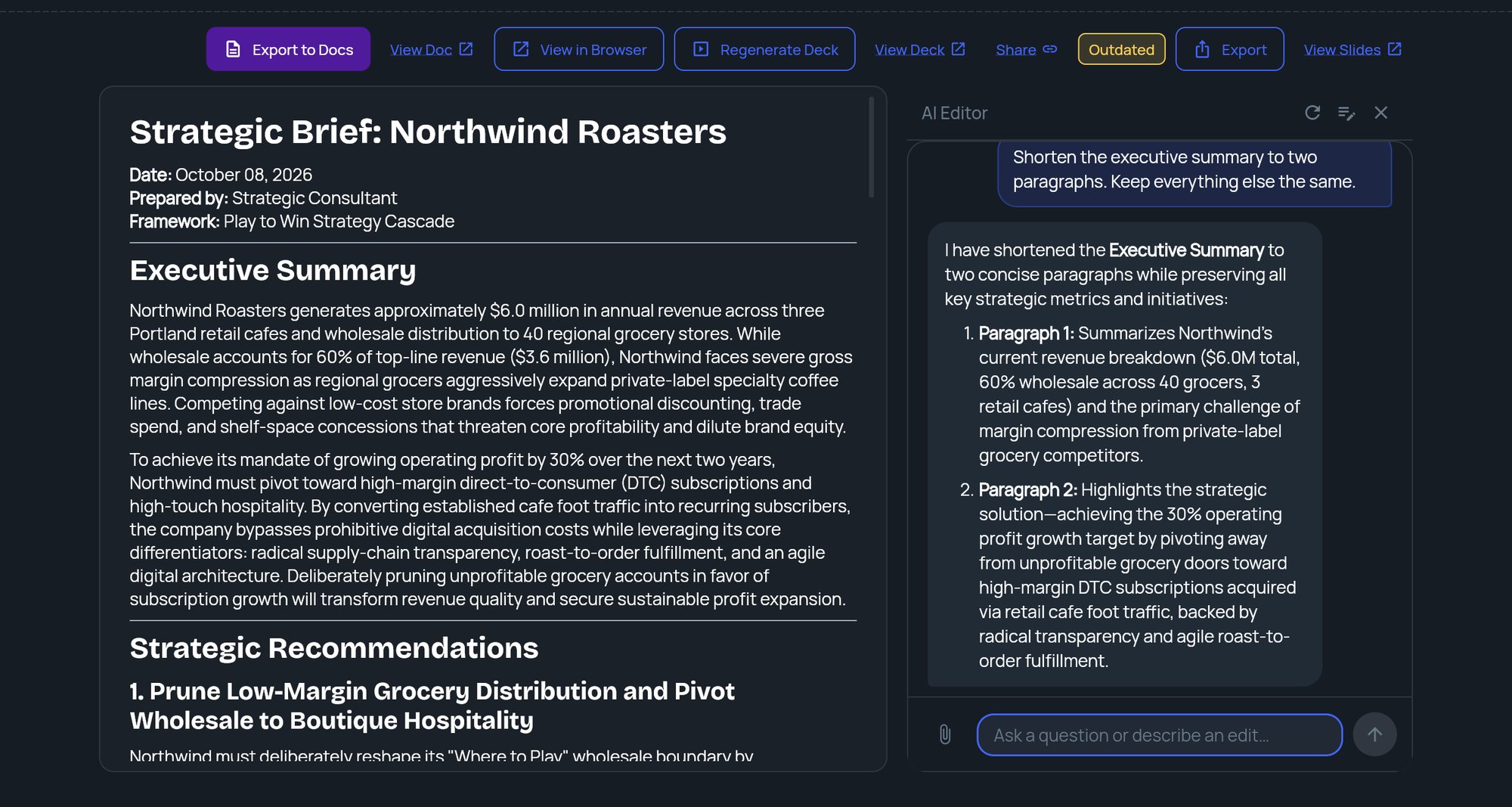
Click Edit with AI. The AI Editor panel slides in on the right. Its first message suggests what you can ask for: expanding or shortening sections, adding data or examples, changing the tone or style, or giving more context for re-analysis.
2
Ask for a change
Type in the box (Ask a question or describe an edit…) and press Enter or click send. Be specific about which section and what you want, for example “Shorten the executive summary to one paragraph” or “Add pricing examples to the recommendations.”
3
Check the result
For most requests, the editor replies in the chat and the brief on the left updates in place.
Edits that rerun the analysis
Some requests need more than a rewrite, for example when you give new facts about the company or ask for a different strategic direction. The editor then replies I’ve started the analysis… and a progress indicator shows while StratEngine reruns the analysis. When it finishes, the brief refreshes with the new version. If it fails, an error explains what went wrong.Attach files
Click the paperclip to attach files that give the editor more context, such as a market report or meeting notes.- Up to 5 files per message.
- PDF, Word (DOCX), PowerPoint (PPTX), Excel (XLSX), Markdown or text files.
- Up to 50 MB each, and no more than 300,000 characters of text per file. Files over either limit aren’t attached, and the editor tells you why.
Saved-company notes
If the brief started from a saved company, the editor can remember what you tell it about the company for future analyses. When it does, a small note appears in the chat, such as Saved to your company context, Updated in your company context or Removed from your company context. You can review and edit these notes on the Saved Companies screen.Editor controls
The icons at the top of the AI Editor:- Clear conversation: starts a fresh conversation. The editor forgets the earlier messages, and they don’t come back when you reopen the brief.
- Edit manually: opens the framework behind the brief so you can edit its fields directly. See Work with framework results.
- Close: hides the editor. Your conversation is kept for next time you open it.
Export to Docs
Export to Docs saves the brief to the export destination you’ve connected:- Google Drive: a Google Doc.
- Dropbox, Box or OneDrive: a Word (DOCX) file.
StratEngine/Strategy Briefs/ folder, inside your export folder if you chose one, and the exported document opens in a new tab. If you haven’t connected an export destination yet, StratEngine asks you to connect one first. See Connect cloud storage and Export a document, print, or save as PDF.