

File Manager shows only your own work. Strategy briefs, frameworks, proposals, research reports and decks are private to the person who made them, even inside a shared workspace.
Open File Manager
Click File Manager in the side menu. The page is titled My Files. If you haven’t made anything yet, it says No projects yet and offers Start a strategy.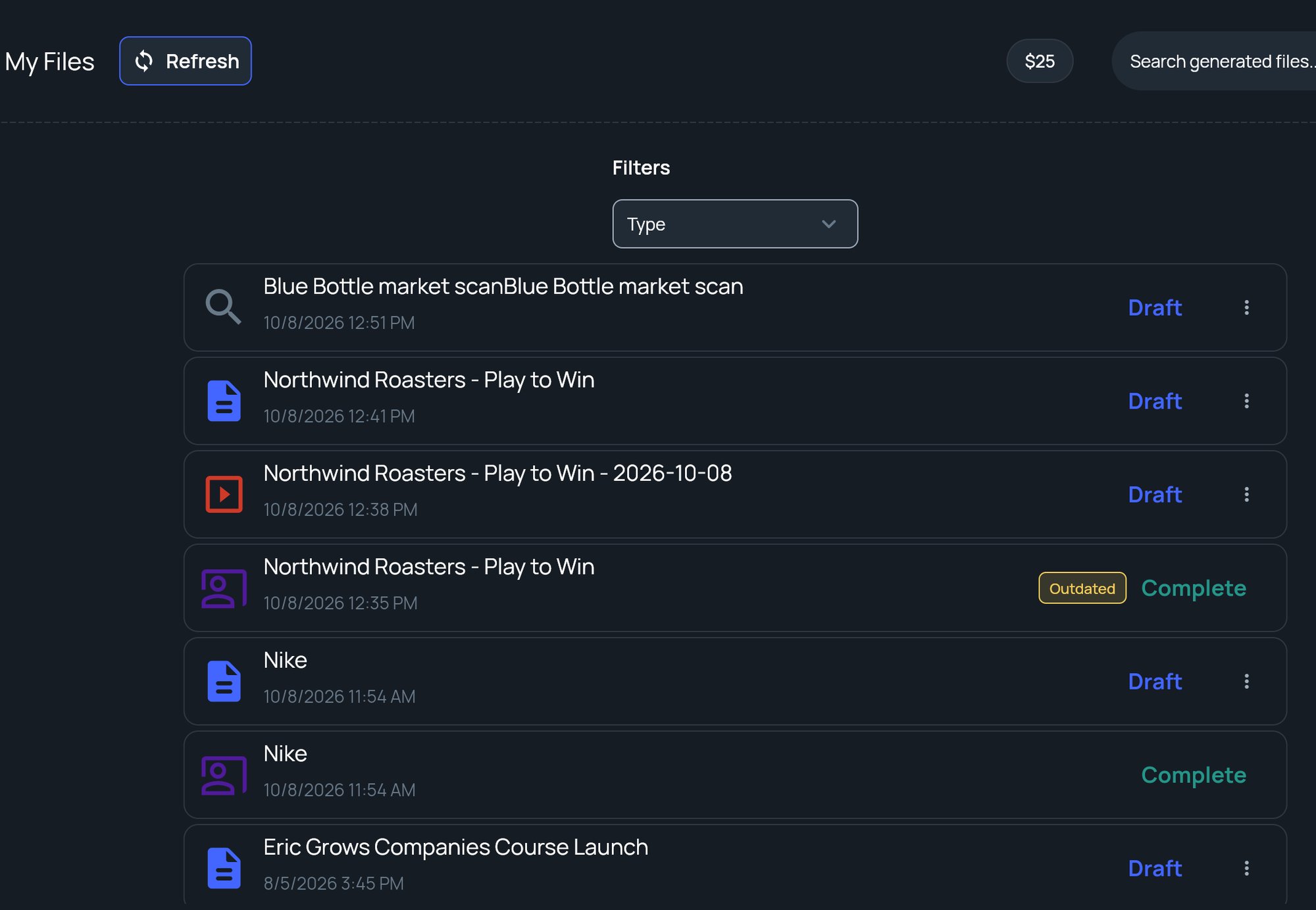
Find a file
- Filter by type: under Filters, open the Type list and tick one or more types: Frameworks, Presentations, Decks, Strategy Briefs, Proposals or Research. Choose All Types to show everything again.
- Search: use Search generated files… at the top of any page to find a file by name. See Finding your way around.
- Refresh: click Refresh to reload the list, for example after a long analysis finishes in another tab.
What each type opens
A deck is listed as its own row next to the brief it was built from. If the brief has changed since the deck was built, the deck row shows an Outdated badge. See Outdated decks.
Statuses
Every file has a status you can use to keep track of your work.
To change it, click ⋮ on the row, choose Update Status, pick a status and click Update.
Rename a file
1
Open the menu
Click ⋮ on the row and choose Rename.
2
Enter the new name
Type it in Name and click Rename.
Duplicate a file
Click ⋮ on the row and choose Duplicate. The copy appears in the list as “name - Copy” (or just “Copy” if the original had no name) with the status Draft. The copy includes the brief or research text, the framework results and the inputs you entered, so you can open it and keep working. It doesn’t include the deck or its share links. Generate a new deck from the copy if you need one. Duplicating a presentation also makes a copy of the Google Slides file.Delete a file
1
Open the menu
Click ⋮ on the row and choose Delete.
2
Confirm
StratEngine asks Are you sure? Click Delete to confirm.