

The Share link appears in the toolbar once the brief has a deck. If you don’t see it, generate a deck first.
Create a link
1
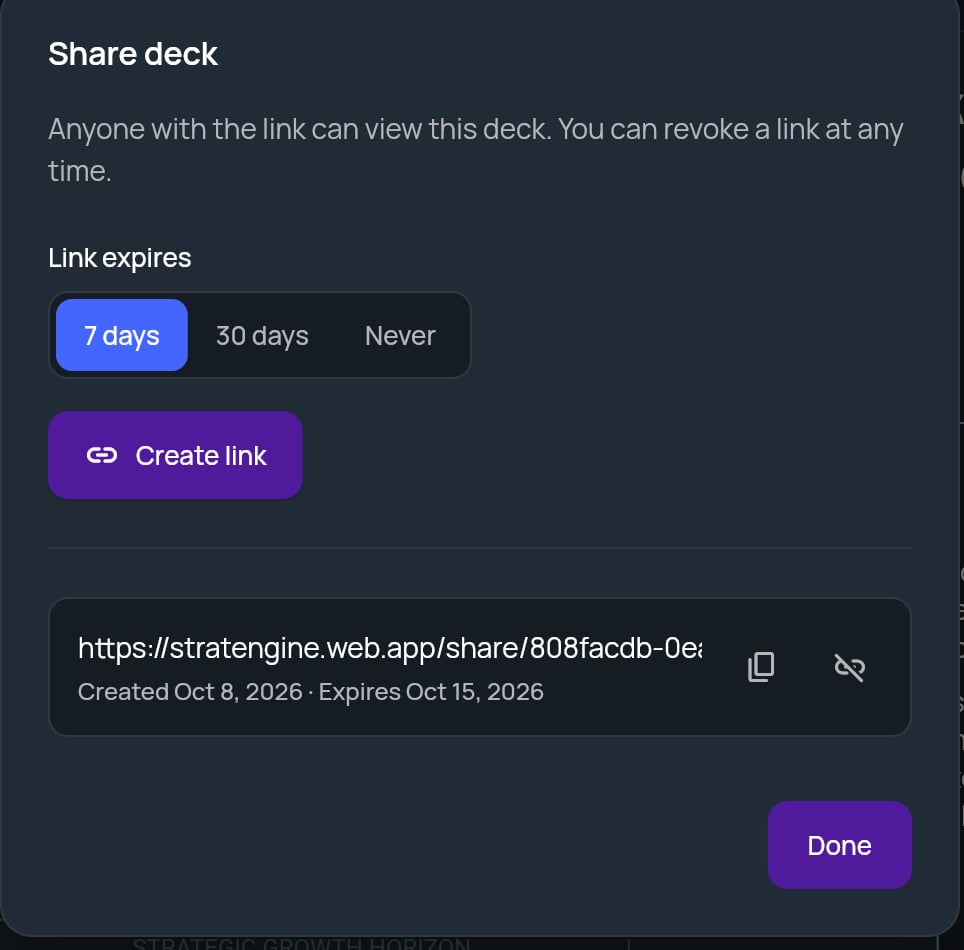
Open Share
Open the strategy brief and click Share in the toolbar. The Share deck window opens.
2
Choose when the link expires
Under Link expires, pick 7 days, 30 days or Never. Never is selected when the window opens.
3
Click Create link
The new link appears in the list and is copied to your clipboard. Paste it into an email or message.
4
Click Done
Click Done to close the window.
What viewers see
The link opens the deck in a browser tab, ready to read. Viewers can’t edit it and can’t see anything else in your StratEngine account. A link always shows the current deck for that brief. If you regenerate the deck, people with the link see the new version without needing a new link. If a link no longer works, the viewer sees a message instead of the deck:Manage existing links
Open Share again to see every active link for the deck. Each row shows the link, when it was created, and when it expires (or Never expires). Expired and revoked links aren’t listed.
Deleting the strategy brief also deletes its deck and stops all of its links.