

Only a workspace admin can start, change or cancel a subscription, because the plan covers the whole workspace. If you’d rather pay per analysis than subscribe, see Pay-as-you-go.
Compare plans
The four Free frameworks are SWOT, Marketing 4Ps, 3C’s and Business Model Canvas. Essential adds 9 more, and Professional adds the remaining 16. The framework library lists every framework and the plan it needs.
The Momentum and Assumptions tabs follow the depth an analysis ran at. Standard produces momentum, and Deep produces momentum and assumptions. On a subscription, a framework you generate runs at the deepest depth your plan includes. See Work with framework results.
What each paid plan lists
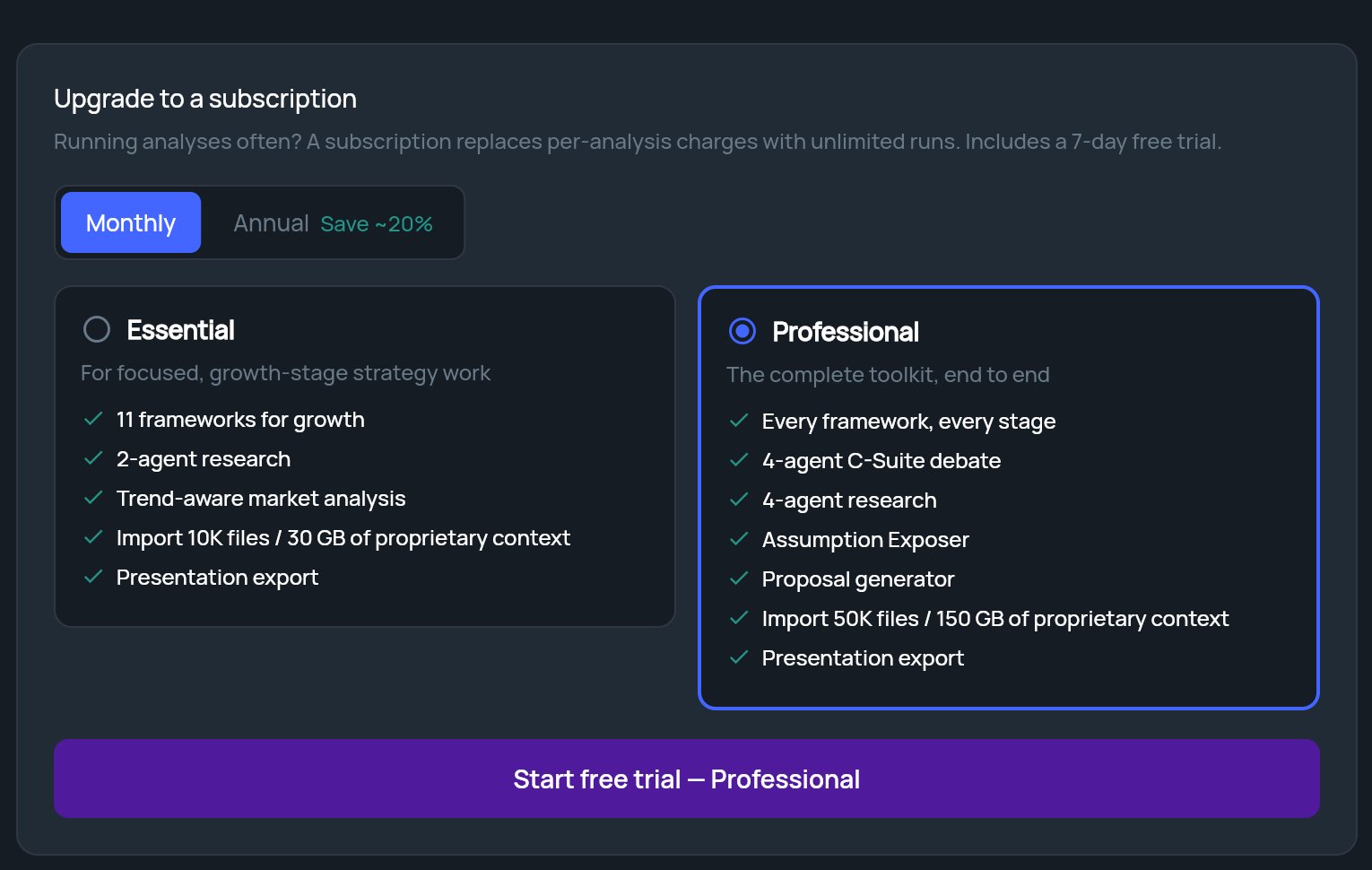
When you choose a plan in Settings, each option describes itself this way:
In the app, “Trend-aware market analysis” is the Momentum tab, “Assumption Exposer” is the Assumptions tab, the “C-Suite debate” is part of a Deep analysis, and “Proposal generator” is the Proposal Builder. The import limits are the private document limits in the table above.
The 7-day free trial
Upgrading from inside StratEngine starts a 7-day free trial of the plan you pick. The buttons that start one say Start free trial. Checkout opens in a new browser tab, where you enter your payment details. When you come back, StratEngine picks up your new plan.Upgrade from pay-as-you-go
1
Open Settings
Click Settings in the side menu and scroll to Billing & Account Management. Pay-as-you-go accounts see an Upgrade to a subscription card.
2
Choose monthly or annual billing
Click Monthly or Annual. Annual shows Save ~20%.
3
Choose a plan
Click Essential or Professional. Professional is selected to start with.
4
Start the trial
Click the Start free trial button. It names the plan you picked. Checkout opens in a new tab.
Upgrade from the StratEngine website
When you pick a Strategy plan on stratengineai.com, you sign in to the app first, and checkout then opens for your own workspace. New accounts see Setting up your account… before checkout opens. If you’ve already finished onboarding, checkout opens when Home loads.- If your workspace already has a paid plan, your billing portal opens instead, so you can change the plan there.
- If you aren’t an admin, you’ll see Ask your admin to upgrade.
Upgrade from Free or Essential
There are several ways in, depending on where you are:- Settings: under Billing & Account Management, admins click Manage Account. Your billing portal opens in a new tab, where you can change your plan.
- A locked framework: on Generate a framework, frameworks outside your plan show Upgrade instead of Select. Clicking it opens your billing portal. If you aren’t an admin, you’ll see Only an admin can manage billing.
- A locked tab: on a framework’s results, click the locked Momentum or Assumptions tab, or the Start free trial link next to Momentum Analysis requires Essential tier (or Assumptions requires Professional tier). This opens checkout for that plan with a free trial. Non-admins see Admin Access Required instead.
- A locked depth: in Strategy Builder or the strategy brief form, click a locked depth and then View plans. On Free this offers checkout for the plan that includes the depth; on Essential, admins go to the billing portal and members see Ask your admin to upgrade. See Analysis depth.