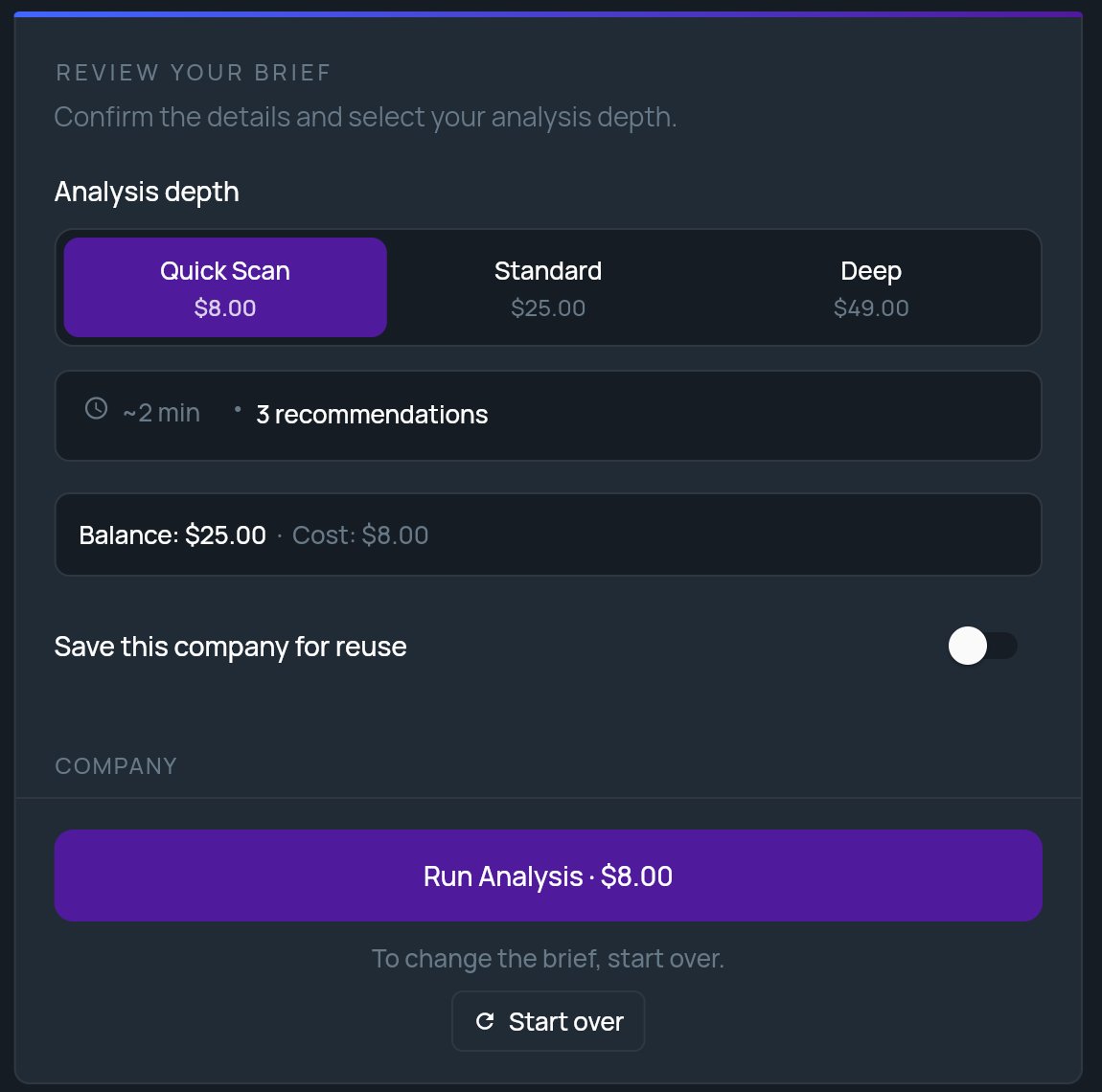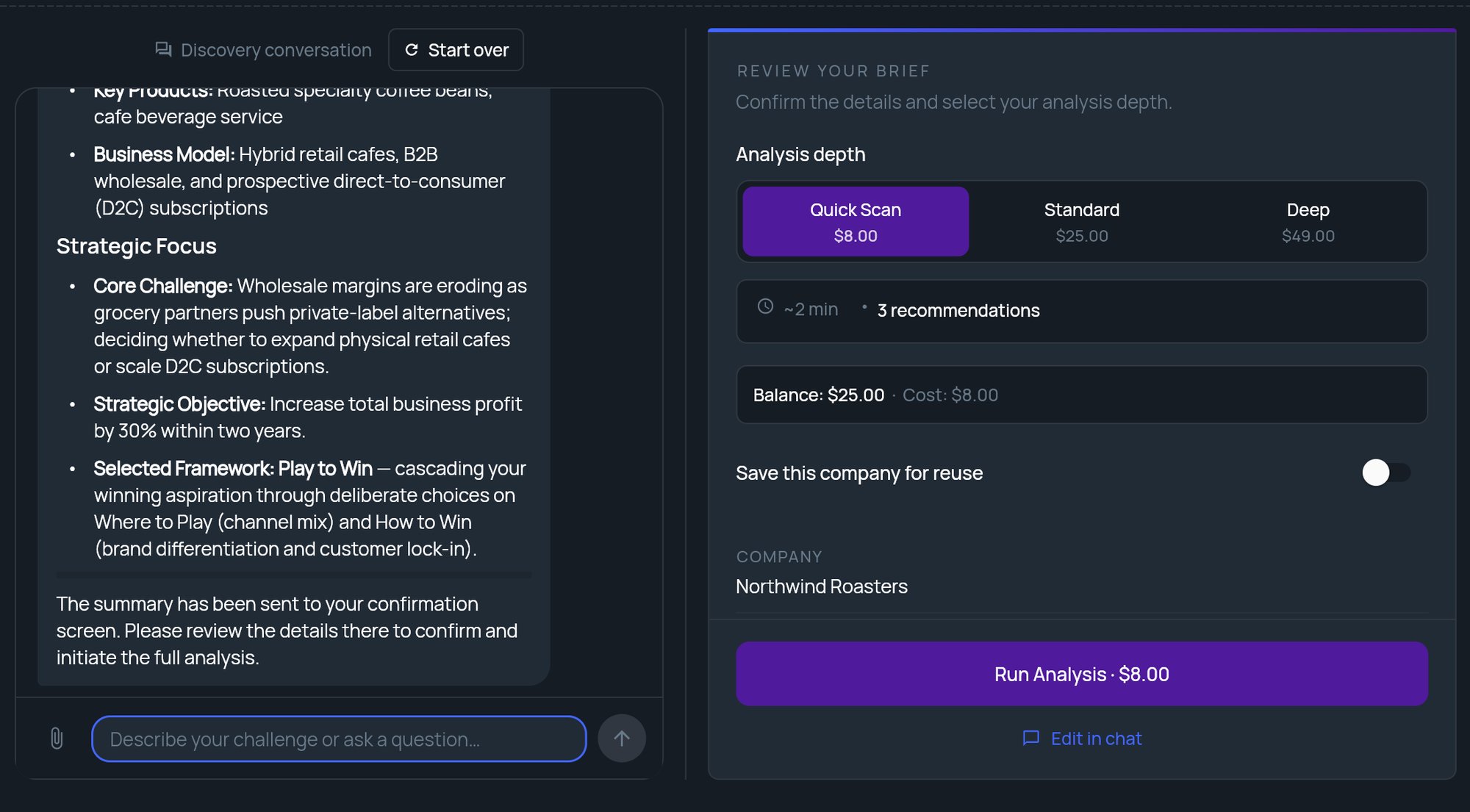
What’s in the panel
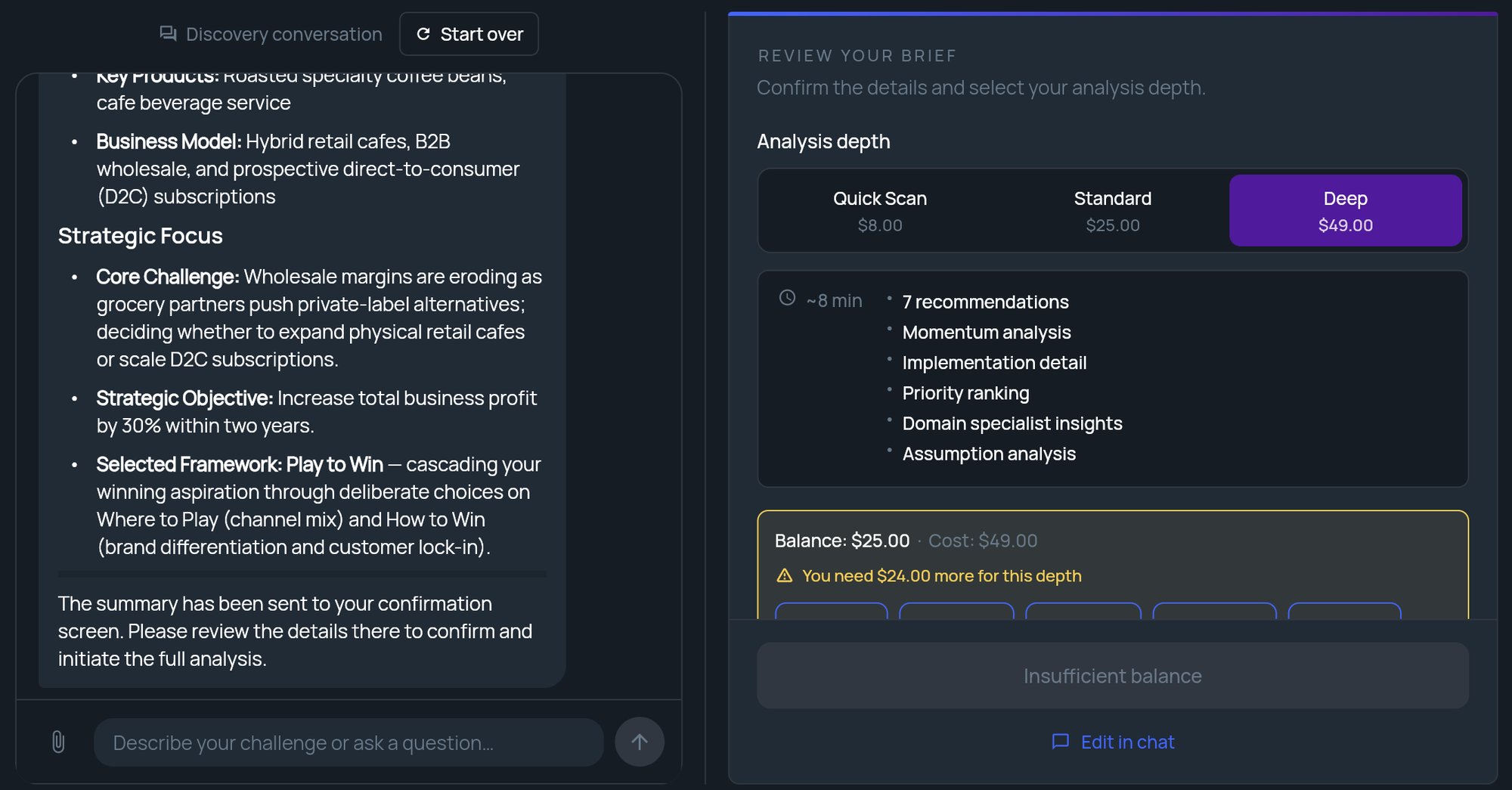
The panel opens with Confirm the details and select your analysis depth. From top to bottom it shows:- Analysis depth: three options, Quick Scan, Standard and Deep, with a card listing the time and what the selected depth includes.
- Your balance (pay-as-you-go accounts only). See Pay-as-you-go balance.
- Save this company for reuse: a switch, off by default.
- The brief itself: every detail the analysis will receive, one field per row.
Change something in the brief
The panel isn’t edited directly. To change a field, type the correction in the conversation, for example “The target customer is mid-size clinics, not hospitals.” Click Edit in chat under the button to put your cursor in the chat box. On a narrow window, where the panel fills the screen, Edit in chat switches to the conversation, and Back to brief switches back. When you send a message, the panel closes while the strategist updates the brief. When it has made the change, the panel opens again with the updated brief. Your depth choice is kept.Pick an analysis depth
Click Quick Scan, Standard or Deep. The card below updates with the time and contents of that depth.- On a subscription plan, the deepest depth your plan includes is selected to start with.
- On pay-as-you-go, Quick Scan is selected to start with, and each option shows its price for this run.
- A depth your plan doesn’t include shows a lock. Clicking it explains what that depth adds and offers View plans. See Locked depths.
Save the company for reuse
Turn on Save this company for reuse to add this company to Saved companies, so future analyses can start from it. A SAVED AS field appears, filled in with the company name. Change it if you want a different name in the list. Only lasting company details are saved, such as the name, summary, industry and business model. Details that belong to this one analysis, such as the project name, business problem and strategic goals, are not. If you started from a saved company, the switch reads Update saved company instead. Turning it on updates that company with the details from this brief. There’s no name field, since the company already has one. To rename it, use Saved Companies. If saving fails, StratEngine tells you it Couldn’t save the company for reuse and runs the analysis anyway.Pay-as-you-go balance
On a pay-as-you-go account, the panel shows your balance under the depth options:- While it loads, you see Loading balance….
- If you have free analyses left, you see how many, for example 1 free analysis remaining.
- Otherwise you see your Balance and the Cost of the selected depth on one line.
- If your balance doesn’t cover the selected depth, the panel shows how much more you need for this depth and offers top-up amounts. Pick one, or pick a cheaper depth.
Run the analysis
Click the button at the bottom of the panel. Its label tells you what will happen:While it runs
A progress ring shows the percentage complete and the current stage (Running analysis… until the first stage reports in). Underneath, StratEngine says We’ll take you to your brief as soon as it’s ready. A summary card shows your challenge and the depth you picked, for example Depth: Standard. Some stages take longer than others. If progress pauses, a short reassurance line appears so you know it’s still working. When the analysis finishes, your strategy brief opens in the document viewer. It’s also saved in File Manager. See Strategy briefs and Edit with AI.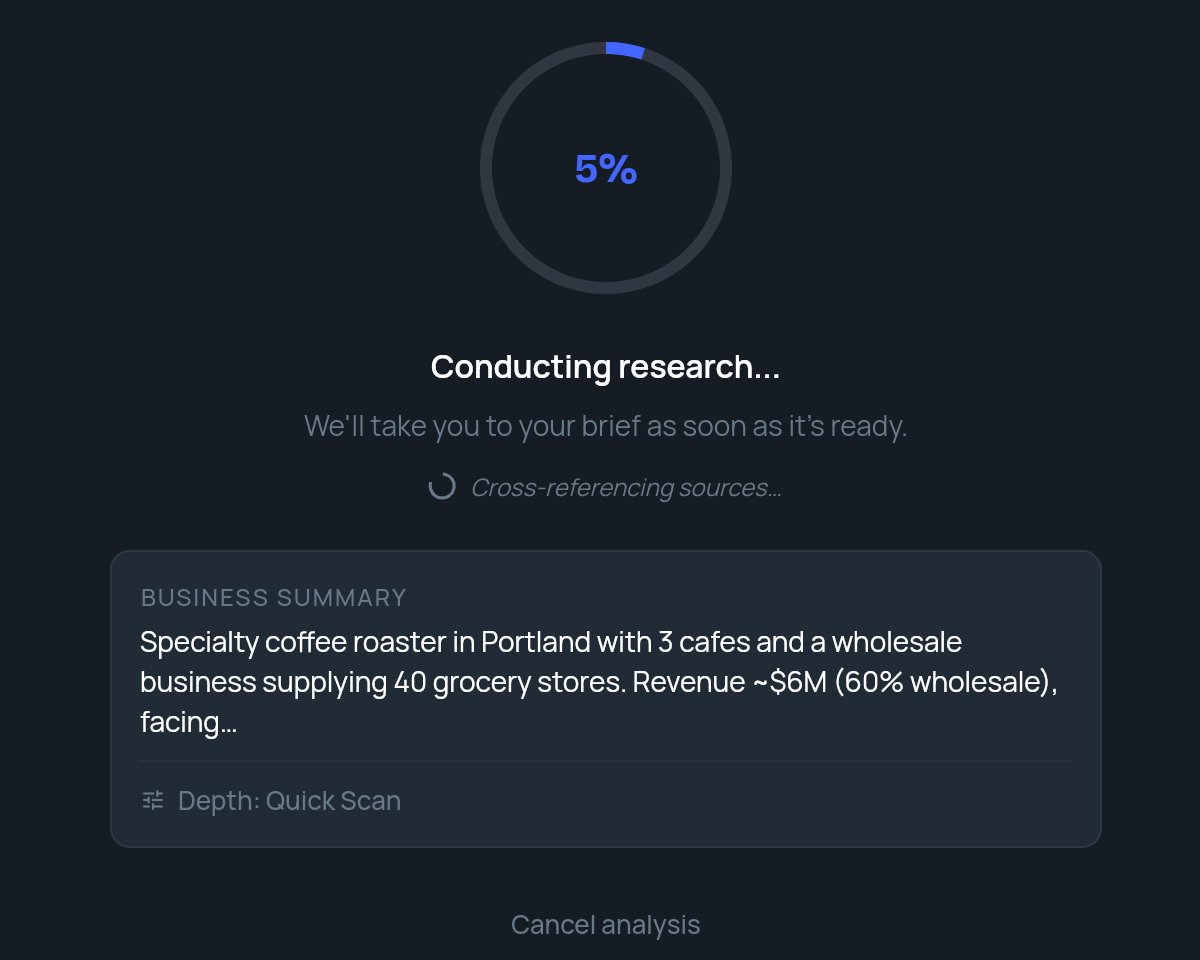
Cancel
Click Cancel analysis to stop the run. StratEngine stops the analysis on its servers and takes you back to the REVIEW YOUR BRIEF panel with your brief and depth choice intact, so you can click Run Analysis again. After a cancel, the conversation can’t change the brief. Edit in chat is replaced by To change the brief, start over. with a Start over link, which begins a new conversation.