

Decks are private to you, like the brief they come from. To show one to someone else, share it with a link or export it. Research reports don’t have a deck option.
Build the deck
1
Open the strategy brief
Open the brief from File Manager, or stay on it after an analysis finishes.
2
Click Generate Deck
Click Generate Deck in the toolbar at the top right.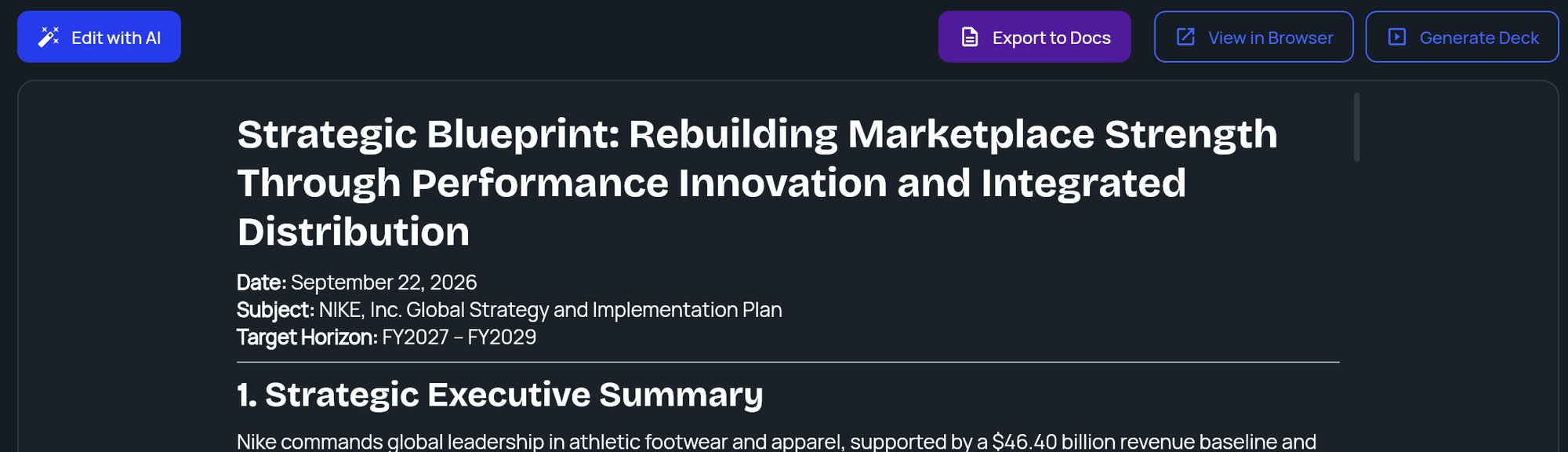
3
Choose branding
If you have at least one brand kit, the Deck branding window opens: Choose the palette this deck is rendered with. Pick a kit, or No branding (StratEngine theme), and click Generate. Click Cancel to stop without building anything.If you have no brand kits, this step is skipped and the deck uses the StratEngine theme.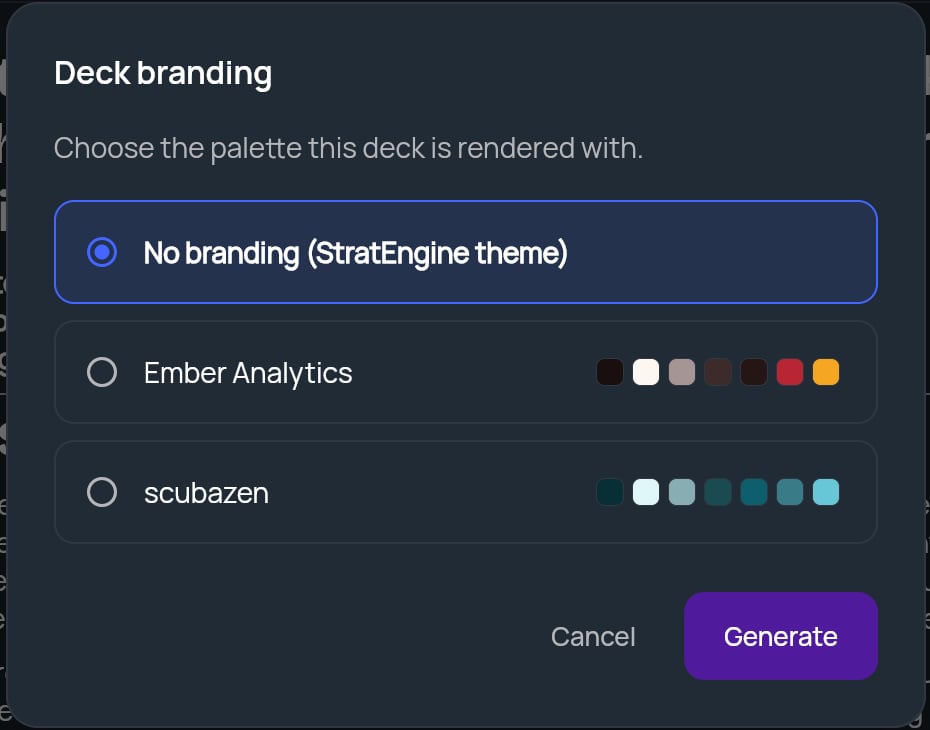
4
Wait for the deck
The button changes to Building… and a progress bar under the toolbar shows the current stage (for example Building your presentation…) with a percentage. You can keep reading the brief while it works.
5
View the deck
When the deck is ready, it opens in a new browser tab. If nothing opens, your browser blocked the tab: allow pop-ups for StratEngine and click View Deck.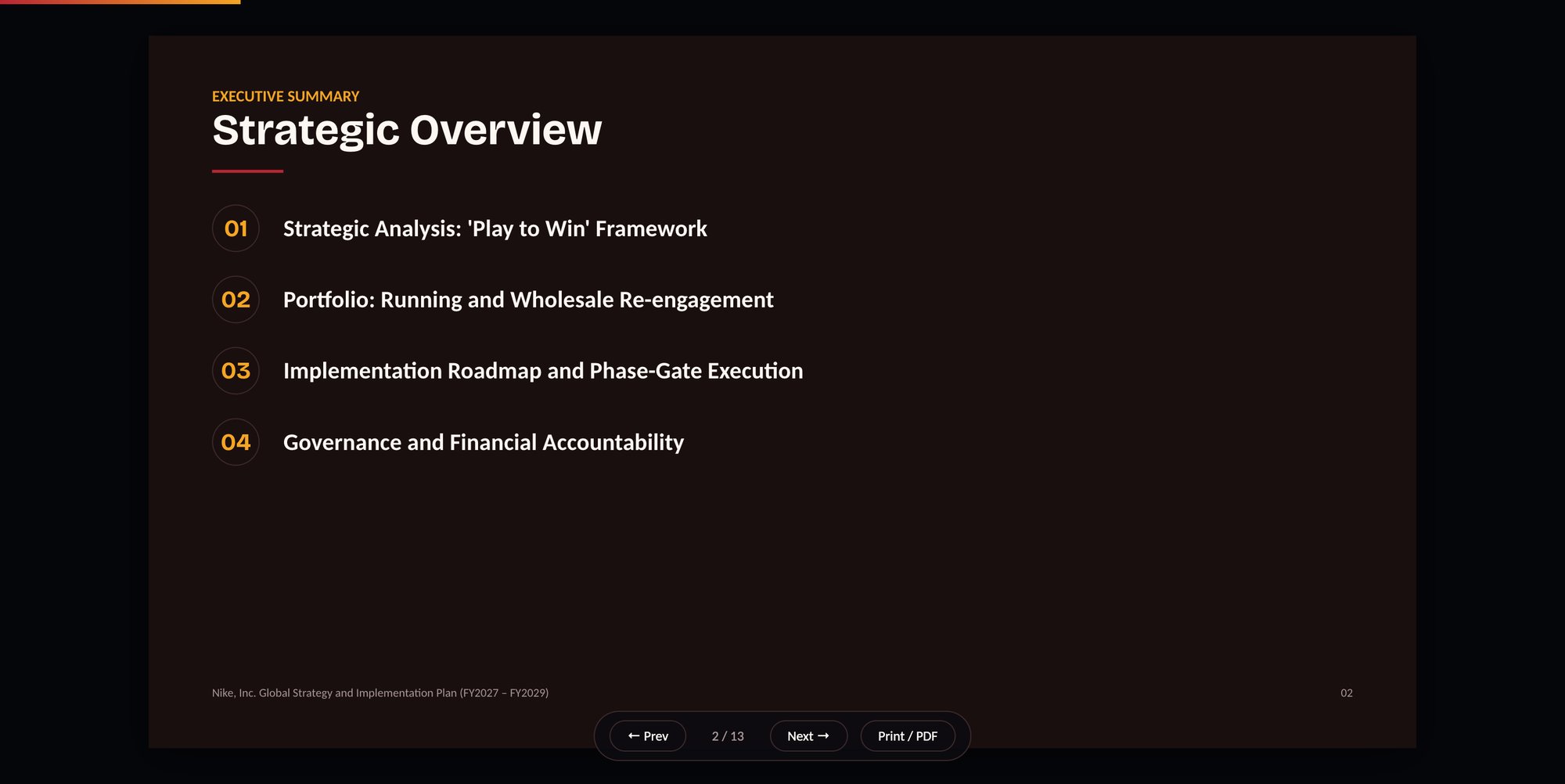

After the deck is built
Once a brief has a deck, the toolbar changes:
The deck also appears in File Manager as its own row, so you can open it without opening the brief first. See File Manager.
What the deck uses
- Content: the brief’s current text, including any changes you made with Edit with AI. To change what the deck says, edit the brief first, then regenerate.
- Colors: the brand kit you picked, or the StratEngine theme.
- Fonts: fixed for every deck (Carlito for body text and Bricolage Grotesque for headings). Brand kits change colors, not fonts.
If something goes wrong
See Troubleshooting for more.