

This page covers strategy accounts. Investor accounts have different steps. See VC onboarding.
The steps
The header shows where you are (for example Step 2 of 3) and a Sign out link. From the second step on, a Back link returns you to the previous step.
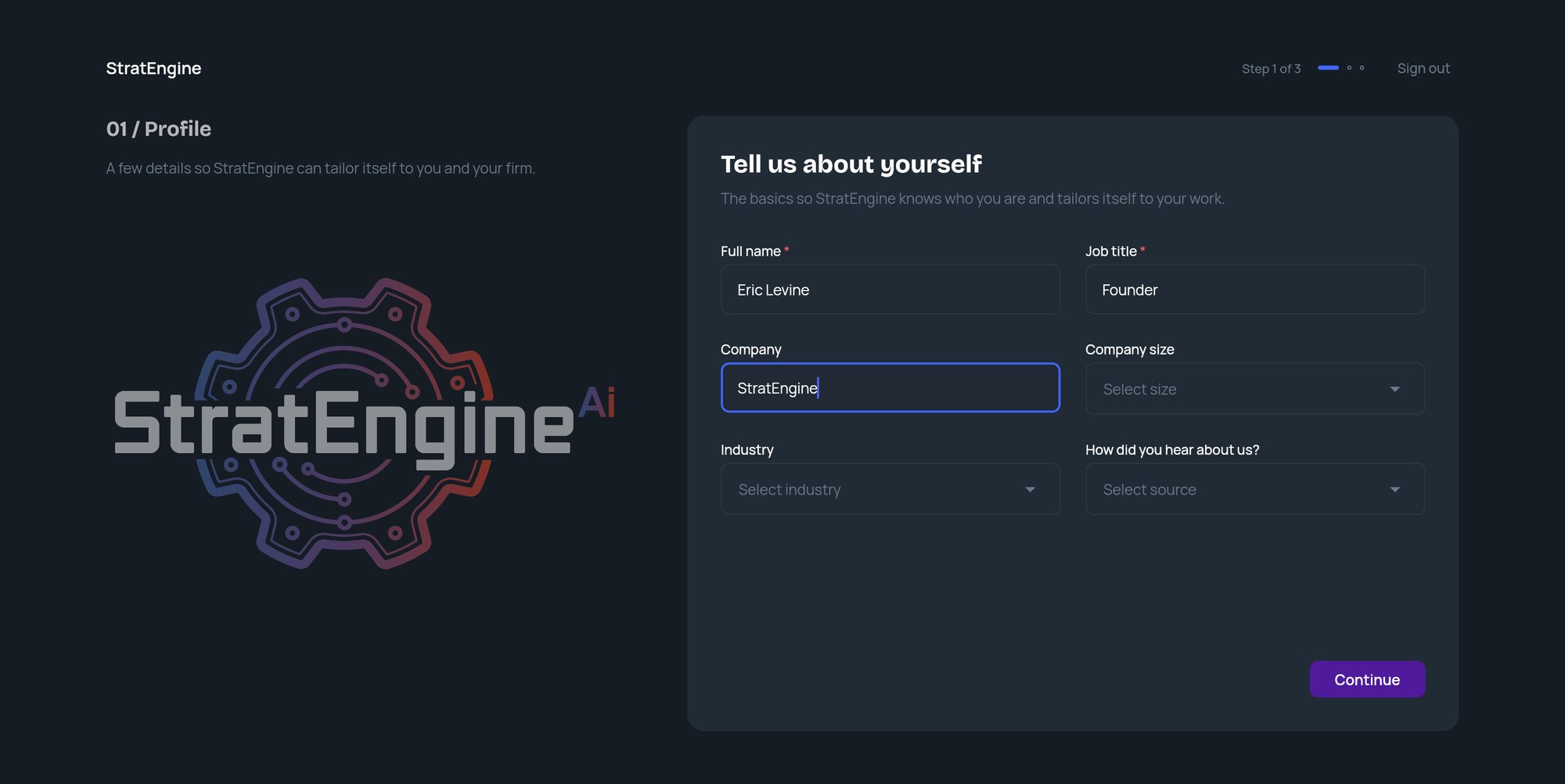
Welcome
A fresh account starts on See how StratEngine works, a one-minute walkthrough video. Watching is optional. Click Let’s get set up to start the steps. If you skip the video, you can watch it later from Home with Watch the 1-minute walkthrough (shown until you create your first project).Profile
The heading reads Tell us about yourself. Fill in:- Full name (required)
- Job title (required)
- Company
- Company size: 1, 2-10, 11-50, 51-200, 201-1000 or 1000+
- Industry: pick from the list, or choose Other and type your industry
- How did you hear about us?: pick an option, or choose Other and type your answer
Your company
The heading reads Save your company once. Type the Company name (it’s prefilled from your Profile if you entered one) and click Continue. StratEngine creates a saved company with that name and your industry. Each new analysis can then start from it, so you don’t retype the basics. To skip, click Skip for now. Clicking Continue with the name left blank also counts as skipping. You can add more saved companies, and fill in the rest of their details, later from Saved Companies in the side menu.Private documents
The heading reads Add private documents. Add plans, board decks, customer research or anything else that isn’t public. StratEngine searches these alongside public sources in every analysis.1
Add files
Drag files onto Drop files here, or choose files, or click it to browse. Accepted: PDF, Word, PowerPoint, Excel, Markdown or text, up to 50 MB each.
2
Wait for the upload
Each file shows its progress. While files upload, the button reads Uploading… and you can’t continue yet. Once the upload finishes, indexing carries on in the background, so you don’t need to wait for files to show Ready.
3
Continue
Click Continue. If you haven’t added anything, click Skip for now instead.
Private documents are visible to everyone in your workspace. You can add more later, or sync a cloud folder, from Settings. See Private documents.
Finishing
After the last step you see You’re set. If you saved a company, the card names it. Otherwise it reads Your workspace is ready. Click Build your first strategy to go straight to Strategy Builder. The Quickstart picks up from there. If StratEngine can’t save your progress at the end, it asks you to click Continue to retry. If that keeps failing, email help@stratengineai.com.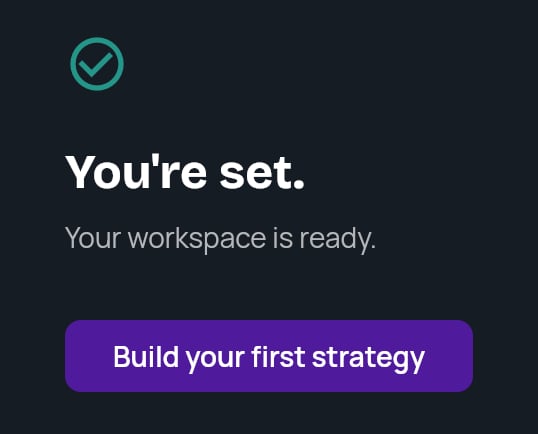
Leaving and coming back
StratEngine saves your progress each time you finish or skip a step. If you close the tab or click Sign out, you return to the step you were on the next time you sign in. Anything you skipped stays recorded as skipped.If you chose a paid plan on the StratEngine website before signing in, onboarding first shows Setting up your account… and then sends you to checkout for your workspace. The steps start after that. See Upgrade from the StratEngine website.
Finish skipped steps from Home
Steps you skipped appear as reminder rows on Home. Each row has a link that takes you to the right place, and the row disappears once the task is done anywhere in the app.
On a brand-new Home, the reminders sit above Let’s start with your first strategy. Once you’ve created something, they move below your recent work.