

Side menu
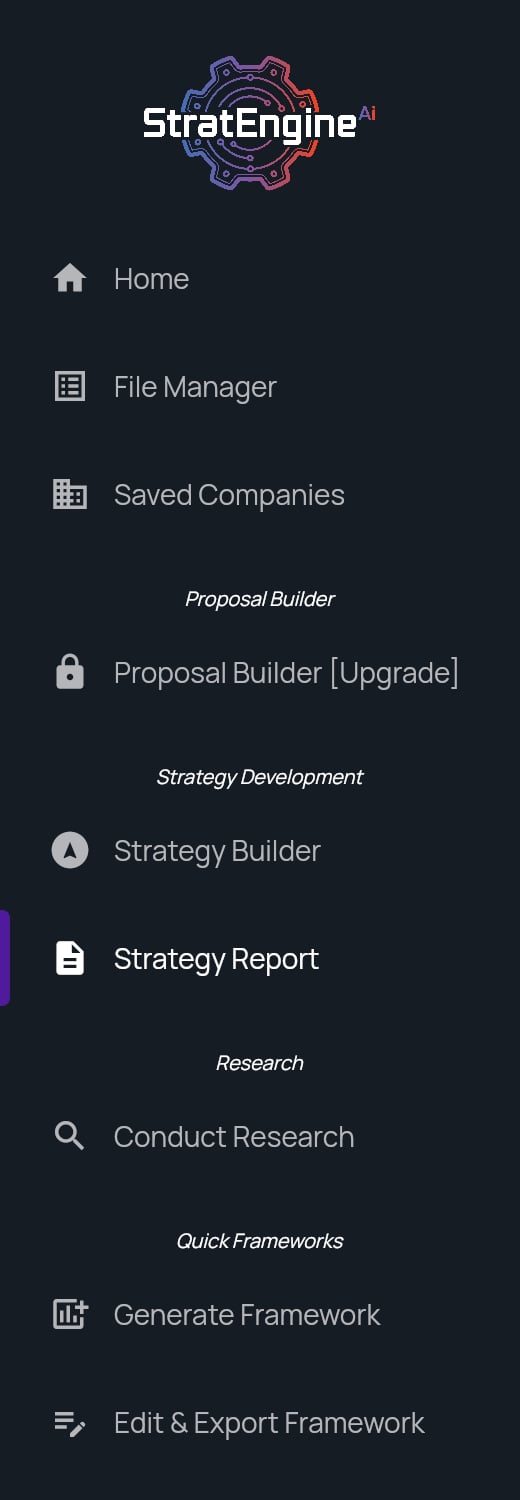
The app’s version number is shown at the bottom of the menu. Include it when you report a problem.
Proposal Builder needs the Professional plan. On other plans, including pay-as-you-go, the menu shows Proposal Builder [Upgrade] with a lock, and clicking it shows an upgrade window instead. See Strategy plans and pricing.
Home
Home greets you differently depending on what you’ve done so far.
Click any recent item to reopen it. Each shows its type (Framework, Proposal, Research, Strategy brief or Presentation), the company, and when it was last touched.
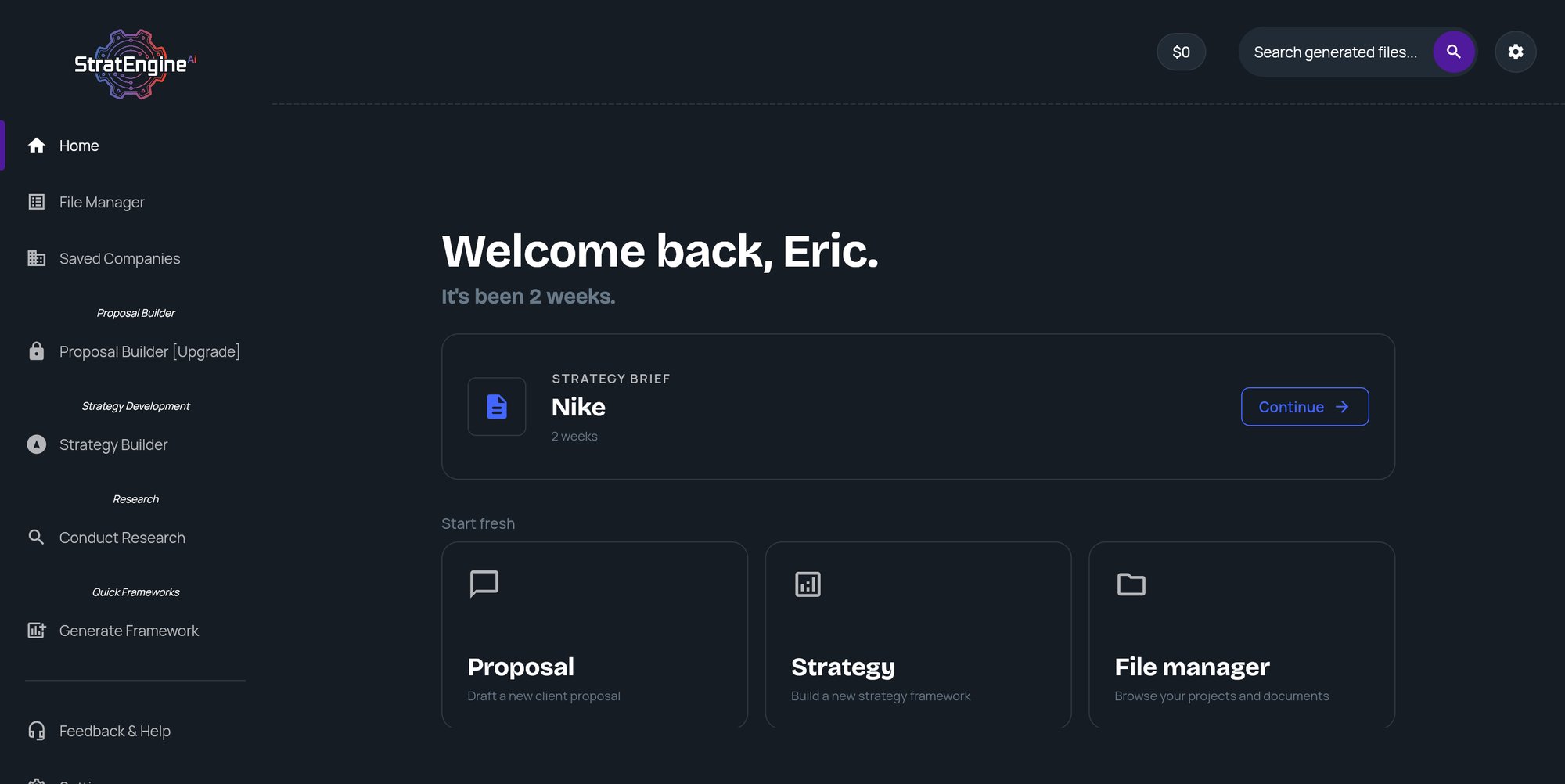
Shortcut tiles
Setup reminders
If you skipped steps during onboarding, Home lists them as reminder rows with a link such as Save → or Add →. A row disappears once that task is done. See Finish skipped steps from Home.Header
The header at the top right of most screens holds search, a shortcut to Settings and, on pay-as-you-go accounts, your balance.Search your generated files
Click Search generated files… (or the magnifying glass next to it) to open Search. Type a search term. Results appear after you pause typing. Click a result to open it. If a result was deleted after it was indexed, or its slides failed to generate, StratEngine tells you it’s unavailable instead of opening it.Pay-as-you-go balance chip
This chip appears only on pay-as-you-go accounts.
Settings shortcut
The gear icon opens Settings, the same as the side menu item.Settings
Settings is one page with these sections, top to bottom:Feedback & Help
Feedback & Help opens the Help & Feedback page:- Feedback Survey and Email Feedback (freeform) to tell us what’s working and what isn’t.
- Contact Support emails help@stratengineai.com.
- Report a Bug opens a short bug report form.
- Privacy Policy, EULA and Terms of Service.